My hard drive suddenly lost an entire partition today, and I can’t access any of the files that were stored on it. I’m looking for help with lost partition recovery, including the safest steps to take, tools to use, and how to avoid making the data loss worse.
I’ve been through this once, and the worst move was touching the drive too much. Speed felt important at first. It wasn’t. Restraint mattered more. When a partition disappears, the entry is often gone before the files are. What decides the outcome is usually what you do in the next few minutes.
What I’d do first
-
Stop writing anything to the drive.
Do not make a new partition. Do not format the empty space. Do not dump files onto it. Each write raises the odds of stomping on data you still had a shot at saving. -
Look in Disk Management before trying fixes.
I’ve seen drives look “gone” when the partition was still there and only the drive letter had dropped off. In those cases, assigning a letter brought it right back. If Windows shows the area as Unallocated, then yeah, the partition entry was likely removed. -
Pull your files off before repairing anything.
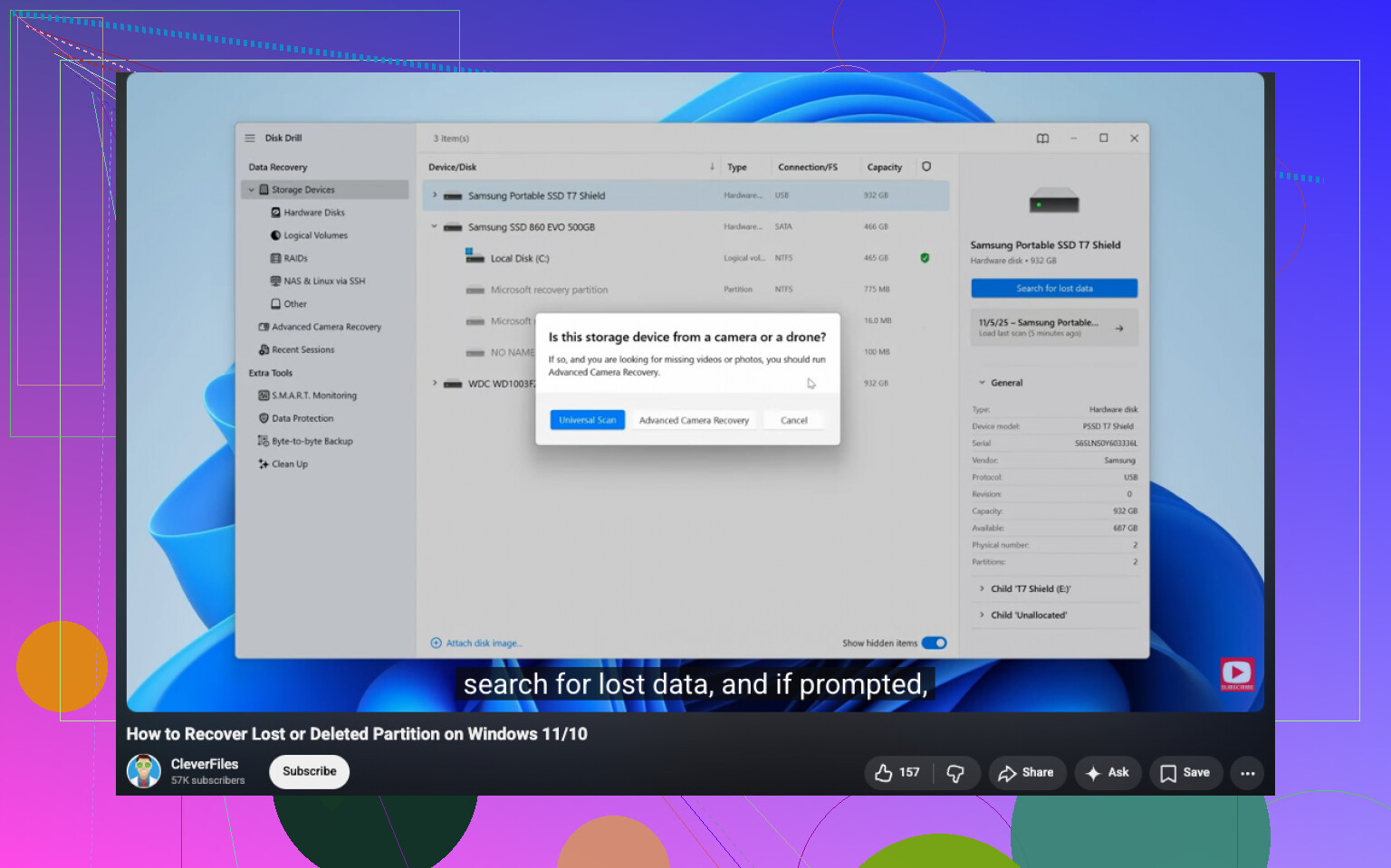
This is the part I would not skip. Even if your main goal is to restore the partition itself, get the important stuff out first. Recovery software is the safer path. I had the cleanest results with Disk Drill. It picked up deleted partitions, kept folders and filenames intact more often than I expected, and the preview helped me avoid wasting time on broken files. If the drive was already acting weird, slow reads, disconnects, odd noises, make a byte-for-byte image first and scan the image instead of poking the original disk. I learned this one a bit late. -
Try partition repair after your data is safe.
If you want the partition back and not only the files, TestDisk is the free tool people keep coming back to for a reason. It can rebuild lost partitions and fix partition tables. It also feels a bit unforgiving if you click through it blindly. A wrong step there can make a messy drive worse, so I’d wait until your important files are already copied somewhere else. -
Recreate the partition last.
If recovery worked for the files but the old partition won’t come back cleanly, then make a new one in Disk Management, do a quick format, and copy the recovered data back over.
Stuff people usually find out too late
If you noticed the deletion right away and stopped, odds are decent. I’ve seen recoveries go well in that exact situation.
If you already made a new partition in the same space, or formatted it, things get uglier fast. The old file system info, names, folder map, all of it starts getting overwritten. You might still recover files, but the results tend to be messier.
SSDs are rougher than hard drives here. TRIM can wipe deleted data sooner. Not every partition deletion triggers it on the spot, but I would not count on getting much time.
My take
I’d treat file recovery as the first job and repair as the second one. Doing it in the other order is where people dig the hole deeper. If your data matters, copy it out first, then mess with rebuilding the partition. That sequence gave me the best outcome, and fewer regrets too tbh.
12 Likes
First, do not try CHKDSK on the missing partition. I know people throw it at every disk issue, but on a lost partition it often does nothing useful, and on a damaged file system it muddies the picture. I disagree a bit with the rush toward partition repair too. I’d spend 2 minutes figuring out what failed before touching the table.
Check these in this order.
-
Open Device Manager and Disk Management.
If the drive shows the right size, your hardware link is still alive.
If Disk Management shows RAW, the partition exists but the file system is damaged.
If it shows Unallocated, the partition map is gone or corrupted.
If the whole disk size is wrong, suspect enclosure, cable, USB bridge, or drive failure. -
Check SMART health.
Use CrystalDiskInfo or smartctl.
If you see reallocated sectors climbing, pending sectors, CRC errors, or read errors, stop working off the original disk. Clone first. HDDs often get worse under long scans. SSDs are less forgiving after deletes too. -
Rule out the cheap stuff.
Swap SATA or USB cable.
Try a different port.
If it is an external drive, remove it from the enclosure if possble and connect direct SATA. Bad USB bridge boards fake a “lost partition” more often than people think. -
Clone before deep recovery if the disk is unstable.
Use ddrescue on Linux if reads are failing. It logs bad areas and retries smartly. Better than hammering the source with random Windows tools.
For software, I’d split it by goal.
If you want files first, Disk Drill is a solid pick. It tends to recover folder structure better than many file carvers, and it’s easier to sort through results. Good for lost partition recovery on Windows when you want speed and less guesswork.
If you want the partition itself back, TestDisk is still the standard. But only after you know the drive is stable. One fat-fingered write and your day gets worse, lol.
If you want a step-by-step guide to recover a deleted partition, this video is a decent walkthrough:
watch this deleted partition recovery guide
One more thing @mikeappsreviewer touched near this, but I’d push harder on it. If the disk made clicking, spun down, vanished from BIOS, or got slow for weeks, stop thinking “partition issue” and start thinking failing drive. Different problem, different plan.
Short version. Identify RAW vs Unallocated. Check SMART. Fix cables and enclosure. Clone if shaky. Recover files with Disk Drill. Rebuild partition only after your data is safe. Thats the order I’d use.
I’d add one thing both @mikeappsreviewer and @ombrasilente only touched indirectly: check whether the partition is just hidden or set with the wrong type ID. I’ve seen “lost” partitions that were still fully there, but Windows stopped mounting them because the partition type got mangled after a crash or a flaky USB dock. In that case, recovery is way easier than people think.
Fast check:
- Open DiskPart
list diskselect disk Xlist partitiondetail partition
If the partition still exists but has no usable attributes, sometimes that tells you more than Disk Management does. Do not start changing flags unless you know what you’re looking at, but it helps confirm whether this is a missing entry vs a damaged filesystem vs Windows being dumb again.
Also, small disagreement with the “always rebuild the partition” angle people drift toward. Sometimes restoring the partition table is not the smartest first repair even after copying data off, because if the underlying problem was a bad controller, weak sectors, or metadata corruption, you can end up with a partition that mounts but throws errors later. I’d rather verify the recovered files first, then decide if the partition is worth resurrecting at all.
If the disk is physically healthy and you want files out with the least drama, Disk Drill is probly the easiest route on Windows. It’s good at lost partition recovery and usually gives a cleaner folder tree than older tools. If you want to compare options, this thread on best data recovery software for deleted or lost partitions is worth reading.
One more niche thing: if this happened right after resizing partitions, updating BIOS, or moving the drive between systems, check MBR vs GPT mismatch stuff. Seen that bite people too.
So my order would be:
- Verify hardware and SMART
- Check if the partition is hidden/mis-typed
- Recover files with Disk Drill
- Validate recovered files
- Only then decide whether to rebuild or just recreate clean
A lot of partition “recovery” stories turn into “I restored the partition and it looked fine until it wasn’t.” That part gets skipped way too often.
One angle missing from @ombrasilente, @codecrafter, and @mikeappsreviewer: check the partition scheme itself against what the system expects. I’ve seen a perfectly intact GPT disk look “empty” because the backup GPT header was fine but the primary got damaged, or because Windows got confused after a USB adapter hiccup. In that case, the issue is not always the filesystem and not always a dead partition entry.
My rule: if the disk is visible and roughly the right size, inspect first from a read-only environment if you can. A Linux live USB is great for this because tools there tend to be less eager to “fix” stuff.
A few practical extras:
- Compare what
diskpart, Disk Management, and a Linux tool likelsblkorgdisk -lreport. If they disagree, that tells you a lot. - If this is an external drive, power matters too. Some 2.5-inch HDDs act bizarre on weak USB power and present as missing or unallocated.
- If BitLocker was ever enabled, confirm you are not dealing with an encrypted volume that simply lost its mount info.
On software, I mostly agree with the file-first approach, but I slightly disagree with jumping straight into partition restoration unless the partition boundaries are obvious and unchanged. If the layout shifted even a little, restoring the old entry can create a fake “recovery” that mounts badly.
Disk Drill is a reasonable first pass for file recovery because it’s easier to review results than many old-school tools.
Pros:
- clean interface
- good previews
- often preserves names and folders better than raw carving
Cons:
- not the cheapest route
- deep scans can take a while
- like any recovery app, results drop hard if the drive is failing
If Disk Drill finds the data cleanly, I’d recover out, verify the files, then wipe and rebuild the partition instead of trying to be clever with the original structure. Sometimes boring is safer.