My iPhone storage is almost full, and I think junk files, app cache, old downloads, and hidden system data are taking up space. I’ve deleted photos and apps, but the storage warning keeps coming back. What’s the safest way to clean junk files off an iPhone and free up space without losing important data?
I had the same thing happen after a trip. My iPhone kept warning me that storage was almost full, and I went looking for some kind of “junk files” cleanup like you’d do on a PC. That’s not really how iOS works, though.
Start with Settings > General > iPhone Storage. Don’t guess. That screen will usually make it pretty obvious what’s eating the space. For me, it was mostly photos and videos, not some hidden pile of system garbage.
A few things that actually helped:
-
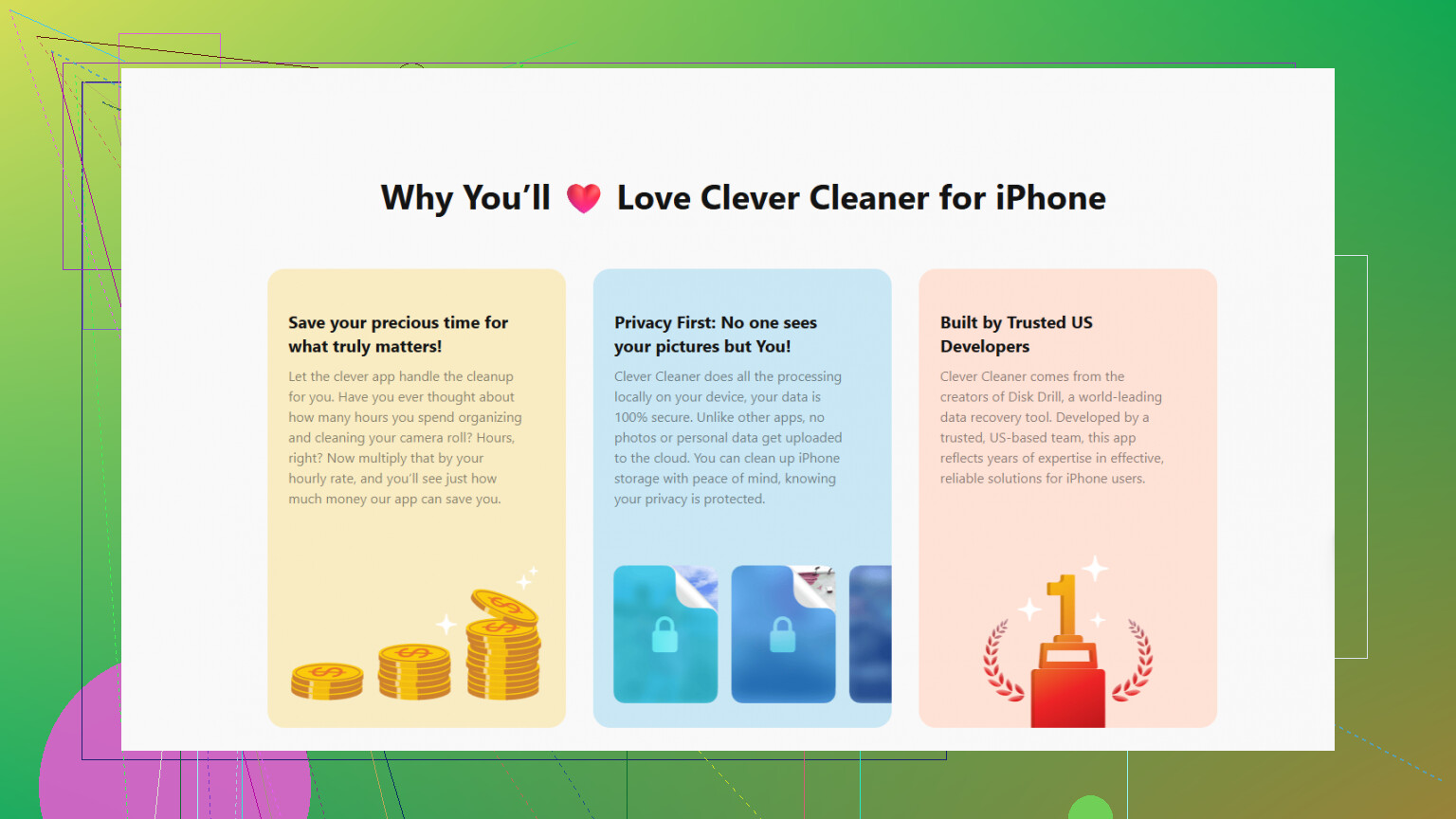
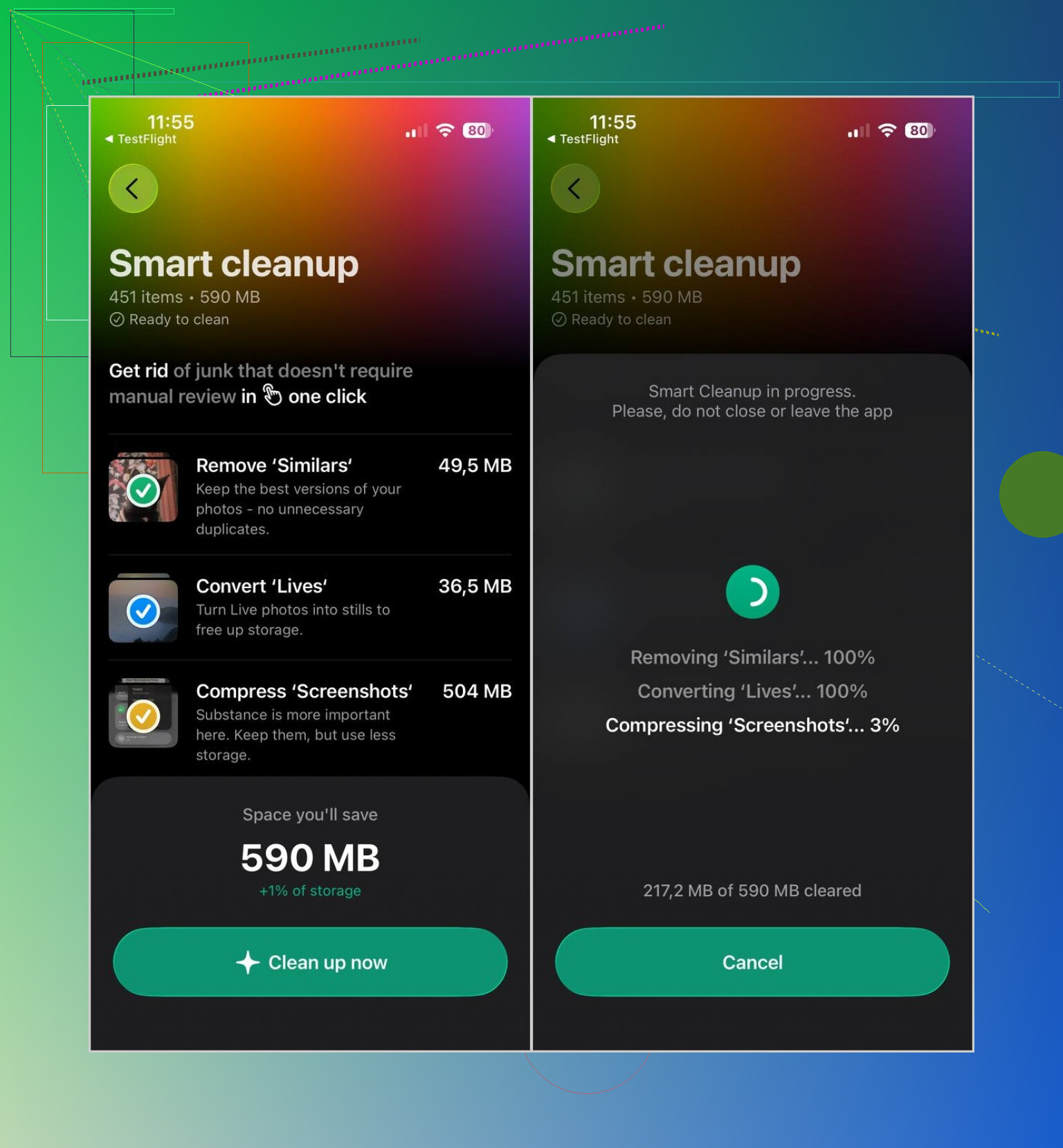
Clean up the photo library. The Photos app can catch exact duplicates, but it won’t do much for ten almost-identical shots of the same thing. I used Clever Cleaner for similar photos, Live Photos, big videos, and screenshots. It runs locally, doesn’t have ads, and the free version is enough for normal cleanup. After deleting stuff, go into Recently Deleted and empty it, or the storage won’t come back right away.
-
Delete apps you don’t use anymore. If you might want the app data later, use Offload App instead of deleting it.
-
Check app caches and downloads. Safari and Chrome can build up browser data. Apps like Telegram or Spotify can also hold a lot of cached or downloaded content, but you usually have to clear that from inside the app’s own settings.
-
Look in the Files app. The Downloads folder is easy to forget about. I found old PDFs and ZIP files sitting there for no reason.
-
Review Messages storage. Old conversations can have huge photo and video attachments. Deleting those can free up more space than you’d expect.
Just don’t expect an App Store cleaner to wipe iOS system files or hidden caches from other apps. Apple doesn’t give apps that kind of access. If a cleaner says it can remove “all junk files,” I’d be suspicious. The real gains usually come from photos, videos, downloads, app-controlled caches, messages, and unused apps.
Check the iPhone Storage breakdown first. It’ll point you to the biggest problem instead of making you hunt around randomly.
15 Likes
Don’t wipe or reset anything until you have a fresh iCloud or computer backup, because “freeing space” can turn into losing Messages, app data, or WhatsApp media fast.
@mikeappsreviewer is right about checking iPhone Storage first, but if “System Data” is the huge part, the least risky fix is usually updating iOS, restarting, and syncing/backing up, not trusting a cleaner app to reach places Apple doesn’t allow apps to touch.

The annoying catch is that some “cleanup” moves can create more hassle than they solve, especially deleting and reinstalling apps that store things locally. Before you nuke anything, check inside the worst offenders in iPhone Storage and see whether they have their own cache or downloads section. Podcasts, Maps offline areas, Netflix/YouTube downloads, music apps, and mail attachments can sit there quietly while the phone labels the mess as app data. I agree with the warning about cleaner apps too: they can help sort photos or screenshots, but they won’t magically scrub iOS. If you need space fast, remove offline media first, empty Recently Deleted, then restart the phone and check storage again after a few minutes. Sometimes the number doesn’t update instantly.
Don’t start by factory resetting the phone or deleting random “Documents & Data” unless you know what app it belongs to. That stuff can include saved games, chat history, voice memos, downloaded maps, or files you actually meant to keep. iOS makes it look like mystery junk, but a lot of it is just app storage with a bad label.
A thing people forget is iCloud settings. If you use iCloud Photos, check whether “Optimize iPhone Storage” is turned on under Settings > Photos. If it’s set to keep originals on the phone, deleting a few apps won’t matter much because the photo library can keep filling the space again. Same idea with Messages in iCloud, WhatsApp backups, and mail accounts. They can re-download chunks of data after you clean up, which makes it feel like the space came back for five minutes and vanished again.
For a quick safe pass, I’d do this: empty Recently Deleted in Photos, delete big videos first, clear downloaded media inside streaming/podcast/music apps, then restart. After that, leave the phone plugged in on Wi-Fi for a bit before judging the storage screen. If “System Data” is still huge after that, don’t chase it with cleaner apps. Back up, update iOS if there’s an update available, and only consider a full erase/restore as the last step, because that’s the one cleanup method that can actually create a new problem if your backup is incomplete.
Turning off ‘Keep Messages’ forever is the one nobody mentioned. Go to Settings > Messages > Keep Messages and switch it from Forever to 1 Year. If you’ve had the phone a while, that alone can clear a surprising chunk, since every meme and voice note ever sent to you is just sitting there.
I’m with @boswandelaar on not touching System Data directly. Chasing that number is a waste of time. It shifts on its own after a restart and a night on Wi-Fi, and half of what it counts is stuff iOS will manage itself.
The Clever Cleaner suggestion up top is fine for thinning out burst shots and near-identical photos, which the Photos app genuinely won’t do for you. Just don’t expect it to touch the Messages problem. That’s a manual settings toggle, not a cleanup app job.