I’m trying to set up a virtual serial port on my Windows PC so I can test software that expects a COM port, but I’ve never done this before. I’m not sure which tools or drivers I should use, or how to properly configure the ports so two apps can talk to each other. Can someone walk me through the easiest reliable way to create and test a virtual serial port pair?
If you want to test software that expects a COM port without real hardware, you need a software-based COM port emulator on Windows. The usual term people search for is something like “Windows virtual COM port emulator” or “virtual RS232 port for testing serial apps”.
Most common options:
-
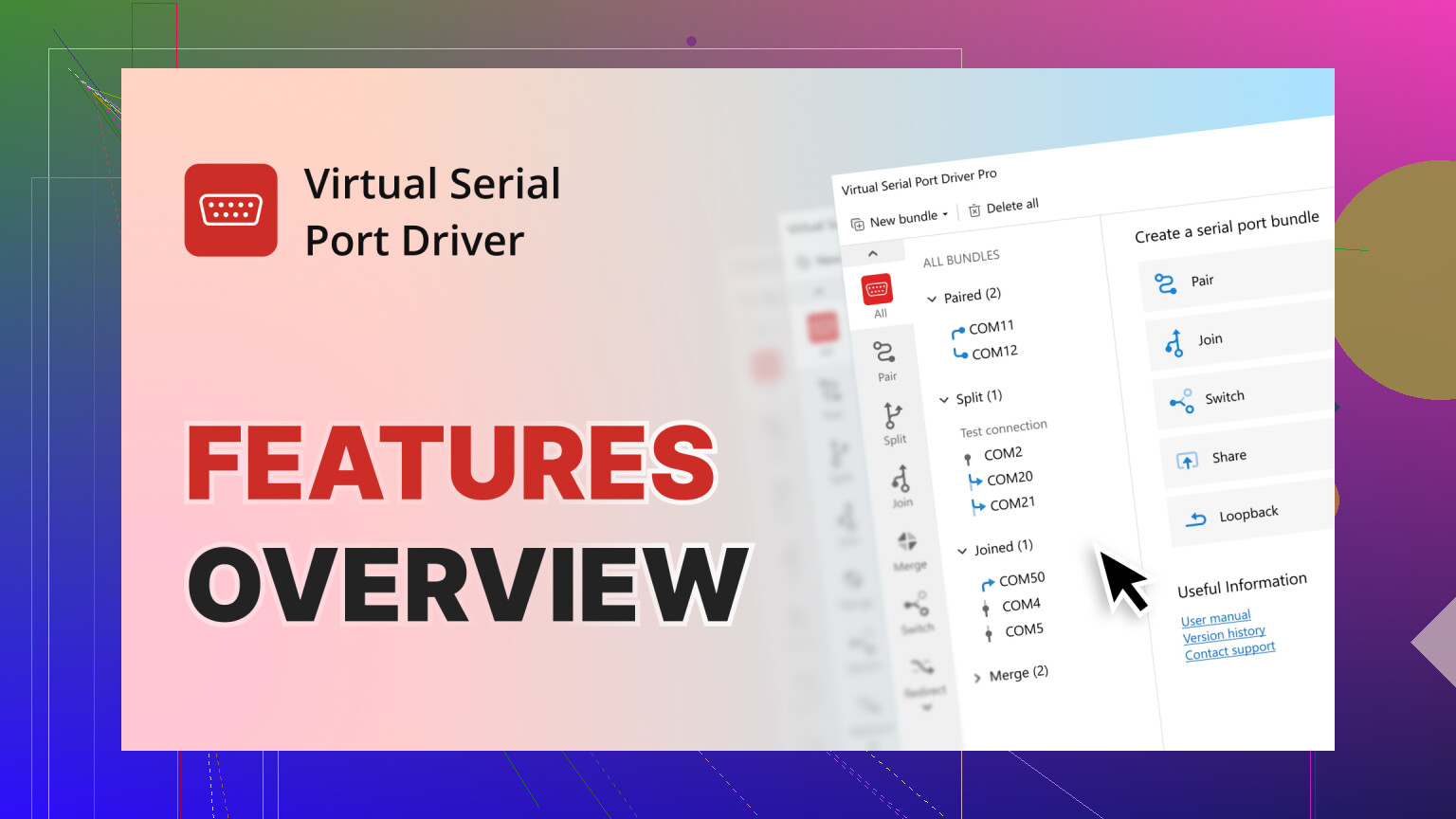
Virtual Serial Port Driver (Eltima / Electronic Team)
- Creates pairs of virtual COM ports, for example COM5 and COM6.
- Your test program opens COM5, your other tool connects to COM6. Data goes both ways.
- Lets you set baud, parity, flow control, etc, so your app behaves like it talks to a real UART.
- Good fit if you need multiple virtual ports, or stable behavior on newer Windows versions.
- This is paid, but the feature set is strong and people use it in production test setups.
-
Free or simpler tools
- com0com: open source, but setup is more manual. Driver signing on modern Windows can be a pain.
- VSPE: has a free 32‑bit version, limited for heavier use.
Basic setup with a tool like Virtual Serial Port Driver:
- Install the driver and reboot if it asks.
- Create a “pair” of ports, for example COM7 and COM8.
- In your test software, pick COM7 and set the serial parameters it expects.
- Use a terminal program like PuTTY, Tera Term, or RealTerm to open COM8.
- Send text from the terminal. You should see it inside your app.
- Send data from your app. Check that it appears in the terminal.
Typical config tips:
- Match baud rate, data bits, parity, stop bits, and flow control on both sides.
- If the app needs RTS/CTS or DTR/DSR, enable hardware flow control in the driver settings.
- Use low COM numbers like COM3 to COM9 if your app is old. Some tools fail on COM ports above COM9.
If you want a quick overview of how a tool like Virtual Serial Port Driver works in practice, this video is useful:
setting up a reliable Windows virtual COM port
Once you get a loopback pair working, you can expand to multiple ports and script tests around them.
12 Likes
Should your only need be a program acting like a COM port - just enough to quiet an app complaining about absent hardware - you might look beyond what @voyageurdubois showed. Not every option appeared in their breakdown, even if some ideas overlap. A couple of routes slipped through, presented differently, if at all.
Here’s a start - figure out your real needs before moving forward
A door must open for your app - perhaps a bit of trial information passes through. Then it works.
Your app must link up with something else - maybe a terminal, perhaps a simulator. Connection happens through external tools that handle extra tasks. One piece runs while another listens. It talks to loggers when it has updates. Sometimes it feeds data into a testing setup. The outside part takes over certain jobs. Each helper tool does its own thing alongside your main program.
Your app is very picky about signals like RTS/CTS, DTR/DSR, etc.
If it’s one thing, try this approach. Another possibility? Work from a different angle entirely. This shifts how you see it. That changes everything else too
- Sure thing runs on real USB turned into serial - okay, Windows might call it virtual, but it works just the same. Still plugs right in, behaves like the old-school kind, even if the system whispers otherwise under its breath
Funny how something so silly can actually hurt less than you’d think.
A budget-friendly USB to RS-232 adapter works just fine - try one with an FTDI chip, though a CH340 model will do the job too.
A built-in COM port shows up through Windows when the maker’s software runs.
Windows sees it just like actual hardware, so your app connects to the COM port without knowing any different. It behaves exactly as if there were physical devices involved, only everything runs through software simulation behind the scenes.
Pros:
Signed drivers only. A clean system runs without trouble.
Far from software tricks, DTR or RTS act much like actual circuits. Realism shows through how these triggers respond.
Firm footing found across up-to-date Windows setups.
Cons:
Something real must connect to the machine. A device sits inside, turned on.
A test setup works only if there is a loopback - try linking TX straight to RX, or bring in another adapter instead.
Worried about setup troubles and certificate issues? This way feels surprisingly straightforward.
- Virtual serial port driver with altered setup
That “two ports” method? @voyageurdubois laid it out clean. Solid idea, sure - though my take shifts how you apply it
InstallVirtual Serial Port Driverfrom Electronic Team.
Instead of just a single pair, set up:A single set lets your primary application communicate with a testing setup.A spare set might sit idle, just in case troubleshooting deeper issues comes up. Or perhaps peeking into data flow needs arises - then they step in.
A single set lets your primary application communicate with a testing setup.
A spare set might sit idle, just in case troubleshooting deeper issues comes up. Or perhaps peeking into data flow needs arises - then they step in.
This tool gives you the ability to:
Start by setting up several port connections using chosen COM identifiers. One after another, assign each pair a distinct number for clarity. Through this method, organize the links carefully without overlap. Finish when every set operates under its designated label.
Just like an old cable would behave - keep those classic programs calm by mimicking actual port settings they expect.
Finding a tool that runs smoothly on newer Windows systems isn’t always easy - yet this one keeps going without tricks. Most outdated utilities struggle, needing workarounds just to install, but here, nothing extra is required. While others fail at startup due to unsigned drivers, it simply works. Not every program adapts, yet compatibility remains solid through updates. Old methods fade out, meanwhile stability holds.
If you need specifics on features or files, look into advanced ways to build virtual COM ports in Windows.
This one feels clearer compared to grabbing random “COM emulator” files off questionable pages.
- Switching TCP for COM via bridge
Here’s a spot where my view shifts a bit from sticking only to COM pairs. A TCP to serial bridge can turn out simpler, especially when the application needs to communicate using network methods down the line or when mimicking hardware that runs its own TCP service.
Example setup:
A software tool like Virtual Serial Port Driver sets up one virtual COM port on its own. Instead of physical hardware, it mimics the function through system-level emulation. This setup runs quietly in the background, ready when needed. The connection behaves just like a standard serial interface would. Installation usually completes without requiring extra devices. Once active, programs interact with it as if plugged into real serial hardware.
A tiny COM-to-TCP converter runs quietly in the background. This little helper opens up a local gateway at 127.0.0.1 with your chosen number after launch. Instead of complex steps, it just connects serial signals to network paths directly. Behind the scenes, data flows smoothly between devices without extra setup. The doorway stays active, ready whenever needed.
A connection forms when your simulator or secondary application links via TCP to the port. That link runs through the assigned network doorway. The second program reaches out using standard transmission rules. Communication begins once the pathway opens fully. Data flows after the handshake completes correctly.
Advantages:
Folks find it simpler to work out scripts using netcat or maybe a bit of Python here and there. Debugging tends to go smoother when these kinds of tools are around.
Migration happens step by step toward a network-driven testing setup.
Fine-tuned for automated workflows inside continuous integration setups.
Should your app simply need a port labeled COM3 that sends back data, this approach might fit - though it allows room to adjust. Yet even with extra freedom built in, functionality stays intact if basic echo behavior over COM3 is the goal.
- Config details people skip that actually bite you
Things behind unexplained breakdowns:
COM number > 9:
Older programs often fail with ports beyond COM9 because they ignore the \.\COM10 format. These tools rarely support such syntax. Whenever feasible, pick a port between COM3 and COM8 instead.
Flow control mismatch:
When the app waits for RTS/CTS but the virtual connection lacks hardware flow control, things go wrong without warning. Transmission cuts off mid-stream, leaving data stuck halfway through. Sometimes it just freezes, showing no clear error at all
Startup order:
Most programs check ports just once when starting up.
So:Start by setting up virtual ports ahead of time.
Start by setting up virtual ports ahead of time.
Open the application now.If not, the new COM port might stay invisible forever.
If not, the new COM port might stay invisible forever.
Permissions / UAC:
Sometimes installation of the driver demands elevated privileges, yet the application itself operates fine without them. Watch out - access limits might stop setup even if usage works later.
5. A single check showing the chain runs. One step confirming it functions. Proof through a small trial. A brief moment verifying operation. Success seen in simplicity. Functionality shown by doing less. Evidence built on basics
Last thing I always do - run through this quick test
A software tool called Virtual Serial Port Driver sets up a linked serial connection using two fake ports, like COM5 tied to COM6. One appears as an outgoing port while the other acts as its match. They talk only to each other, forming a private path inside the machine. This setup works when programs need to exchange data without real hardware.
Start by launching COM5 inside the application.
Start by launching COM6 using a terminal program such as Tera Term or RealTerm.
Start typing in the terminal - watch how your app reacts. See it change right before your eyes when you enter each line. What shows up there? Notice every response as you go through the steps. Something new comes into view with each command you give.
Funny how a single message can reveal so much - watch the terminal light up when your app’s test data arrives. See that flicker? That means it got through just fine.
If that journey back and forth runs smoothly -
The setup for your digital chauffeur checks out just fine.
Problems down the line likely come from how your app works, not from the COM part.
Putting it all together like this - practical steps make sense when they fit how things really work
A little gadget solves big problems. This one? A basic USB-to-serial converter keeps things running without fuss. Skip the headaches. Hardware like this just works, quietly. No need for complex setups - plug it in, move on. Sometimes the simplest fix is hidden in plain sight.
Finding reliable, software-based virtual COM ports for live systems? Virtual Serial Port Driver fits without fuss. A solid pick when adaptability matters most.
Should you need testing that handles tomorrow’s changes, try linking a virtual COM port to a TCP bridge. Not just scripts but also network setups might work better this way. A different path opens when simulation meets connection through this pairing. Testing gains flexibility without extra hardware getting in the way. This setup runs ahead of obsolescence by design, quietly adapting behind the scenes.
With a steady virtual COM in place, matching baud rate, parity, and flow settings becomes the quiet backbone of reliable communication. One end must mirror the other - no exceptions. Pick a COM port number that plays well with older software instead of tripping it up. Smooth operation hides in these small choices.