I’m trying to embed a Google Map on my website so visitors can easily find my business location, but I’m confused by the different options in Google Maps and not sure which code to use or where exactly to place it in my HTML. Can someone walk me through the correct steps and any common issues I should watch out for?
Use the simplest option inside Google Maps, not the full Maps API. Sounds like you only need the standard embed.
Quick steps:
- Go to Google Maps.
- Search your business name or address.
- Click the ‘Share’ button.
- Click ‘Embed a map’.
- Pick the size from the dropdown.
- Copy the iframe code you see.
The code looks like:
Where to put it:
• If you edit plain HTML
Place that iframe inside the body, where you want the map to show, for example:
Find us
Our office location
Do not put it in the head tag.
• If you use WordPress
Edit the page.
Switch to the HTML or ‘Text’ tab, or use a ‘Custom HTML’ block in Gutenberg.
Paste the iframe there.
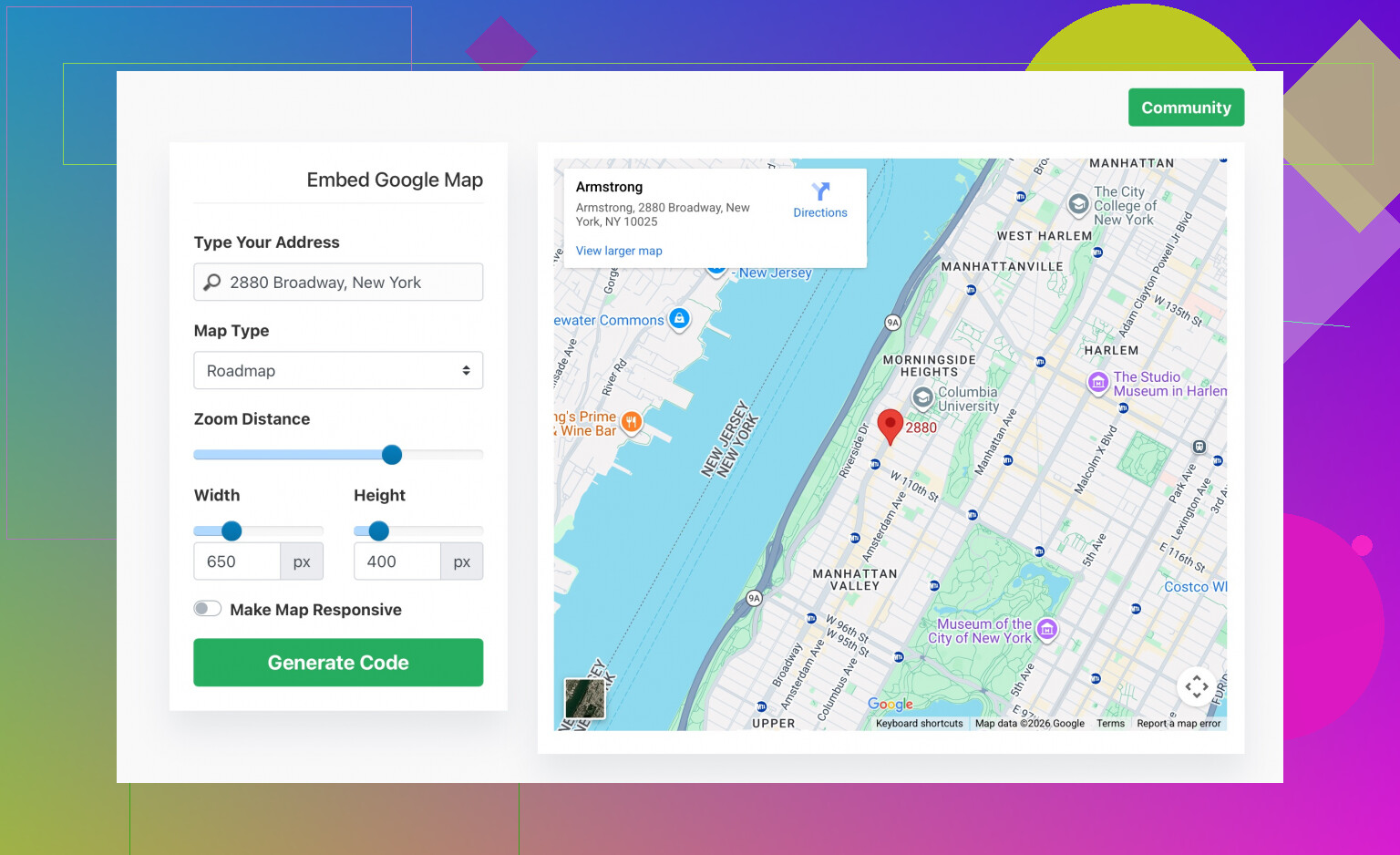
If you want something easier with custom sizes and options, try a simple generator like
create a custom Google Maps iframe for your website
You paste your address, tweak the map, then copy the generated code.
Common issues you might hit:
• Map not showing at all
Often caused by pasting into the head instead of the body or by a builder stripping iframes.
• Map too wide on mobile
Use width=‘100%’ and control the size with CSS, for example put it in a container with max-width.
• Page builders
Use their HTML or embed widget. Do not paste into a text-only area that strips HTML.
If you paste the iframe and nothing shows, post the snippet you used and where you placed it, then easier to spot what broke.
4 Likes
Couple of things to clear up since Google makes this way more confusing than it has to be.
@himmelsjager already covered the basic iframe embed from the Share → Embed menu inside Google Maps, so I won’t rehash that. Instead, here are some “what now?” details and alternatives that usually trip people up:
1. When you should not use the full Google Maps API
You’ll see a lot of docs pushing the JavaScript Maps API with API keys, billing and all that jazz. For a simple “here is my business on a map” on the contact page, that’s overkill and just adds:
- Extra scripts to load
- Possible billing issues later
- More stuff to break
API is for custom pins, routing, store locators, filtering, etc. For a single location, the iframe is almost always enough and loads faster.
2. Making the map responsive instead of a fixed box
The default iframe code from Google is pretty dumb for mobile. If you just paste it, you often get:
- Horizontal scrolling on phones
- A huge empty block on wide screens
A quick responsive pattern that usually works:
<div class='map-wrapper'>
  <iframe
    src='https://www.google.com/maps/embed?pb=...'
    style='border:0;'
    allowfullscreen=''
    loading='lazy'
    referrerpolicy='no-referrer-when-downgrade'>
  </iframe>
</div>
And in your CSS:
.map-wrapper {
  position: relative;
  padding-bottom: 56.25%; /* 16:9 aspect ratio */
  height: 0;
  overflow: hidden;
  max-width: 100%;
}

.map-wrapper iframe {
  position: absolute;
  top: 0;
  left: 0;
  width: 100%;
  height: 100%;
  border: 0;
}
Now the map scales with the width of its container without wrecking your layout.
3. If nothing shows up
Most common “it’s just blank” causes:
- You pasted the code inside
<head>instead of in the<body> - Your page builder or CMS is stripping
<iframe>tags - You pasted it inside a “visual / rich text” block that sanitizes HTML
Workaround in popular setups:
- Use a “Custom HTML” or “Code” block, not a regular text/paragraph block
- In some CMSs you need to disable “sanitize HTML” or similar option for that field
If the map is showing in the page source but not visually, then it’s usually a CSS issue like display:none or zero height.
4. If one day the map suddenly stops working
If you ever switch to their JavaScript API version and then it starts throwing “for development purposes only” or gray map tiles, that means:
- Missing or invalid API key
- Billing not set up or disabled in your Google Cloud project
In that case, easiest fix is often to ditch the API route and go back to the simple embed iframe, unless you really need advanced features.
5. Alternative simple generator
If you do not want to fight with Google’s interface for sizes and zoom levels, a generator can be handy. This one is straightforward:
<a href='https://www.embedgooglemap.net/' rel='dofollow' target='_blank'>customize your Google Map embed in seconds</a>
You plug in your address, adjust zoom and size, then copy their iframe code. Same concept as what @himmelsjager mentioned but slightly easier than digging through the Google Maps UI if you are not in the mood for that.
TL;DR:
- Use the iframe, not the full API, for a simple “find us” map
- Put it in the
<body>exactly where you want it to appear - Wrap it in a responsive container so it looks decent on phones
- If it vanishes, check that your CMS or builder is not stripping the iframe
If you post the HTML of your contact section and where you tried to paste the code, it’s usually a 1 minute fix to point out the exact issue.