I accidentally deleted important files and then emptied the Recycle Bin before realizing they were gone. These documents and photos are really important, and I need to know the best way to recover deleted files from the Recycle Bin after emptying it on a Windows PC. Looking for safe recovery steps or software that actually works.
I screwed this up in the most boring way possible. I was tidying my Windows 11 PC, emptied the Recycle Bin on autopilot, then noticed I had wiped stuff I still needed. A few work files. Some older photos. Bad feeling right away.
I tried the obvious stuff first. Ctrl+Z did nothing after the bin was emptied. I searched other folders, checked if I moved them somewhere by accident, nothing. Gone from view.
What helped me calm down a bit was learning the files were not always erased on the spot. In a lot of cases, Windows marks the space as free, and the data stays there until new data writes over it. So if you’re in the same spot, stop using the drive as much as you can. Don’t keep downloading random apps onto the same disk where the files were deleted. I almost made it worse doing tht.
I ended up reading this thread and it gave me a more grounded idea of what to do next:
It breaks down what happens after you empty the Recycle Bin and why recovery tools sometimes work, and sometimes don’t. I liked tht it wasn’t written like one of those fake miracle-fix pages.
A few things I’ve been doing since:
1. I stopped saving new files to the same drive.
2. I checked OneDrive and other cloud folders in case copies were synced.
3. I looked at File History and backups first, before trying recovery software.
4. I tested recovery options carefully instead of installing every random tool I saw.
I haven’t recovered everything yet, so I’m not pretending I solved it. Still, it went from “all gone” to “there’s a shot.” If your deleted files were important, move fast and be careful with the drive. Overwriting is what kills recovery chances more than anything else.
If someone here has extra tips for Windows 11 file recovery after emptying the Recycle Bin, I’m still listening. This one stung.
21 Likes
First, stop using the PC. If the deleted files were on your C: drive, every reboot, browser cache, update, and install cuts recovery odds. I agree with @mikeappsreviewer on that part. I disagree a bit on waiting too long to test software. If the files matter, time matters too.
My order would be:
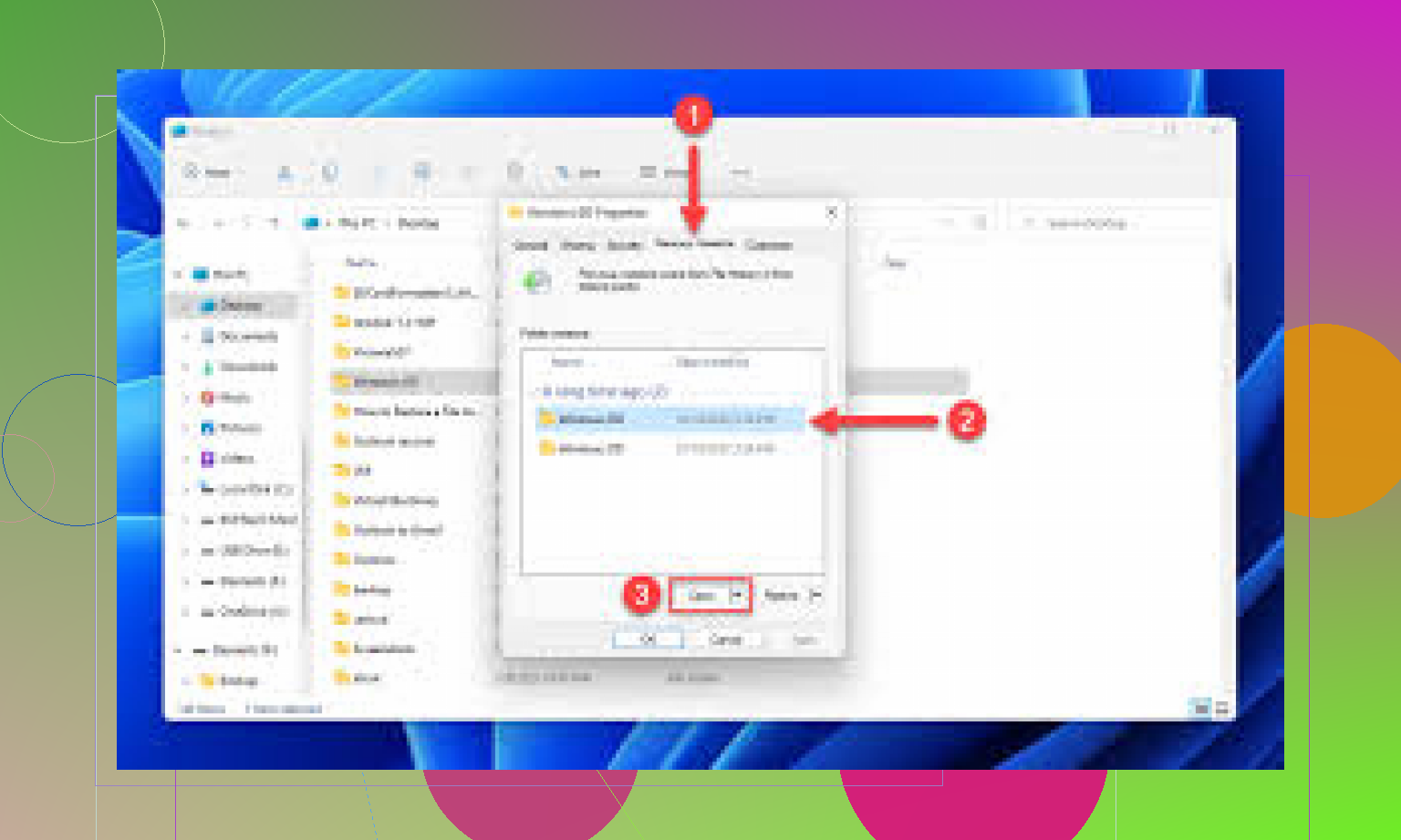
- Check Previous Versions on the folder where the files lived. Right click folder, Restore previous versions.
- Check OneDrive web trash, Google Drive trash, Dropbox deleted files. Web side, not only the desktop app.
- If these were work docs, check email attachments, Teams, Slack, Word AutoRecover, Adobe recent files.
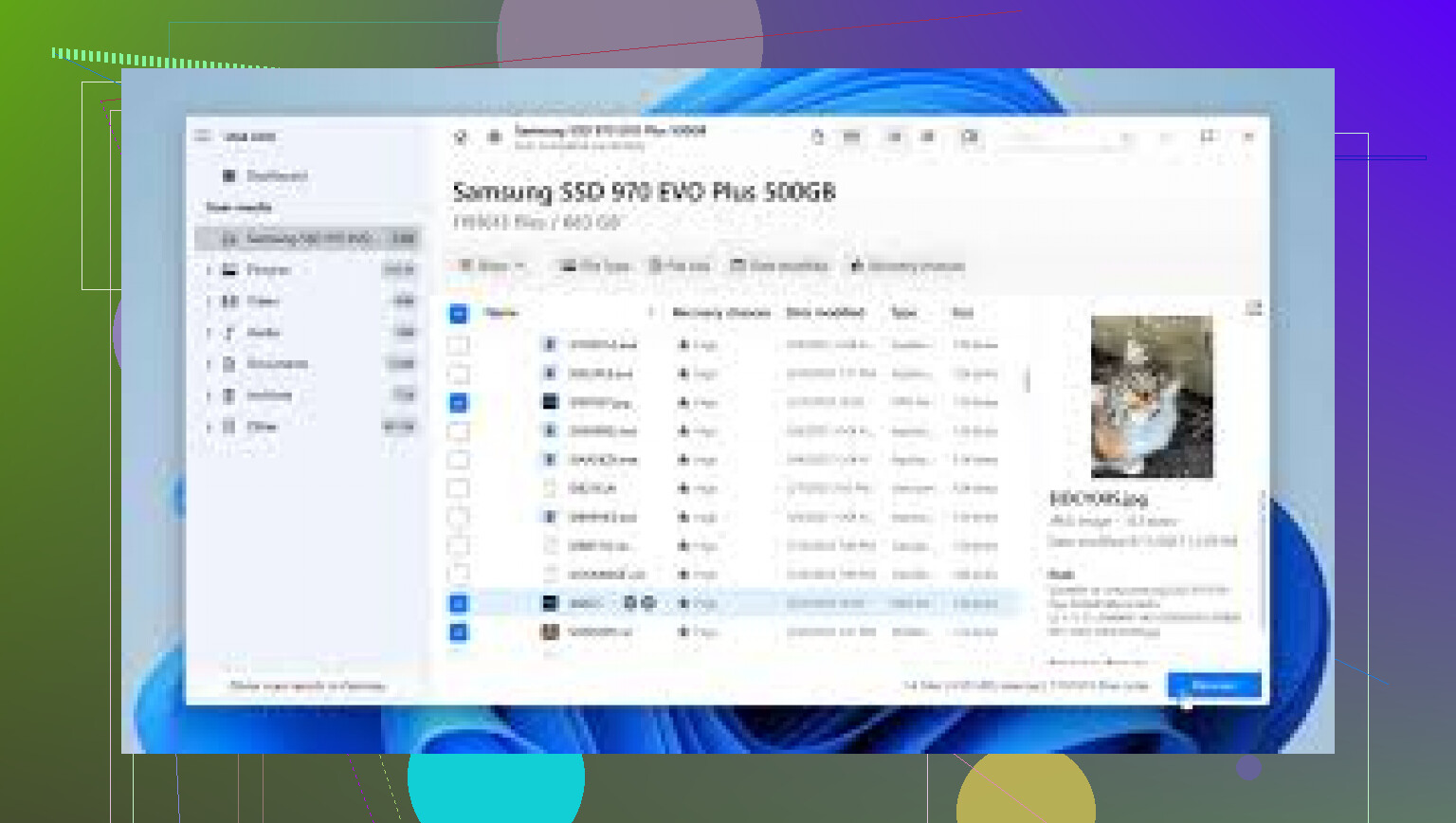
- If no backup exists, run a scan with Disk Drill from a different drive. Install it on USB if possble. Save recovered files to another disk, not the same one.
- If the drive is making noises or is an SSD with TRIM, stop and consider a pro lab. SSDs often erase deleted blocks fast. That part sucks, but it matters.
For context, this explains what deleting a file means in plain English: see what happens after a file is deleted
Deep scan takes longer, but it finds more. Filenames and folders may be lost, so sort by file type and preview what you recover. Photos often come back easier than documents. If you tell us HDD or SSD, your odds get clearer.
One extra thing I’d add to what @mikeappsreviewer and @vrijheidsvogel said: check for app-level history, not just Windows-level recovery. People forget this all the time. Word can have unsaved versions, Excel sometimes keeps temp copies, Photoshop/Lightroom catalogs may still reference images, and even PDF editors leave temp files behind in AppData. It’s annoying, but sometimes that’s where the “deleted” file still exists.
Also, slight disagreement on one point: deep scans are not always the first best move if the files were very recently deleted and you know the exact file types. A targeted scan can be faster and less chaotic, esp if you’re trying to recover docs before temp files overwrite more stuff.
If you’re searching for the best way to recover deleted files after emptying the Recycle Bin, start with this order:
- Check Office AutoRecover and temp folders
- Look in C:\Users\YourName\AppData\Local\Temp
- Search for file extensions manually, like .docx, .xlsx, .jpg, .png
- Review backup apps you forgot were running
- Use Disk Drill, but install it on another drive if possible
- Recover files to a different disk, not back onto the same one
If it was an SSD, honestly, odds can drop fast because of TRIM. Not impossible, just less forgiving.
This vid is also a decent quick walkthrough on recovering deleted files after emptying the Recycle Bin: watch this guide for recovering deleted files on Windows
Biggest mistake now is poking around too much and writing new data everywhere. That’s how recoverable turns into nope.
Small disagreement with @vrijheidsvogel and @boswandelaar here: I would not spend too long digging through Temp folders manually unless you know the app and rough filename. For photos and mixed documents, that turns into a time sink fast.
A couple of extra checks that are worth doing before heavier recovery:
-
Windows Search indexing history
Sometimes recently opened files still appear in Recent, Jump Lists, or app recent-history entries even after deletion. That can reveal the exact old path and filename, which helps recovery tools a lot. -
Thumbnail cache
This will not restore the original file, but for photos it can at least confirm what existed. Useful if you need proof of which images are missing. -
Shared/copied versions
If those work files were ever opened from a USB stick, emailed, printed to PDF, or attached in a chat, there may be stray copies outside the original folder. -
System Restore expectations
People confuse this with file restore. It usually does not bring personal files back, but it can restore app states that expose temp or autorecovery content.
If you do scan, Disk Drill is a reasonable choice.
Pros:
- easy previewing
- good for mixed file types
- can find lost partitions and deleted files in one interface
Cons:
- deep scans can return messy results
- filenames/folder structure may be gone
- recovery quality on SSDs with TRIM can still be poor
One more practical point: if the drive is BitLocker-encrypted and was unlocked during deletion, recover sooner rather than later while you still know the environment and recovery key situation. That catches people out.