My Philips Roku TV remote app suddenly stopped connecting to my TV, even though both devices are on the same Wi-Fi network. I already restarted the TV and my phone, but the app still won’t find the TV or control it. I need help figuring out how to reconnect the Philips Roku TV remote app so I can use my TV again. Or maybe do you know some cool remote apps?
If your Philips TV is one of the Roku models, I’d start with the official Roku app first. I did, and it covered the usual stuff without much drama. Moving around menus, changing volume, switching channels, typing with the phone keyboard, all fine for day to day use.
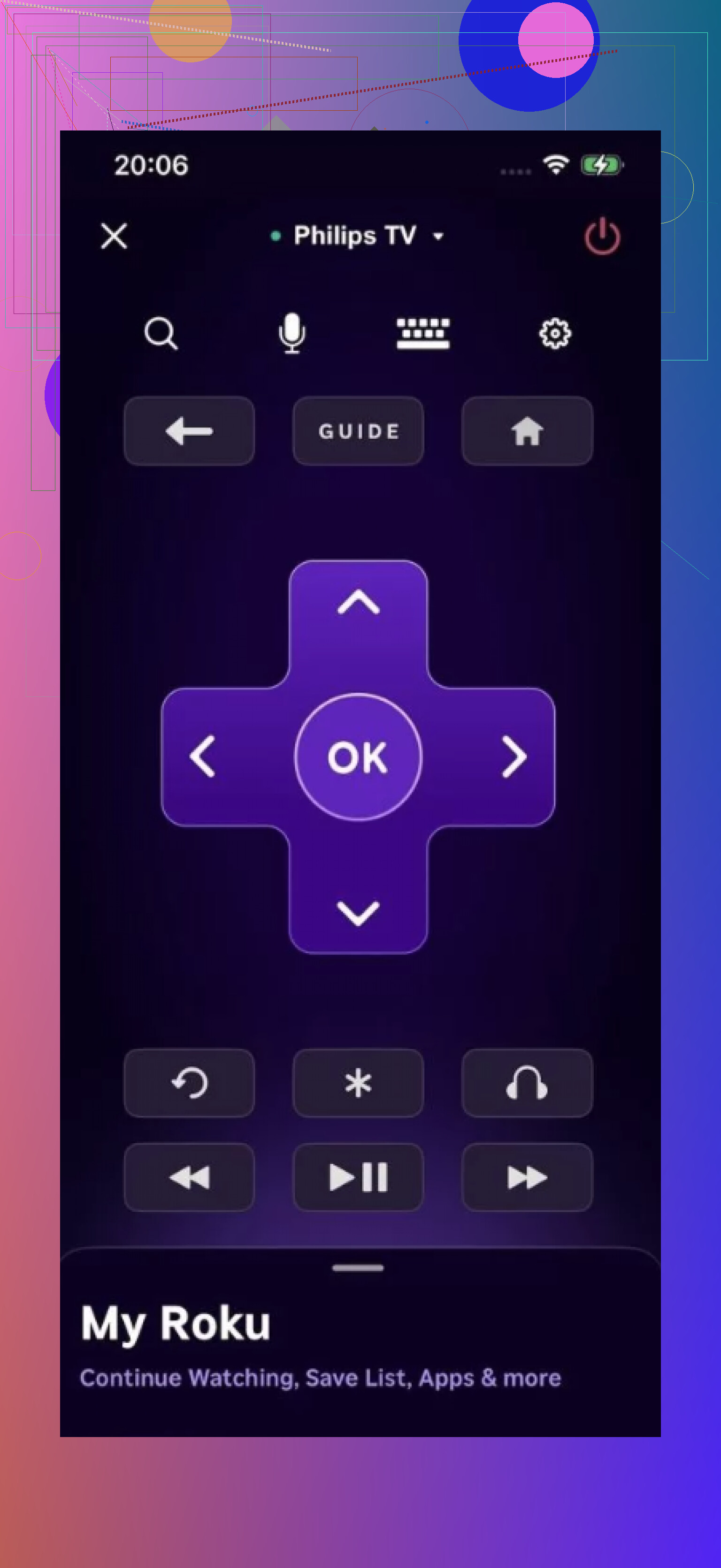
Where it felt a bit limited for me was when I wanted one app for more than one TV. If you only need something for a single Roku set, the stock app is decent. If your setup is messier, like mine was, a universal app makes more sense.
One I had a better time with was TVRem — Universal TV Remote. I tried it on a Philips Roku TV and it connected without any weird setup loop.

A few things stood out once I used it for a bit.
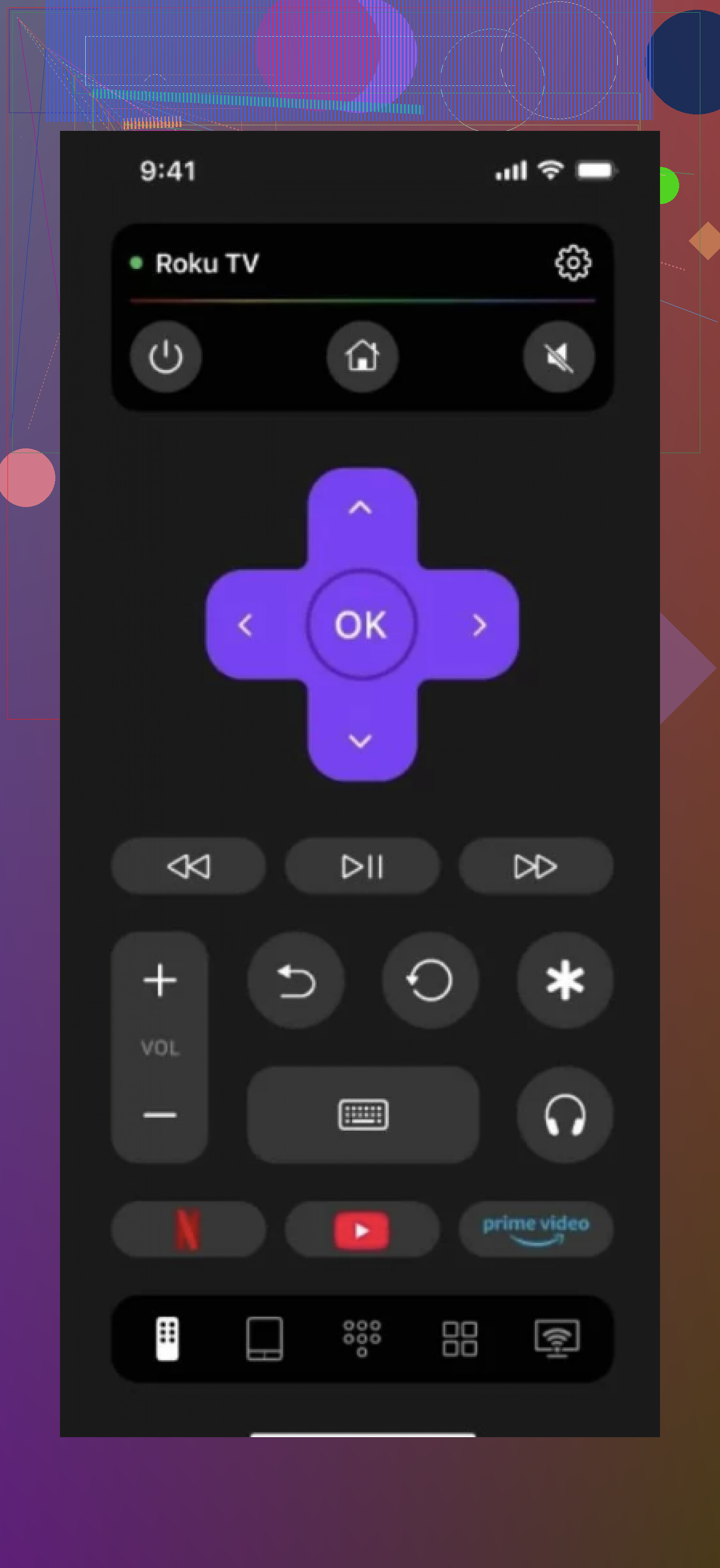
It works with Roku TVs, including Philips Roku sets.
It also handles other brands. I saw support for Samsung, LG, Fire TV, Android TV, Google TV, and others, which mattered more to me than I expected.
Using one app for different TVs is easier than bouncing between separate brand apps. If you swap TVs later, or already have mixed brands at home, you don’t need to start over.
Navigation felt smooth. Search was faster too, mostly because typing on a phone beats pecking letters with a plastic remote. You know the pain if you’ve ever entered a Wi-Fi password on a TV.
My take is simple. Try the Roku app first if you want the shortest path and only need the basics. If you want something with broader support and a bit more room to grow, I’d lean toward TVRem.
20 Likes
Same Wi-Fi is only part of it. Roku remote apps fail a lot when the phone and TV are on different bands or isolated by the router.
Try these in this order.
-
Check your phone is on the exact same subnet as the TV.
On the Roku TV, go to Settings, Network, About. Note the IP, like 192.168.1.x.
On your phone, check Wi-Fi details. If the phone shows 192.168.0.x and the TV shows 192.168.1.x, the app will not see it. -
Turn off cellular data for the remote app.
Some phones route discovery traffic badly when mobile data stays on. I had this happen on iPhone once. App opened, TV never showed up, no clue why. -
Disable VPN, Private Relay, ad blocker DNS, or security apps on the phone.
Those often block local network discovery. This is one of the most common causes. -
On the Roku TV, check Control by mobile apps.
Settings, System, Advanced system settings, Control by mobile apps. Set it to Permissive. If it got switched to Default or Disabled, remote apps stop conecting. -
Forget Wi-Fi on the phone, reconnect.
This forces a fresh local network permission and fresh DHCP lease. Boring, but it fixes weird stuff. -
Reboot the router, not only the TV and phone.
A lot of people skip this step. I disagree a bit with @mikeappsreviewer on trying another app first. If discovery on your network is broken, a different app often fails too. -
Check if your router has AP isolation, guest mode, or device isolation on.
If either device is on guest Wi-Fi, remote control usually fails. -
Try manual IP connection if the app supports it.
If your TV IP is visible in Roku network settings, enter it by hand.
If none of that works, remove the TV from the app, delete the app, reinstall it, and re-allow Local Network access in phone settings. On iPhone this permission gets weird sometimes after app updates. Same on Android after OS updates too.
I’d check one thing neither @mikeappsreviewer nor @sterrenkijker really leaned on much: whether the TV itself still has the right network status after sleep/standby.
Philips Roku sets can get weird where they look connected, but the network stack kinda half-dies until you do a real power cycle. Not just restart from the menu. Unplug the TV from the wall for a full 60 seconds, then plug it back in. Different from a normal reboot, annoyingly.
Also try this on the TV:
- Settings > System > Power > Fast TV Start
Turn it off temporarily - Settings > Network > Check connection
Force it to re-verify network access - Settings > System > About
Confirm the TV name didn’t change or reset
Another thing people miss: if your phone recently updated, the app may still have Wi-Fi permission but not nearby devices / local device discovery permission depending on iPhone/Android version. That part gets wonky as hell after updates.
And I slightly disagree with the “just try another app first” angle. If your Philips Roku TV stopped showing up entirely, that usually smells like a TV discovery issue, not the app itself. Though yeah, if you want to test whether it’s app-specific, using the official Roku app or something like TVRem as a comparison is actually usefull.
Last trick: open the Roku app, leave it searching, then wake the TV with the physical remote or power button. I’ve had a Roku set appear only after it was fully awake. Dumb, but real.