My Sharp Roku TV remote app suddenly stopped connecting to my TV, even though both devices are on the same Wi-Fi network. I already tried restarting the app, the phone, and the TV, but the app still won’t find or control the TV. I need help figuring out how to reconnect the Sharp Roku TV remote app and get it working again.
Or maybe recommend another app to use
Sharp Roku TV remote app, what worked for me
If you’re trying to find a remote app for a Sharp Roku TV, the short version is this: Sharp doesn’t run its own separate remote system here. I ran into this too. Since Roku is built into the TV, you’re dealing with Roku’s setup, not some extra Sharp-only app layer.
A quick option I tried first was TVRem – Universal TV Remote.
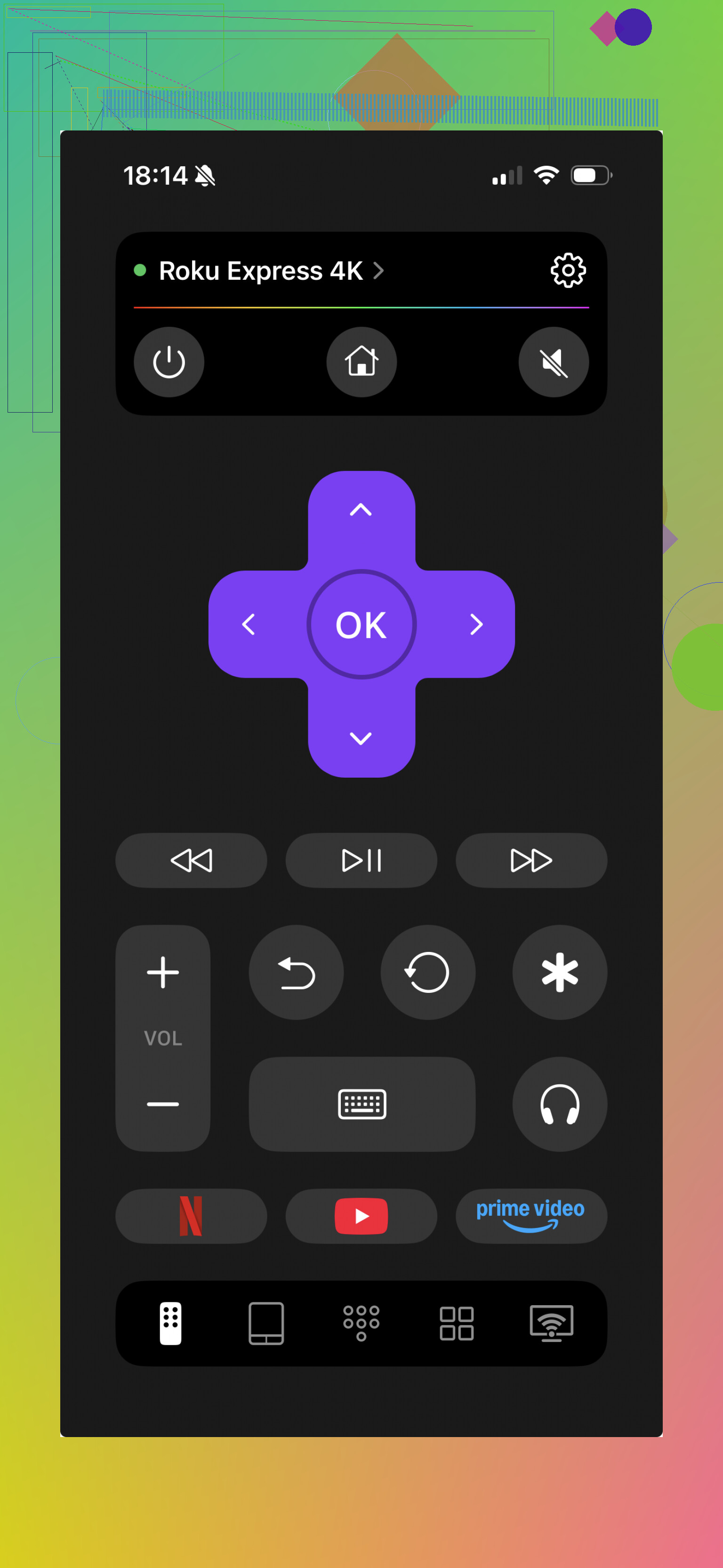
It works over Wi-Fi and picked up smart TVs without me having to sort through model numbers. On paper it supports Roku TVs, including Sharp Roku sets, and also Fire TV and Google TV / Android TV. For me, the main upside was simple stuff. I got navigation, volume, text input from the phone keyboard, and the usual shortcut buttons. If your physical remote is gone, cracked, or eats batteries at the worst time, this is the kind of app you try first.
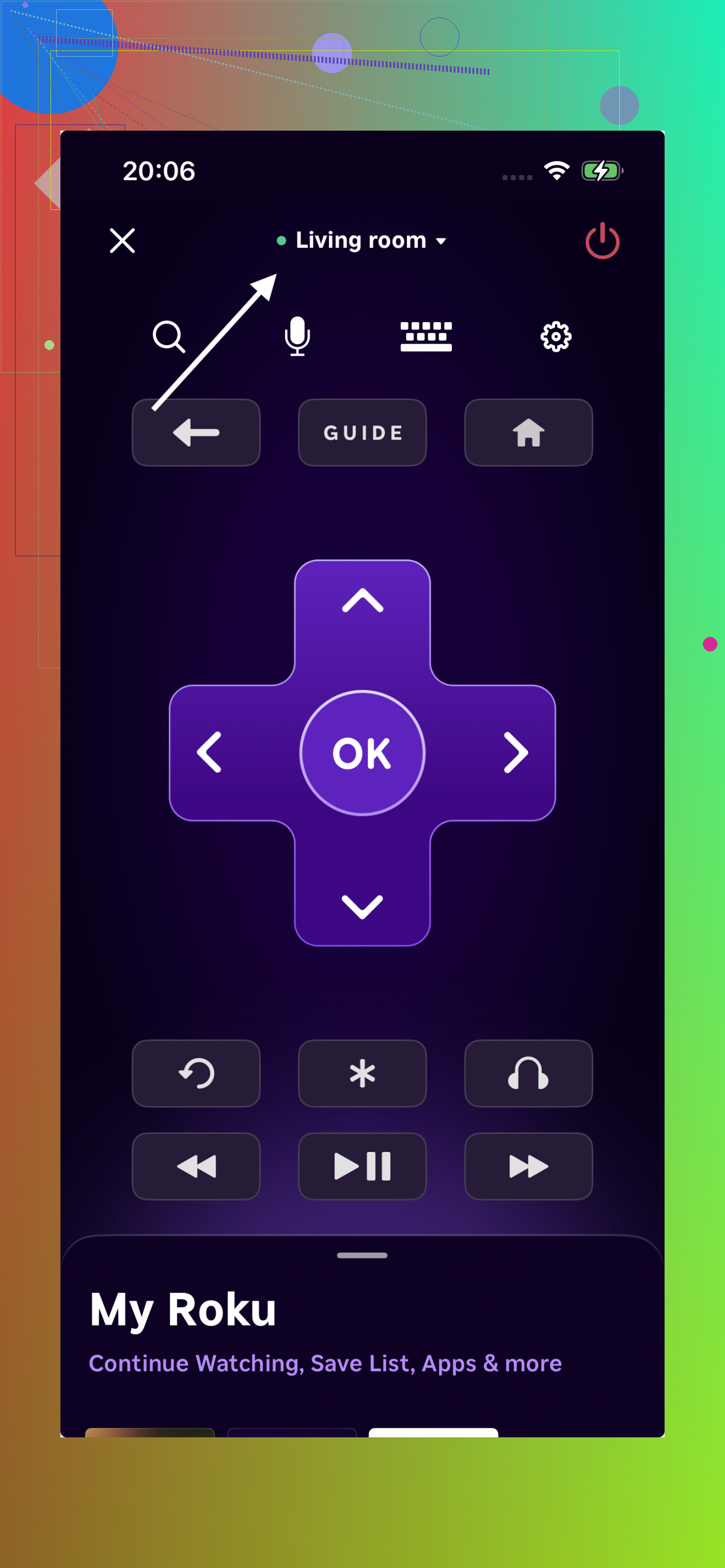
For Sharp Roku TVs, the official Roku Mobile App is still worth keeping in mind. I found it more locked into the Roku system, which is good if you want the safest pick and don’t mind staying inside Roku’s setup. It tends to be steady once the TV is on the same Wi-Fi and already connected right.
My take after testing both
If you want the fast path, no digging through menus, no checking which exact Sharp model you own, no guessing why one remote app sees the TV and another doesn’t, TVRem is the easier starting point. I installed it and got to the useful controls fast.
If you’d rather stick with Roku’s own tools, the Roku Mobile App is still a safe backup. I had better luck with it once the TV was already set up properly on the same Wi-Fi network. That part matters more than people think, and yeah, I learned it the annoying way.
16 Likes
Same Wi-Fi is only part of it. Roku remote apps fail a lot when network isolation or permission settings change.
Try these checks.
-
On the TV, go to Settings, System, Advanced system settings, Control by mobile apps. Set it to Permissive. If it got switched to Default or Disabled, the app stops seeing the TV.
-
On your phone, check Local Network permission for the app. On iPhone, Settings, app name, Local Network. If this is off, the app sits there like a potato and finds nothing.
-
Turn off VPN, iCloud Private Relay, or any antivirus network filter on the phone. Those break device discovery more often than ppl think.
-
Check your router bands. If your phone is on a guest network, or on 5 GHz with client isolation, and the TV is on 2.4 GHz with blocked device-to-device traffic, they won’t talk even if the Wi-Fi name looks the same.
-
In Roku settings, do a System restart from the menu, not only a power cycle. That clears stuck network services better.
-
If your router recently updated, reboot it too. Mine did this after a router firmware push. TV had internet, remote app was dead.
I slightly disagree with @mikeappsreviewer on one part. Swapping apps is fine, but if discovery is blocked, no app fixes it. Fix the TV permission and phone local network access first. That’s the bit ppl miss.
Same Wi-Fi is honestly the most overrated clue with Roku stuff. @jeff is right about discovery getting blocked, but I’d also push in a diff direction: sometimes the TV is “connected” enough for streaming, yet the Roku remote service itself is hung.
A couple things I’d try that aren’t just the usual restart loop:
- Re-pair the TV to your network from scratch. On the TV, forget the Wi-Fi and reconnect. Annoying, yes. But it can refresh the network profile the app depends on.
- Check if your phone is using cellular fallback while Wi-Fi is on. Some phones do this weirdly and the app gets flaky.
- Try pinging the TV another way first, like casting a photo/video or opening Roku from another device in the house. If nothing sees it, the issue is probly on the TV side.
- Update the TV firmware manually in Settings. I’ve had Roku sets break app control after an update, then randomly fix after the next one. Super cool, very not annoying at all.
- If you have Fast TV Start enabled, turn it off once, reboot, then test again. That setting has caused weird wake/network behavior for me.
Last resort: remove the Roku mobile app, reinstall it, and make sure Bluetooth is on too. Roku mostly uses Wi-Fi, but on some phones discovery acts dumb without a couple permissions toggled. It’s janky, but thats Roku for ya.
One angle I don’t see mentioned enough: your phone may be treating the Roku app as “inactive” in the background. Battery saver, Low Data Mode, or Android’s restricted battery setting can stop network discovery from waking properly. I’ve seen the TV show up only after changing the app battery setting to Unrestricted.
Also check the time/date on both devices. Sounds dumb, but if the phone or TV clock is way off after a reboot or outage, local discovery can get weird.
I slightly disagree with @jeff and @andarilhonoturno on reinstalling stuff too early. If the app used to work and suddenly stopped, I’d test with your phone hotspot for 2 minutes first. Connect both TV and phone to that temporary network if your TV supports it. If the app works there, the real culprit is your router config, not the app.
If you want to test with another tool, the Sharp Roku TV Remote App alternative can help narrow it down. Pros: quick setup, simple controls, good for ruling out whether the official app is the issue. Cons: if Roku discovery on the TV is broken, it won’t magically fix that, and some third-party apps can be more ad-heavy or limited.
@mikeappsreviewer is right that trying a second app is useful for diagnosis. Just don’t treat that as the fix.