My Seagate external hard drive suddenly stopped showing my folders, and I need to recover important files from it. The drive still powers on, but Windows either doesn’t recognize it or asks me to format it. What’s the safest way to recover data without making things worse?
Stop using the Seagate drive for now. That’s the big thing. If Windows is asking to format it, the folders disappeared, or the drive suddenly looks empty, every extra write to that disk can make recovery harder.
Deleted or “missing” files usually are not wiped instantly. A lot of the time, the file system just loses track of them or marks the space as free. Once new data gets written over that space, though, recovery gets a lot less likely.
Do a quick health check before trying software. Plug it in and listen. If you hear clicking, grinding, repeated spin-up sounds, or anything that seems physically wrong, don’t run a bunch of scans on it. That can make a failing drive worse. In that case, check Seagate’s Rescue Data Recovery Services first. Some Seagate drives come with limited Rescue coverage, so it’s worth checking the serial number on Seagate’s site before paying a recovery shop.
If it sounds normal but doesn’t show up in File Explorer, shows as RAW, or Windows says it needs to be formatted, your files may still be there. Windows just may not be able to read the drive normally anymore.
For a DIY recovery attempt, recovery software is usually the reasonable next step. For Seagate external drives, Disk Drill is a decent option, especially if the drive was unplugged without ejecting, shows up incorrectly, or has file system damage.
A safer way to do it:
- Install the recovery software on your computer’s internal drive or another external drive. Do not install it on the Seagate drive you’re trying to recover from.
- If the drive seems flaky, make a byte-to-byte backup first. Disk Drill can create a full disk image, so you can scan the copy instead of hammering the original drive.
- Use a known-good USB cable and try a different USB port if the drive is not detected. Bad cables are more common than people think with portable drives.
- Scan the Seagate drive or the disk image for lost data.
- Preview files before recovering them. If a photo, video, or document previews properly, that’s a good sign the recovery result is usable.
- Recover the files to a different drive. Never save recovered files back onto the same Seagate drive during recovery.
If Disk Drill or another recovery tool doesn’t see the drive, check Windows Disk Management. If the drive shows up there with the correct size, like 2TB or 5TB, recovery software may still be able to read it even if File Explorer can’t.
Once you get your important files back, don’t just assume the drive is fine. Download SeaTools from Seagate and run the Long Generic Test. If it fails, replace the drive. If it passes, you can format and reuse it, but I’d still keep a second backup from now on.
Scans on large drives can take a while, so be patient. If the drive still powers on, sounds normal, and shows the correct capacity, you’ve probably got a fair shot at recovering the data.
13 Likes
Don’t click Format, and don’t run CHKDSK yet.
CHKDSK can “fix” the file system in a way that makes recovery messier, especially if the drive is already unstable. If Disk Management shows the right drive size, image it first or scan it read-only before trying any repair tools.
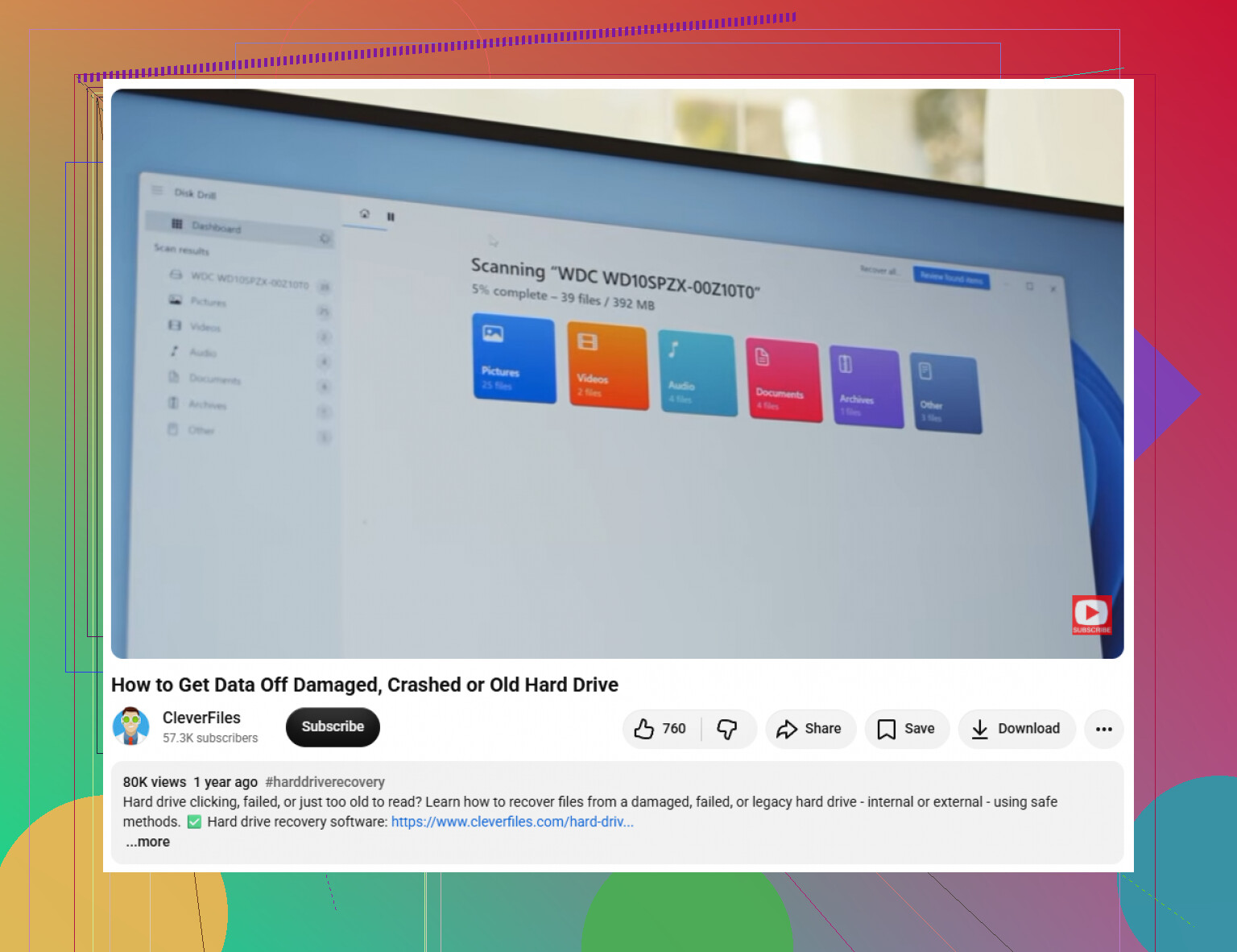
Whether it shows the correct capacity or shows as 0 bytes matters a lot here. If Disk Management sees the Seagate as 0 MB, “No Media,” or keeps disconnecting, software like Disk Drill probably won’t get far because Windows isn’t really getting access to the disk. Try a different cable first, and if it’s a desktop Seagate, try the original power adapter because a weak supply can make the drive act half-dead. If it shows the full size but asks to format, then I agree with the others: don’t format, don’t CHKDSK, and recover to another drive. The annoying bit people forget is that some Seagate externals fail at the USB bridge/enclosure, not the actual hard drive, so the symptoms can look like file system damage when the adapter is the problem. If the files are critical, I’d stop before cracking anything open and decide whether it’s worth paying a lab, since opening the enclosure can complicate warranty or Rescue coverage.
If the drive was ever used on a Mac, a smart TV, a router, or with Seagate password/encryption software, Windows asking to format it may just mean Windows can’t read the format, not that the files are gone. Before running recovery scans, try to remember where the drive was last used. A Mac-formatted drive, for example, can look “broken” in Windows even when the data is sitting there normally.
I’d check Disk Management, but don’t initialize it, don’t create a new volume, and don’t accept any “you need to format” prompts. If it shows the correct size and a partition is present, you can try viewing it from a Linux live USB or a Mac if that matches where it was used before. Mount it read-only if you know how. Sometimes that gets you a quick copy of the folders without doing a full recovery job.
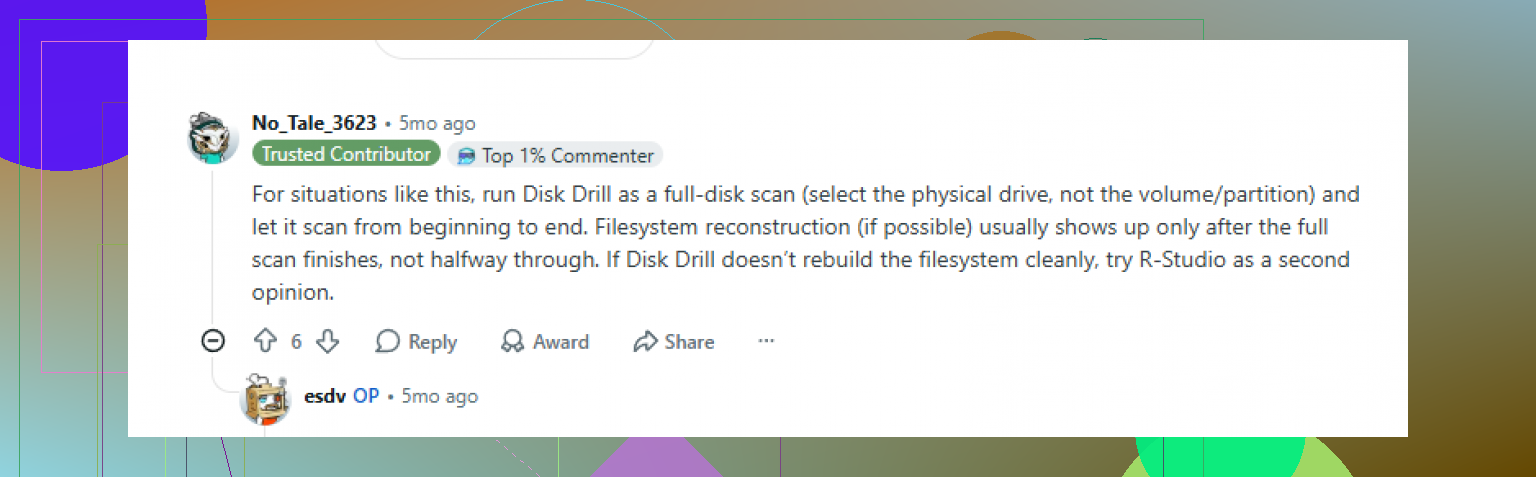
If it still looks RAW or unreadable everywhere, then recovery software like Disk Drill makes sense, but only if the disk is detected with the correct capacity and stays connected. If the drive is dropping in and out, I’d stop chasing software fixes because half-finished scans are just extra stress on a failing disk. The boring rule here is still the important one: recover to a different drive, then test or replace the Seagate after the data is safe.