My Outlook PST file became corrupted after my computer crashed, and now I can’t open old emails, contacts, or attachments I need for work. I’m looking for safe ways to recover the PST file or repair it without losing important data.
I did this once with an Outlook PST in my Documents folder, and the error hit me right away. 'File cannot be found.' Sick feeling. If you deleted the wrong thing, stop using the PC for random stuff.
Windows usually does not erase the file data on the spot. It marks the space as free. Then new writes step on it. Downloads, browser cache, app installs, all of it raises the odds your old PST gets damaged beyond recovery.
What I’d do first
Start with the plain checks before you move into recovery tools.
1. Recycle Bin and cloud trash
Yeah, obvious, but I would still check the Recycle Bin first. A normal Delete often lands the file there. Shift+Delete skips it.
If your Documents folder synced with OneDrive or Dropbox, open the web dashboard too. Look in deleted files and version history. I have seen files show up there even after I was sure they were gone.
2. Previous Versions in Windows
This one works only if Windows had restore points or shadow copies for the folder.
Go to the folder where the PST used to sit, often C:\Users\YourName\Documents\Outlook Files.
Right-click the folder, pick Restore previous versions. If you get a list, open an older snapshot and copy the PST out to another location.
3. Recovery software, the step I’d take next
If the file is gone from the bin and old versions are empty, I’d treat it as a deleted file recovery job.
I had the best luck with Disk Drill for this kind of mess. PST files are large, and a deep scan tends to find old remnants if the drive has not been written over too much.
The way I’d handle it:
Install it on another drive if you have one. USB stick is better than writing more data onto C:.
Scan the system drive, usually C:.
Search the results for *.pst or filter by file type.
Check file size before restoring anything.
This part matters. Outlook often creates a new blank PST after it loses the old one. Those empty replacements are tiny, often around 265 KB. Your old mailbox file is usually much larger, maybe 300 MB, 2 GB, 8 GB, whatever fits your mail history. Recover the big one, not the baby file.
Save the recovered file somewhere safe, like the Desktop or an external drive. Don’t drop it back into the original folder yet.
4. If Outlook made a fresh empty file
This throws people off. Outlook fails to find the original data file, then makes a new one with a clean folder tree. So now it looks like everything vanished, even if the old PST still exists somewhere recoverable.
After recovery, don’t smash the Send/Receive button and hope for magic.
Open Outlook, then go to File > Open & Export > Open Outlook Data File. Browse to the recovered PST and load it manually. If the file is good, your old folders should appear in the left pane.
Once you confirm your mail is there, open account settings and switch your default data file back to the recovered one.
5. If the account was IMAP
This part changes the damage report a bit.
If your mailbox was Gmail, Comcast, or another IMAP setup, the server still holds the mail in many cases. Re-adding the account often rebuilds the local cache through a new OST file and pulls mail back down.
What does not always come back are local-only archives, custom folders stored outside server sync, and some Outlook rules tied to the old data file. If you had years of hand-sorted folders in a PST, recovery still matters.
What I’d avoid while you try to fix it
Don’t install random apps onto the same drive.
Don’t copy movies or big files onto it.
Don’t keep using Outlook over and over if it keeps generating new files.
Every write to disk chips away at your odds.
After you get it back
I stopped keeping mail archives in an unprotected Documents setup after this happened to me. If you recover the PST, put it somewhere backed up, either cloud sync with version history or a weekly copy to an external drive.
Outlook gives you almost no guardrail here. One bad delete and your mail history is gone from view. So yeah, boring backups win.
If your scan turns up a large PST, you still have a decent shot. File size is the quickest clue I know.
17 Likes
Start with repair before file recovery. Different problem, different fix.
If the PST still exists and Outlook says it is corrupted, run ScanPST.exe. It ships with Outlook. Common path is under Program Files\Microsoft Office\root\OfficeXX. Make a copy of the PST first. Repair the copy, not the original. I know @mikeappsreviewer focused more on deleted-file recovery, but for crash corruption I would try inbox repair first. It is faster and safer.
Next, make Outlook open in safe mode, outlook.exe /safe. Disable add-ins. Some “corrupt PST” cases are bad add-ins or a broken navigation pane. Also reset pane settings with outlook.exe /resetnavpane. Small thing, but it has saved me once.
If ScanPST fails, use a recovery tool made for PST structure repair, then export recovered mail to a new PST. If the file itself vanished or got zeroed out after the crash, Disk Drill makes sense for finding older PST copies by size and date.
Also check C:\Users\YourName\AppData\Local\Microsoft\Outlook for AutoArchive PSTs and temp copies. People miss those all the time.
Helpful thread on Outlook PST recovery and repair: best Reddit advice for recovering a deleted or corrupted Outlook PST file
Do not save repairs back over the same file. That’s where stuff gets messsy fast.
I’d split this into repair vs salvage, because people mix those up and it wastes time.
If the PST is still there and has a normal-ish size, I actually agree more with @byteguru than @mikeappsreviewer on first move: do not jump straight into undelete mode. A crash-corrupted PST often needs a copy-first workflow. Copy the PST to another drive, then try opening that copy from Outlook’s Open Outlook Data File instead of attaching the original in place. Sometimes Outlook chokes on the profile, not the file.
Another thing people skip: make a new Outlook profile in Control Panel > Mail > Show Profiles. Attach the PST there. If it opens in a fresh profile, your mail store may be fine and the profile got borked. Annoying, but fixable.
Also, if the PST is huge, don’t keep hammering it with multiple repair attempts. That can make recoverable folders harder to sort out later. If ScanPST either loops or “repairs” it but content is missing, export whatever still opens into a brand new PST immediately. Don’t trust the repaired one long-term.
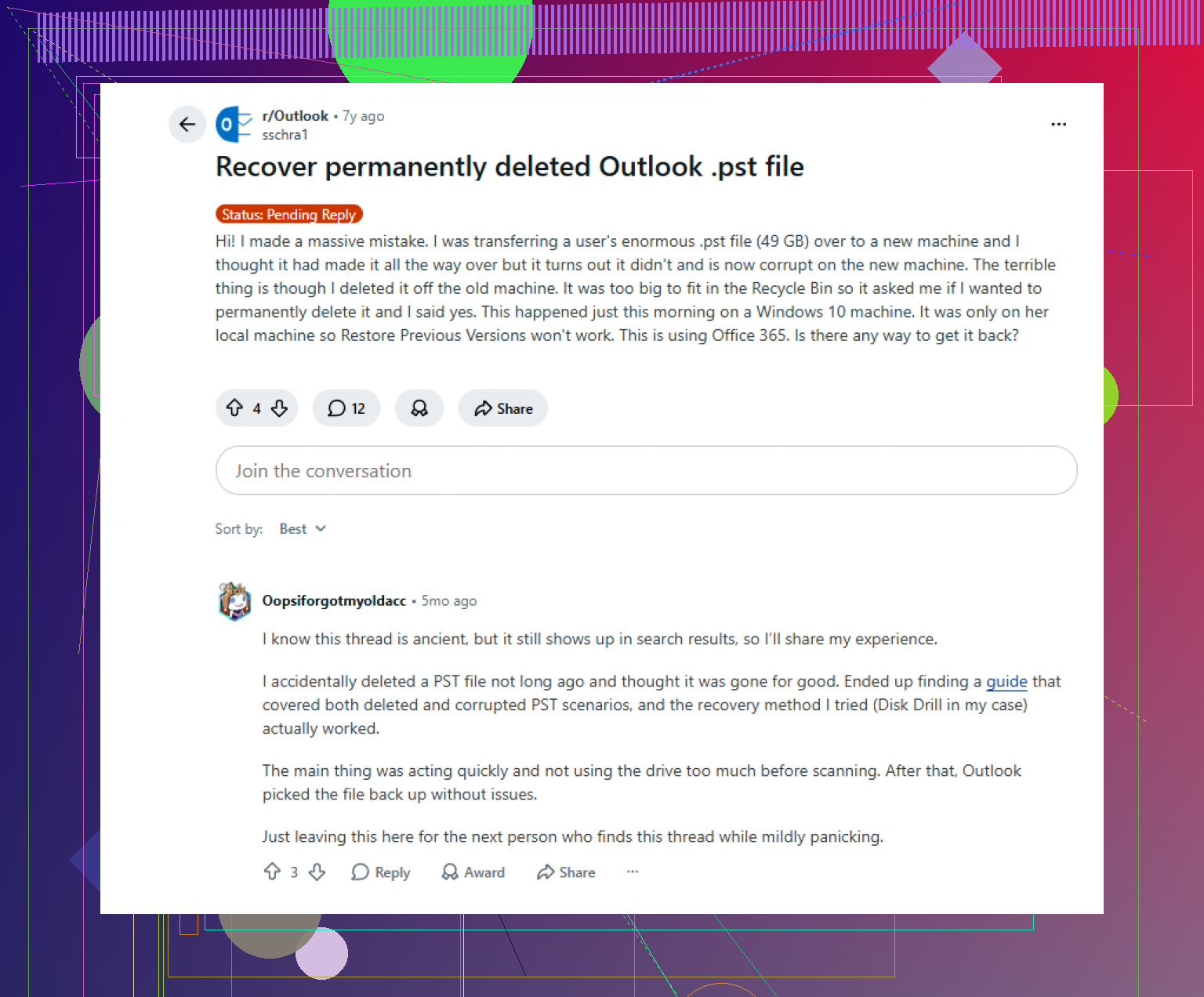
For attachments specifically, sometimes the message index is damaged but MIME data still exists. In that case a dedicated PST recovery app can extract mail/attachments better than Outlook itself. If the file actually vanished after the crash, then yeah, Disk Drill is worth checking for older PST copies or deleted archive files by date/size. That part of @mikeappsreviewer’s advice is solid.
I’d also look for backups most people forget:
- File History
- old system image backups
- NAS snapshots
- mailbox exports from IT
- archived PSTs on external drives
This is also useful if you want a quick overview of Disk Drill data recovery features for recovering lost Outlook PST files and other deleted documents: see how Disk Drill helps recover lost Outlook data
Big thing: if this is work mail on Exchange/Microsoft 365, ask IT before doing too much. They may have server-side retention, litigation hold, or backup copies. Saves a ton of pain tbh.

One extra angle nobody’s hit hard enough: check Event Viewer before doing more writes. Under Windows Logs > Application, look for Outlook, disk, or NTFS errors around the crash time. If you see bad-sector or file-system errors, stop working off that drive and clone it first. Repairing a PST on a flaky disk is how you turn “corrupt” into “gone.”
I’d also run chkdsk only after copying or imaging the drive if the disk may be failing. People treat it like magic. Sometimes it helps, sometimes it “fixes” directory damage by orphaning stuff you still needed.
Where I slightly disagree with @mikeappsreviewer: if the file still exists and the drive looks healthy, I would not jump into broad recovery scans right away. Where I differ a bit from @byteguru and @viajeroceleste: even ScanPST can be too aggressive if the PST is mission-critical and the disk is unstable. Preserve first, repair second.
For content you urgently need, a useful trick is opening the PST in a forensic-ish viewer or importer and extracting only key folders first: Inbox, Sent Items, Contacts. Don’t wait for a perfect full repair if all you need is three contracts and two attachments by noon.
On Disk Drill specifically for missing PSTs:
Pros
- Good at finding deleted PSTs by size/date
- Preview and recovery workflow is pretty straightforward
- Useful if Outlook created a new empty PST and the old one disappeared
Cons
- It’s not a real PST structure repair tool
- Recovery quality depends heavily on overwrite damage
- Large scans can take a while
So my order would be: verify disk health, clone if suspicious, search backups/retention, preserve the PST, then repair or use Disk Drill if the file is missing. Briefly, @byteguru, @viajeroceleste, and @mikeappsreviewer all covered good paths, but disk health is the part people skip.