I need to copy large project files from my Mac to several external NTFS drives that I also use with Windows PCs. Reformatting them to another file system isn’t an option. I’m looking for recommendations for stable, fast NTFS write solutions or apps that work well on recent macOS versions, ideally something you’ve personally tested under heavy use.
You can write to NTFS from macOS, but not without some extra help. Out of the box, macOS only treats NTFS as read-only. If you want to save, edit, or delete files on an NTFS drive, you need extra software.
Here is what I tried and what I saw.
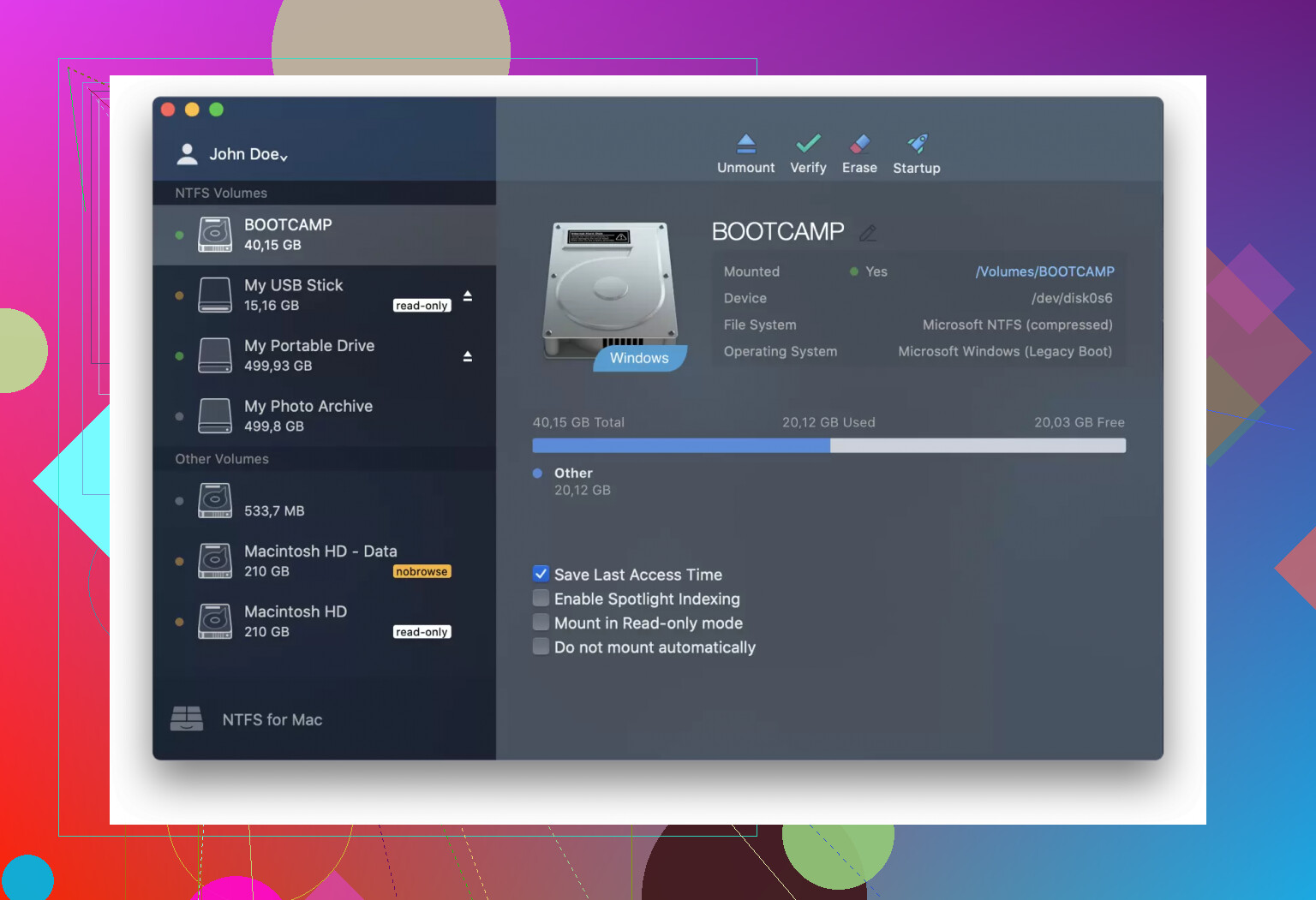
Paragon NTFS for Mac
This is the one I ended up paying for on my work machine.
What I noticed:
- Installs like a normal app, adds a system extension, then your NTFS drives show up in Finder like normal external drives.
- Read and write speed felt close to exFAT on the same SSD. I moved a 40 GB folder with a mix of big video files and tiny config files and did not hit any weird pauses.
- It integrates with Disk Utility, so formatting a drive to NTFS from macOS is possible from the GUI.
What went wrong:
- One minor OS update once broke the driver and I had to reinstall Paragon after updating macOS.
- License is per machine, which annoyed me when I swapped my Mac.
If you move big backups or work projects to NTFS drives often and you do not want to think about it again, this is one of the less annoying options.
Tuxera NTFS
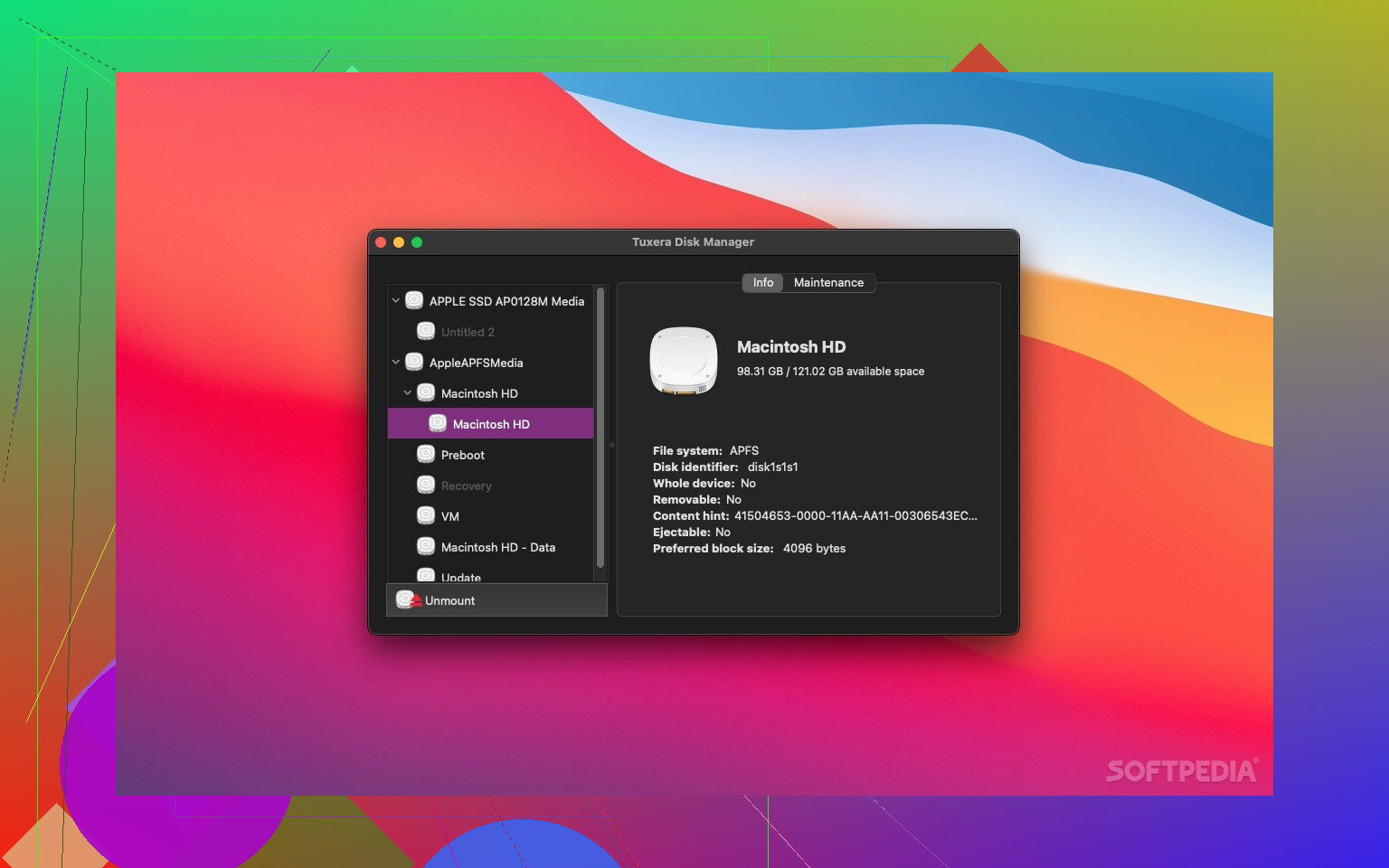
I used Tuxera at a previous job where IT bought a bunch of licenses.
What stood out:
- Works quietly in the background. Once installed, people on the team forgot there was any NTFS issue.
- Has its own preference pane where you can tweak caching behavior. With write caching on, large copies felt smoother.
- Also supports formatting volumes to NTFS from macOS.
What I did not like:
- On one old Intel Mac, I had rare beachballs during huge transfers, like 200 GB+.
- Updates lagged a bit behind major macOS releases, so I waited before upgrading the system.
If you want something that acts like a system-level driver, this behaves a lot like Paragon, with similar tradeoffs.
Mounty for NTFS
This one I tried because I was being cheap on a personal laptop.
How it works in practice:
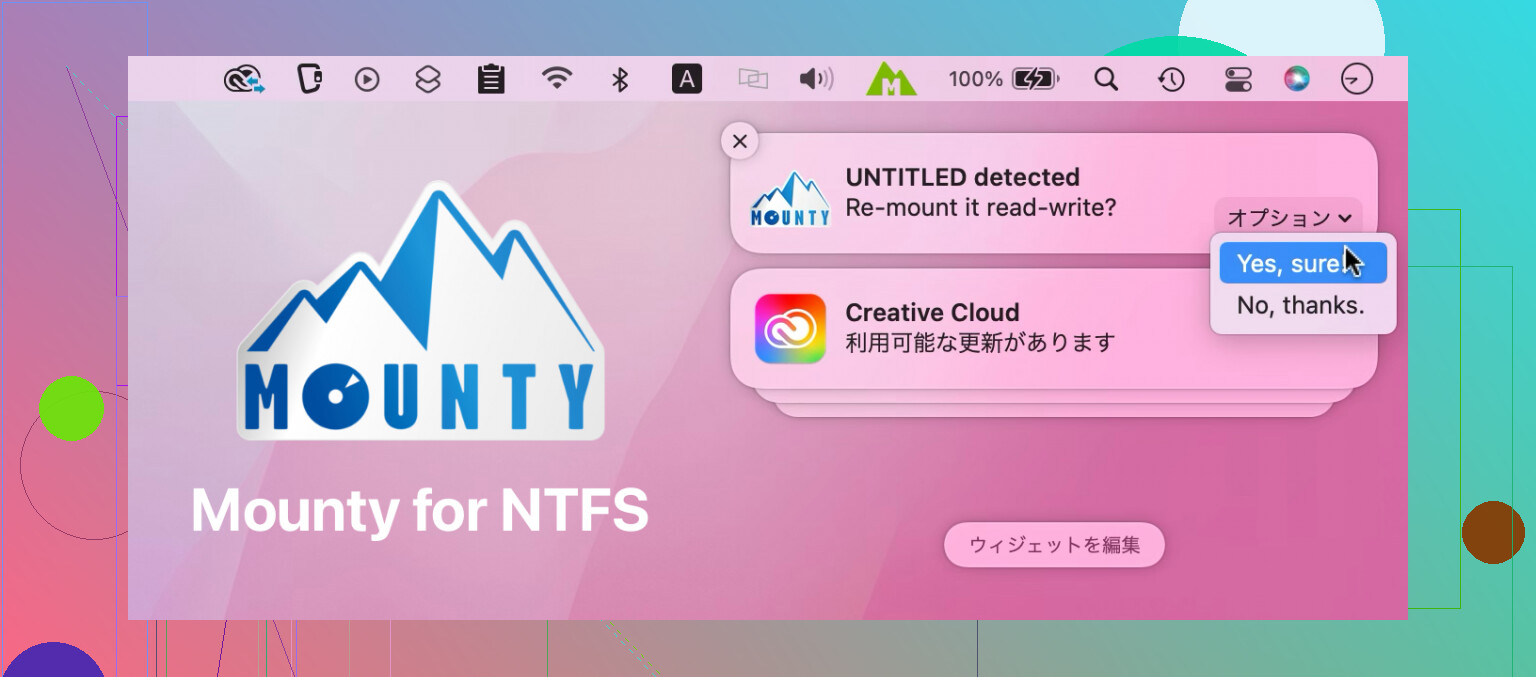
- Mounty taps into Apple’s hidden NTFS write support and remounts the drive so you can write to it.
- The app sits in the menu bar. When you plug an NTFS drive in, it pops up and asks if you want to mount it in read-write mode.
My experience:
- For small stuff, like copying documents or a couple of gigabytes, it was fine.
- Once I tried copying a 60 GB Steam backup. Transfer speed dropped, and I had a couple of write errors. Nothing catastrophic, but I stopped trusting it with anything that mattered.
- Sometimes after a failed write, the volume needed to be checked on a Windows PC.
I keep Mounty around for quick fixes, like editing a single config file on a Windows drive, but I avoid it for backups or client work.
When I was poking around for other options, I saw people on Reddit mention Commander One for NTFS. I have not used Commander One myself, so if you try it, I would test like this first on non-critical data:
- Copy one big file, 10 GB or more, and note the speed.
- Copy a folder with thousands of small files.
- Unplug the drive without ejecting, see how it recovers on both macOS and Windows.
- Run chkdsk on Windows after some heavy usage and see if it complains.
That quick check will tell you a lot about whether you want to trust it with anything you care about.
5 Likes
Short version for your use case, large project files, no reformatting, used on Windows a lot:
- System driver route (paid, more “set and forget”)
- User‑space or app‑based route (cheaper or free, a bit more friction)
- Network or VM workaround when you trust nothing on the disk stack
You already got good info from @mikeappsreviewer on Paragon / Tuxera / Mounty. I mostly agree, but I’m a bit less happy with kernel‑level drivers on newer macOS.
Here is what I would do if I needed “stable and fast” for big projects.
-
If you want driver‑style integration, but hate surprises
I avoid third party kernel extensions on production work Macs now. One failed macOS update during a deadline was enough. Paragon and Tuxera work well for many people, but every major macOS upgrade is a small risk window. If you go that route, freeze macOS version while on an active project, and test an NTFS drive after each system update before trusting it. -
Commander One option, app‑centric approach
Commander One gives another style of workflow. It is a dual‑pane file manager on macOS with NTFS support via an internal mechanism, not just a menu bar remounter. Useful bits for your case:
• Good for big copies between drives, two panes, queue, pause, resume.
• You can keep using Finder for normal stuff, only switch to Commander One for NTFS writes.
• You isolate critical transfers to one app, easier to test and monitor.
If you try Commander One, I suggest this before you risk client data:
• Take a 50 to 100 GB folder similar to your project. Copy it to an NTFS SSD. Time it.
• Then plug the same drive into Windows.
Run chkdsk /f and see if it reports issues.
• Do this a few times with different folder shapes.
One huge file. Many small files. Mixed content.
• If Windows stays quiet and speeds look consistent, adopt it for your external NTFS drives.
This pattern is safer than flipping hidden Apple NTFS write support with tools like Mounty for serious work. Mounty is fine for config tweaks or small copies. I would not trust it for “several” project drives.
- Network workaround if you want zero NTFS drivers on macOS
If you have a stable Windows box around:
• Plug the NTFS drives into Windows.
• Share a folder over SMB.
• From Mac, copy to the share as if it were a network drive.
Your Mac never writes NTFS directly. Windows handles NTFS. You pay a speed penalty over network, but gain file system safety. For huge projects you can use wired gigabit or 2.5G/10G if you have it.
- Quick decision guide for you
• Need max speed, work mostly on Mac, frequent transfers, ok with a driver:
Paragon or Tuxera, test before each OS upgrade.
• Want a more contained workflow, prefer an app, like dual‑pane managers:
Commander One NTFS support, test with non‑critical data first.
• Paranoid about disk drivers, have a Windows machine on the same network:
SMB share from Windows, copy over network.
If I were in your position, large project files, multiple external NTFS drives, no reformatting, I would:
• Install Commander One.
• Do the stress tests I listed.
• Keep one Windows PC ready to run chkdsk after big transfers.
• Keep at least one backup copy of the project on a Mac‑native drive or APFS external, separate from the NTFS drives.
That way you get NTFS write support on Mac, plus a clear fallback when something acts weird.
If you want stable and fast without reformatting, you basically have three realistic paths, and I’m going to mostly skip what @mikeappsreviewer and @techchizkid already covered about Paragon / Tuxera / Mounty.
- I actually like avoiding filesystem drivers on macOS now
They both suggested Paragon/Tuxera as “set and forget.” I kinda disagree on the “forget” part. Every macOS point upgrade becomes “ok, is my NTFS driver going to panic the system this week?” If you’re mid‑project with deadlines, that’s too much drama for what is basically just moving files.
If you absolutely go driver route, freeze macOS during the project and test with sacrificial data after each update. But I’d treat NTFS kernel drivers as “power tools,” not background utilities you never think about.
- App‑centric route: Commander One
Where I think you might land better: using an app that handles NTFS instead of a system‑wide driver.
Commander One is a dual pane file manager on macOS with NTFS write support baked in. That changes your workflow:
- Finder + macOS stay clean and vanilla. No NTFS kexts glued into the system.
- You only touch NTFS through Commander One. That makes it way easier to test and to blame when something goes weird.
- It’s particularly nice for “large project files to several external NTFS drives” because you can queue transfers, see progress clearly, and avoid Finder’s random copy stalls.
What I’d actually do with Commander One before trusting it:
- Take a project‑like folder, ~50–100 GB, including some big files (video, archives) and a ton of small ones.
- Copy from Mac internal SSD to an NTFS drive using Commander One.
- Then plug that drive into Windows and immediately run
chkdsk /f. - Repeat that a few times, maybe also try:
- One huge >50 GB file
- Many tiny files (source, assets, configs)
If chkdsk comes back clean each time and speeds look ok, that is already “stable enough” for real work in my book. You get a more controlled workflow than Mounty without the system‑level exposure of Paragon/Tuxera.
- Boring but ultra safe: Windows in the middle
This is where I mostly agree with @techchizkid but I’d push it harder: if you have a Windows box on the same network and you care more about “never corrupt my project” than raw performance:
- Plug NTFS drives into Windows.
- Share a folder via SMB.
- From macOS, mount the share and copy over the network.
Your Mac never writes NTFS directly. The downside is speed, especially on Wi‑Fi, but if you run wired gigabit or better, it’s totally reasonable for big project pushes at the end of the day.
- What I’d pick in your shoes
Given your constraints:
- Need: large project files
- Several NTFS externals
- Still heavily used on Windows
- No reformatting
- Want stable and fast
My practical setup would be:
- Use Commander One as the primary way to write to NTFS from macOS.
- Do the
chkdsktesting once before trusting it with client data. - Keep at least one full backup of the project on an APFS/HFS+ drive or NAS that is not NTFS.
- Keep a Windows machine or VM around just to occasionally run
chkdskon the drives after heavy sessions.
Paragon/Tuxera are fine tools, but for long‑running workflows and OS updates, I trust an app‑based approach like Commander One + a Windows safety net more than another low‑level filesystem driver in macOS.
Short version: I’d split this into “how much risk can you tolerate on a production Mac” rather than “which NTFS tool is best.”
You already have a solid spread of options from @techchizkid, @suenodelbosque and @mikeappsreviewer: classic kernel drivers (Paragon, Tuxera), the Mounty hack, and general caution about OS updates. I agree with most of that, but I’d lean harder on isolating NTFS access and not baking it deep into macOS unless you really have to.
Here is where I diverge a bit and what I’d actually do for your use case: large project files, shared with Windows, no reformat.
1. System driver vs isolated tool
Paragon / Tuxera (as they described) are convenient, but every macOS update becomes a mini “integration test” of your file system. I have seen one bad interaction cause nasty hangs during heavy I/O. Rare, but it only has to happen once during a deadline.
For that reason, I prefer treating NTFS support as a tool I open when needed, not a permanent system component. That is where something like Commander One fits better than the traditional driver route.
2. Commander One: pros, cons, and how it actually changes workflow
Commander One is worth calling out separately because it is not just “another NTFS widget,” it is a different model:
Pros
- Dual pane manager, great for big project copies between your internal SSD and external NTFS drives.
- Copies are queued and visible, so you are less likely to lose track of a huge transfer in the background.
- NTFS write support is scoped to the app, so Finder and the rest of macOS stay on the safe, read only path.
- Easy mental model: “NTFS work only happens inside Commander One.” That reduces surprise bugs.
Cons
- Slight friction compared to system drivers: you have to consciously use Commander One for all writes, which means a habit change.
- Another interface to learn if you are used to just dragging in Finder.
- If your entire team is on Mac, you need everyone to stick to the same workflow or you end up with a mix of Finder-only and Commander-One-only habits.
- Like anything in user space touching NTFS, it still deserves testing with your exact project patterns, not blind trust.
Where I disagree a bit with the “just test once and go” mindset: I would periodically revalidate. You are dealing with multiple NTFS externals and big files. Once per month, or after a big OS or Commander One update, do a sacrificial copy plus a Windows chkdsk check. Boring, but it catches regressions.
3. Complementary safety net, not a single magic bullet
Instead of hunting for a single “perfect” NTFS solution, combine:
-
Commander One for day to day NTFS writes from macOS
Keep it as the only way you write to those external drives from Mac. -
A Windows box or VM purely as a validator
- Periodically plug the drives into Windows.
- Run
chkdsk /fafter heavy sessions or before handing a drive off to a client or another team.
-
A non NTFS backup of the project
APFS or HFS+ external, or a NAS. This is the part everyone knows they should do but often skips. It is the only way any NTFS tool choice becomes “stable” in practice.
4. How this complements what others said
- Where @mikeappsreviewer leans more into Paragon / Tuxera as close to “set and forget,” I would treat them as “install and monitor.” Fantastic when they work, but I would avoid relying on them during OS beta cycles or immediately after major macOS releases.
- @techchizkid’s and @suenodelbosque’s caution about Mounty lines up with my experience: good for small tweaks, not something I would trust for your “large project, multiple drives” scenario.
- All three have covered the basics. The missing piece is that app-centered isolation: Commander One gives you that middle ground between “deep driver” and “no NTFS at all.”
If I were in your position right now:
- Install Commander One.
- For each external NTFS drive, do at least one full‑scale rehearsal copy that resembles a real project push, then validate on Windows.
- Keep all day-to-day NTFS writes inside that one app and keep Finder read only.
- Maintain at least one Mac-native backup and a schedule to sanity-check the NTFS drives from Windows.
That setup is not as “invisible” as Paragon or Tuxera, but it is a lot kinder to your Mac’s stability while still being fast enough for big project files.