My iPhone suddenly started showing a memory full warning even though I deleted photos and a few apps. I’m trying to figure out what actually causes this message, whether it’s storage, RAM, or something else, and what I should check next to fix it before my phone slows down or stops working properly.
The annoying part about the “iPhone Storage Full” alert is this. You delete a bunch of stuff, the phone looks cleaner, then the warning shows up again like you did nothing. I ran into this on my own phone, and the cause was not what I expected at first.
What the alert means
On iPhone, this message is about storage space. It is not about RAM.
People mix those up all the time. RAM is for whatever your phone is doing right now. Storage is the long-term space where your photos, videos, apps, messages, and files sit. When iOS says full, it means storage.
Why deleting files often changes nothing
This tripped me up. When you delete photos or videos, iOS usually moves them into Recently Deleted. They stay there for 30 days. While they sit in there, they still take up the same amount of storage.
So if you deleted 8GB of videos, but never emptied Recently Deleted, your phone still lost 0GB in practice.
Do this instead:
- Open Photos
- Tap Albums
- Scroll to Recently Deleted under Utilities
- Tap Select
- Tap Delete All
Until you clear that folder, the storage alert tends to keep coming back.
Other places where space gets eaten
Go to Settings > General > iPhone Storage. Wait a bit. The colored storage bar takes a moment to finish calculating.
If you see a big section called System Data or Other, it is usually built from cached app files, temporary junk, Siri voices, logs, and leftovers iOS holds onto longer than you’d think. I had one case where a restart dropped that number after the phone recalculated.
Stuff I check first:
-
Messages
Open iPhone Storage, find Messages, then look at large attachments. Old videos in text threads pile up quietly. I found gigabytes in there once, and I had no idea. -
Safari
Go to Settings > Safari > Clear History and Website Data. This clears cached browser data. -
Unused apps
In iPhone Storage, use Offload Unused Apps. This removes the app itself but keeps your app data, so reinstalling later is less painful.
If the warning pops up inside Safari
This matters. If you see a storage warning while browsing, especially one with a timer, flashing graphics, or some weird line about your SIM being damaged, it is not an Apple alert. It is a scam page.
A real iPhone storage notice looks like a normal iOS system alert or shows up in Settings. I ignore browser popups completely and close the tab.
When the built-in tools stop helping
Apple’s storage screen is decent for totals, bad for detail.
You get app sizes, broad categories, and rough suggestions. What you do not get is the useful part. You cannot sort your whole photo library by largest files. You also do not get a clean way to find near-duplicate photos without digging by hand.
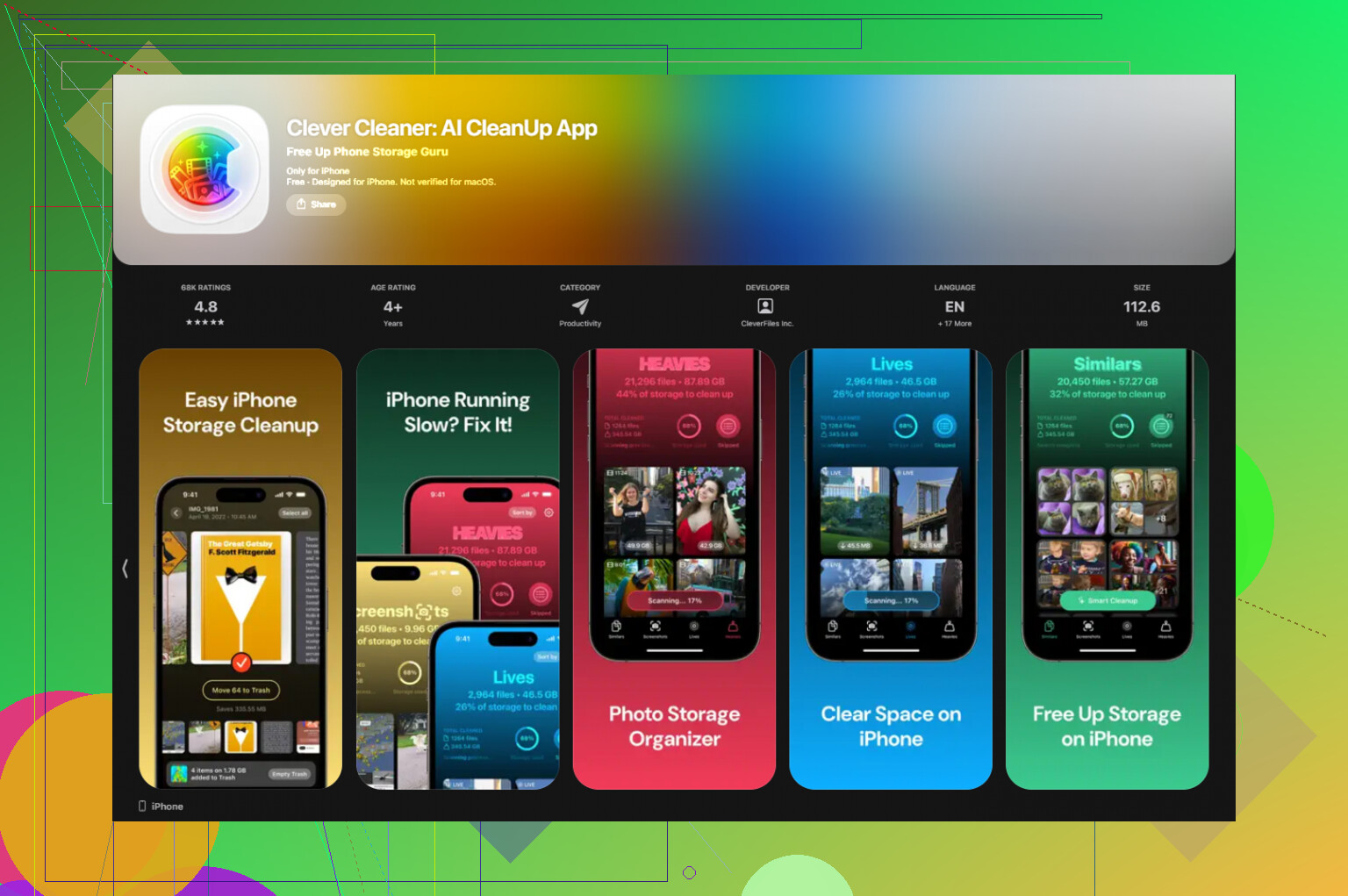
I ended up using Clever Cleaner for this part. On my phone, the biggest help was seeing the large files first. Screen recordings, long 4K clips, random junk from months ago. Those were taking the biggest bite out of storage, and they were buried deep in the library. The similar-photo grouping helped too. I had burst shots and repeated tries of the same pic clogging things up.
A detail I liked, file sizes show before deletion. Processing stays on the device too, which I prefer.
After I cleared around 12GB there, then emptied Recently Deleted, the warning stopped coming back. My phone felt less sluggish too. Typing lag dropped off a bit.
If you still see the warning even with free space available
I have seen this happen once or twice. Settings shows open storage, but the alert keeps appearing anyway. In my experience, that points to a sync or indexing glitch more than a real storage shortage.
The fix is annoying, but it tends to work:
- Make a full backup to iCloud or your computer
- Erase the iPhone
- Restore from the backup
That forces iOS to rebuild its storage index from scratch. If you are dealing with phantom storage numbers, this is the step I save for last.
2 Likes
It’s storage, not RAM. Apple labels it badly, so people think “memory” means the phone ran out of working memory. On iPhone, this warning almost always means local storage is too low for iOS to work safely.
One thing I’d add to @mikeappsreviewer, the alert often shows up before you hit 0 GB. iOS wants breathing room for updates, cache, swap, logs, and photo processing. If you’re under roughly 3 to 5 GB free, weird stuff starts. Apps reload. Camera fails to save. Messages act wonky. I’ve seen it on a 64 GB iPhone more than once.
Check these spots first.
-
iCloud Photos
If Optimize iPhone Storage is off, full-res photos stay on the phone. Big library, full phone. -
Downloads in apps
Netflix, Spotify, YouTube, Podcasts, Files. Offline stuff piles up fast and people forget it. -
Mail
The Mail app stores attachments and account data. Deleting the email on another device does not always shrink local storage fast. -
Voice Memos and GarageBand
Sneaky space hogs. Long recordings eat gigs. -
Failed iOS update files
Sometimes an update downloads and sits there. Look in Settings, General, iPhone Storage for an iOS file.
I disagree a bit with the “erase and restore” idea as an early fix. That’s last-resort stuff. First force a recalculation with a restart, then check storage after 10 minutes on Wi-Fi and charging. iOS re-indexes in the background, kinda slow tbh.
If you want a cleaner view of photo junk, Clever Cleaner helps sort large videos and duplicate shots faster than Apple’s built-in tools. If you want a solid writeup on a free iPhone cleaner app, this review is useful, see this free iPhone cleaner app review.
Rule of thumb, keep 10 percent of storage free. On 128 GB, aim for 10 to 12 GB open. That usually stops the warning from poping back up.
It’s storage, but I’d push back a little on how people frame it. @mikeappsreviewer and @chasseurdetoiles are right that this is usually not RAM, but the warning can show up even when you technically still have a bit of space left because iOS wants a safety buffer. So the real cause is often “not enough usable free storage for system tasks,” not just “you hit zero.”
That distinction matters.
A few things people miss:
- iOS snapshots and temp files can hang around after app updates
- photo/library indexing can balloon storage for a while
- apps like Instagram, TikTok, and WhatsApp keep absurd caches
- if you use iCloud Drive, local downloaded copies may still be sitting there
- deleted stuff does not always disappear from the storage calculation instantly
Also, “memory full” wording is just confusing branding from Apple tbh. It makes normal people think RAM issue, when it’s almost always device storage pressure.
What I’d do next is not just delete random apps. Check which apps are growing back after a day or two. That usually tells you the real culprit. Social apps and message apps are repeat offenders.
If photos are still the main problem, Clever Cleaner is actually useful because it surfaces large videos, duplicates, and similar shots faster than Apple’s own sorting. That’s more practical than playing storage whack-a-mole in Settings.
Also worth checking this step-by-step iPhone storage cleanup guide if you want to see the process instead of guessing.
So yeah, cause = low available storage headroom, not bad RAM. Apple just says it in the most annoyng way possible.