I’m trying to free up space on my iPhone, but I’m confused about what the Applications category in iPhone Storage actually includes. Does it only count the apps themselves, or does it also include app data, caches, and downloaded files? I checked my storage and the number seems too high, so I need help understanding what’s taking up space and what I can safely remove.
What “Applications” on iPhone storage usually means
Yeah, I ran into this too. I opened iPhone Storage, saw Applications taking a huge chunk, and had no clue what Apple was stuffing in there.
It is more than the app file itself.
Usually, this category includes:
- the app package
- saved app data
- account info and preferences
- cached files
- temp files
- files stored by apps in “On My iPhone”
- Safari downloads and some website data
So if the number looks weirdly high, it is often from apps you use a lot, not from the install size alone.
Why it gets so big
From what I saw on my phone, apps grow quietly. Social apps, browsers, streaming apps, and games are the worst for it.
A few common examples:
- Instagram and TikTok keep media cached
- Safari stores website data so pages load faster later
- Netflix, YouTube-style apps, and other streamers pile up temp media
- games stash textures, updates, and extra assets
You don’t notice it day to day. Then one morning your storage graph looks broken.
When low storage starts messing with the phone
This part felt real on my end. My iPhone got slow first. Then random app crashes. Camera took too long to open. Typing lagged. Stuff felt off.
What fixed my thinking was realizing the phone was nearly full.
From trial and error, keeping around 6 GB free helped a lot. Once storage gets cramped, iOS has less room for temp operations, and performance starts getting sloppy.
Best built-in fix if you don’t want to lose app data
Use Offload App.
Path:
Settings > General > iPhone Storage > pick an app > Offload App
This removes the app itself but keeps your documents and data. So when you reinstall it, your stuff is still there. It is not the same as Delete App.
What happens after offloading:
- the app binary gets removed
- your personal data stays
- the icon usually remains with a small cloud symbol
- tap it later, it downloads again
If you rarely open certain apps, this is one of the safer ways to free space without nuking everything.
Small cleanup move that works fast
Safari cache.
I got back a decent chunk of space doing this.
Go into storage settings, find Safari, then remove website data. On some phones it is only a few hundred MB. On others, it ends up closer to 1 GB or more.
Stuff Apple shows, and stuff it sort of hides
The built-in tools are fine for basic cleanup. For me, the bigger problem was media clutter. Old screen recordings, duplicate photos, giant screenshots, saved junk from months ago. That was the part eating space while pretending not to.
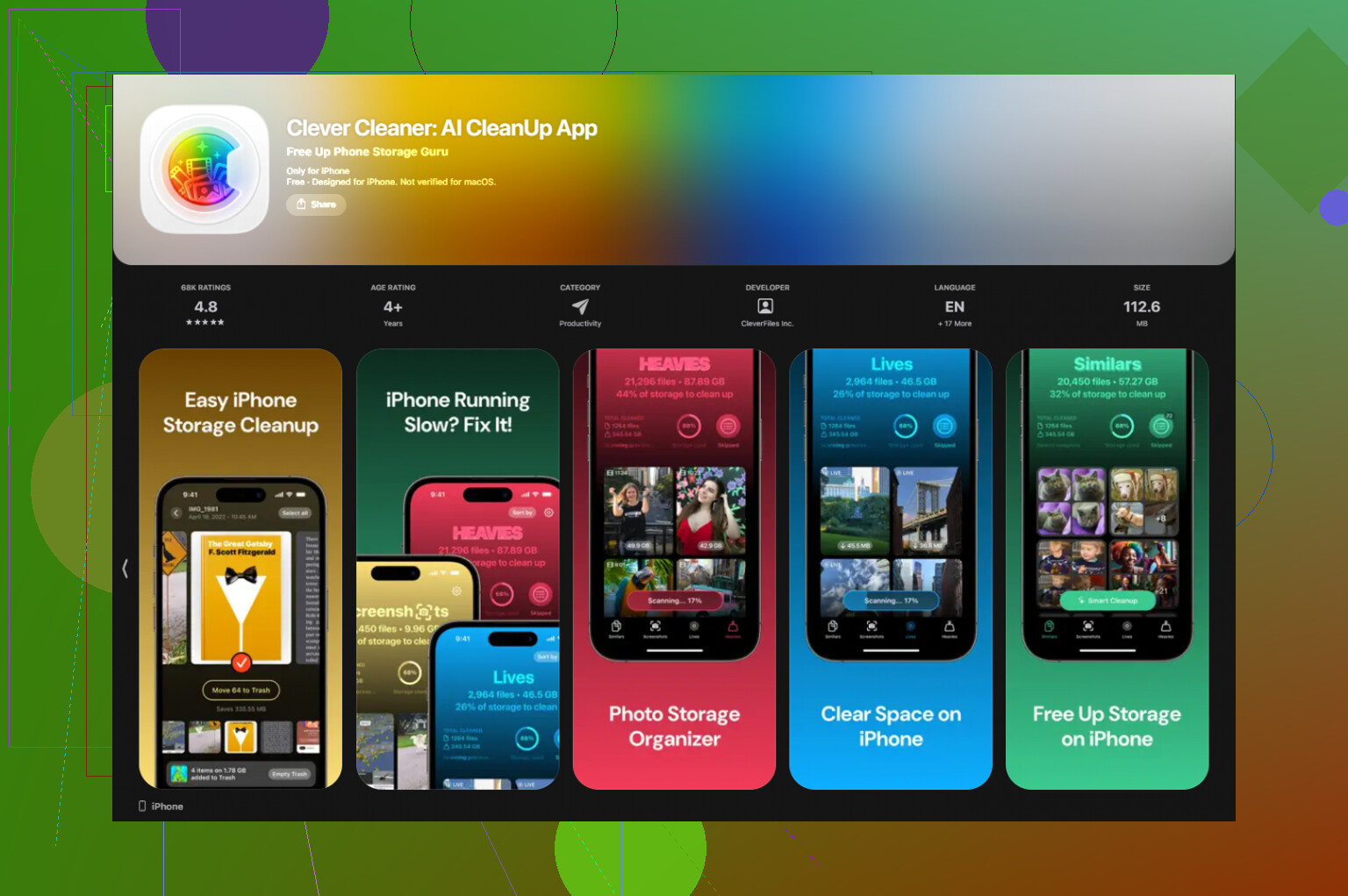
One app I ended up keeping was Clever Cleaner.
I found it while trying to clean up photo junk fast. What I liked:
- no paywall blocking the main cleanup
- no ads all over the place
- it sorts large files well
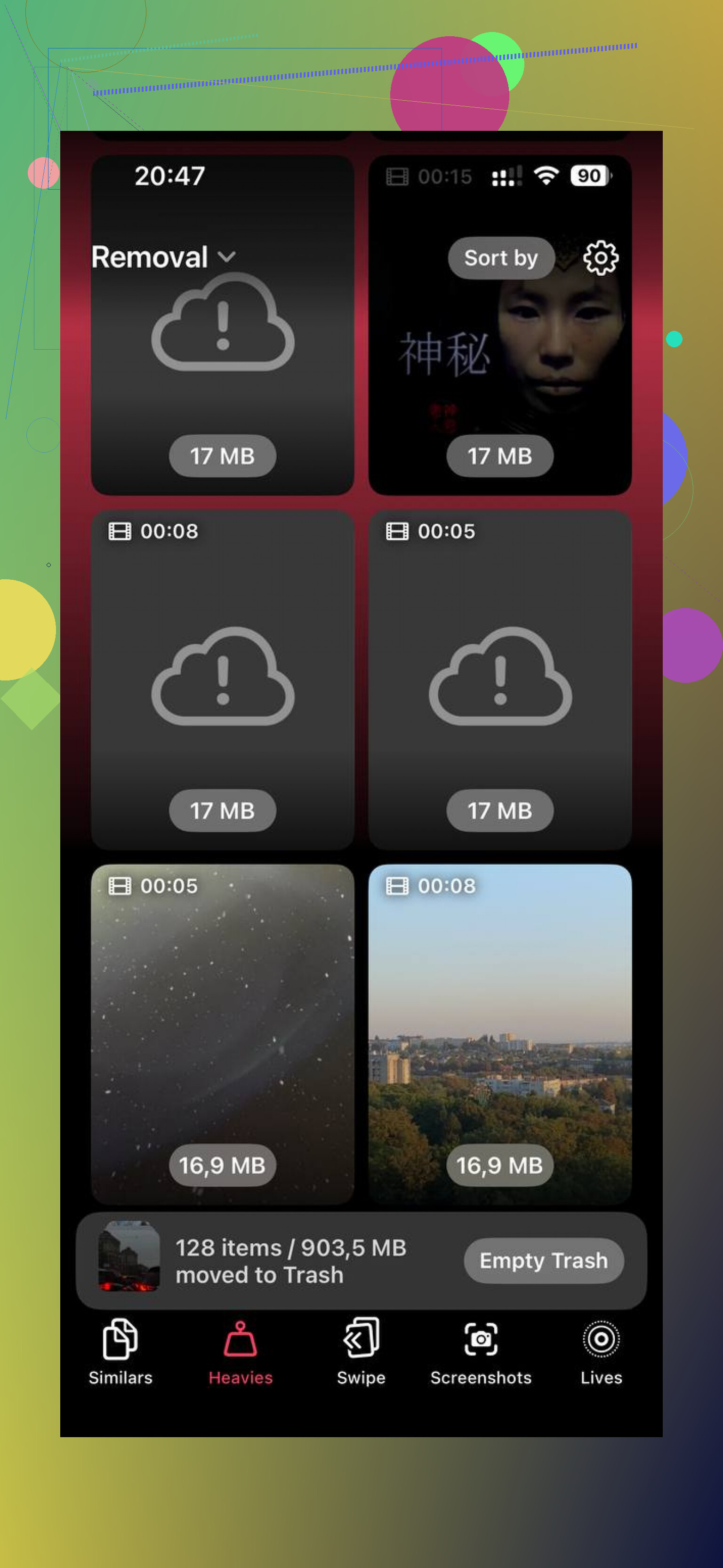
- the “Heavies” section makes big media easy to spot
- the similar photo scan cuts down repeat shots
I used it mostly for old videos and screenshots. Freed a few GB. Phone felt less bogged down after, though tbh the biggest gain came from having breathing room again.
Privacy part
This mattered to me more than the cleanup features. A lot of cleaner apps want your photos analyzed on remote servers. From what I saw, this one processes on the device. I stuck with it for tht reason.
What I’d do if your storage is full right now
Start here:
- Open iPhone Storage and sort out the biggest apps.
- Offload apps you don’t use often.
- Clear Safari website data.
- Check Files, especially “On My iPhone.”
- Delete old downloads and screen recordings.
- Clean up duplicate or oversized photos and videos.
If you keep a few GB free, the phone usually behaves a lot better. I started checking storage once a month and it stopped turning into a mess.
21 Likes
It includes more than the app file.
On iPhone Storage, “Applications” usually rolls together:
- the installed app itself
- Documents and Data
- caches
- offline content
- temp files made by apps
So if WhatsApp says 8 GB, the app is not 8 GB by itself. A lot of it is chat media, cached previews, downloads, and database junk. Same idea for TikTok, Spotify, Netflix, Chrome, games, etc.
I’d slightly disagree with @mikeappsreviewer on Safari being part of “Applications” in a broad sense every time. iOS often breaks Safari data out in its own spot, depending on version and screen you’re looking at. So the storage view is a bit inconsisent.
Best way to verify:
Settings > General > iPhone Storage > tap one app.
You’ll often see two numbers:
- App Size
- Documents & Data
That split tells you what’s going on.
If you want space fast, look for apps where Documents & Data is way bigger than App Size. Those are your storage hogs. Social apps and messaging apps are usuallly the worst.
Also check Photos. A lot of people blame “Applications” when the real problem is media. If you want a cleaner for that side of things, Clever Cleaner is worth a look. This Clever Cleaner review for iPhone storage cleanup gives a solid breakdown.
Short version, no, Applications does not mean only the apps themselves. It often includes the mess apps leave behind too.
Nope, “Applications” is usually not just the bare app install.
What it generally covers is:
- the app itself
- app-created data
- caches
- downloaded/offline files
- support files, temp junk, and sometimes leftovers after updates
The easiest way to tell is inside each app entry in Settings > General > iPhone Storage. If you tap an app, iPhone often splits it into:
- App Size
- Documents & Data
That’s the real clue. If App Size is 300 MB but the app shows 4 GB total, the other 3.7 GB is all the stuff the app accumulated.
I do kinda disagree with @mikeappsreviewer a bit on lumping everything under one bucket all the time, because iOS storage reporting is messy and changes by version. @espritlibre is closer on that point. Apple’s categories are annoyngly inconsistent.
Also, one thing people miss: deleting an app and reinstalling it can sometimes clear bloated cache better than just waiting for iOS to “manage” it. Not always ideal, but it works.
If your real goal is freeing space, don’t stare only at Applications. Check:
- Messages attachments
- Downloads in Files
- Photos/Videos
- podcast or music offline downloads
For media cleanup, Clever Cleaner is actually useful if your storage issue is mostly photo/video clutter rather than app bloat. And if you want a better walkthrough, this iPhone storage cleanup video review explains it pretty clearly.
Short version: Applications includes more than just the apps themselves, yeah.
Not just the app bundle, no. The part I’d add to what @espritlibre, @andarilhonoturno, and @mikeappsreviewer said is that Apple’s top-level Applications number is partly an accounting bucket, not a clean technical definition. So it can reflect app-related storage that is still being recalculated, purgeable cache that iOS may remove later, and shared frameworks that don’t map neatly to one app.
That’s why the totals can feel a little “off.”
One small disagreement with the usual advice: deleting and reinstalling is not always the magic fix people think it is. For some apps, yes, it nukes caches. For others, you lose local data and gain less space than expected because the real hog is synced content that comes right back.
A better way to think about it:
- App Size = the program itself
- Documents & Data = your stuff plus the app’s stuff
- Applications category = often the combined app ecosystem footprint
Also, some apps report storage badly. Messaging apps, browsers, and games are notorious for this.
If your goal is cleanup, look beyond apps too:
- downloaded videos in streaming apps
- voice notes and message attachments
- Files app local folders
- edited photo duplicates
- saved social-media drafts
If the real bloat is media, Clever Cleaner is one of the more practical tools.
Pros
- fast at spotting large photos/videos
- duplicate and similar-photo cleanup is useful
- simple interface
Cons
- less helpful for true app cache issues
- “similar” detection still needs human review
- some people will prefer doing everything manually
So: Applications is usually bigger than just the apps themselves, but it is also not perfectly precise. Apple’s storage categories are helpful, not exact.