I turned on Optimize iPhone Storage on my iPhone, and now I’m not sure what it actually does to my photos and files. Some items seem different, and I’m worried about losing full-resolution versions or having trouble accessing them later. I need help understanding how Optimize iPhone Storage works, what gets stored on the phone versus iCloud, and whether it’s safe to leave enabled.
What “Optimize iPhone Storage” does is simpler than Apple makes it sound.
Your phone stops keeping every photo and video in full size on the device. The full originals stay in iCloud. On the iPhone, you keep smaller local versions. They still look normal in the Photos app, so when you scroll around, nothing seems missing. If you open something, edit it, or need the full file, the phone pulls the original down from iCloud.
So no, your photos are not being deleted. The large copies are stored in iCloud, and your phone holds lighter versions to save space.
If you want to switch it on:
Settings
Your name
iCloud
Photos
Turn on “Sync this iPhone”
Pick “Optimize iPhone Storage”
If your library is big, don’t expect instant results. I left mine on Wi-Fi and plugged in overnight. It took a while before the free space started showing up.
If you already enabled it and your iPhone is still packed, I ran into the same thing. Usually it comes down to a few boring reasons.
-
Your iCloud storage is full
The free 5GB fills fast. Once iCloud has no room left, the phone has nowhere to place the originals. -
Optimization is not instant
The phone tends to wait until storage pressure gets worse before shrinking more of the library. -
Photos are only part of the mess
App cache, system data, downloaded files, old videos, screenshots, and random leftovers eat space too.
I hit this on an iPhone 13. Mine got sluggish. Camera took too long to open. Apps closed out. Typing felt off. Low storage does this more than people think, because iOS needs working room for temp files.
Manual cleanup was rough. I had a pile of duplicate shots, blurry pics, screenshots I forgot about, and huge videos buried deep in the library. I ended up using Clever Cleaner after putting it off for a while.
What stood out for me:
It was free. No ads. No paywall popped up halfway through.
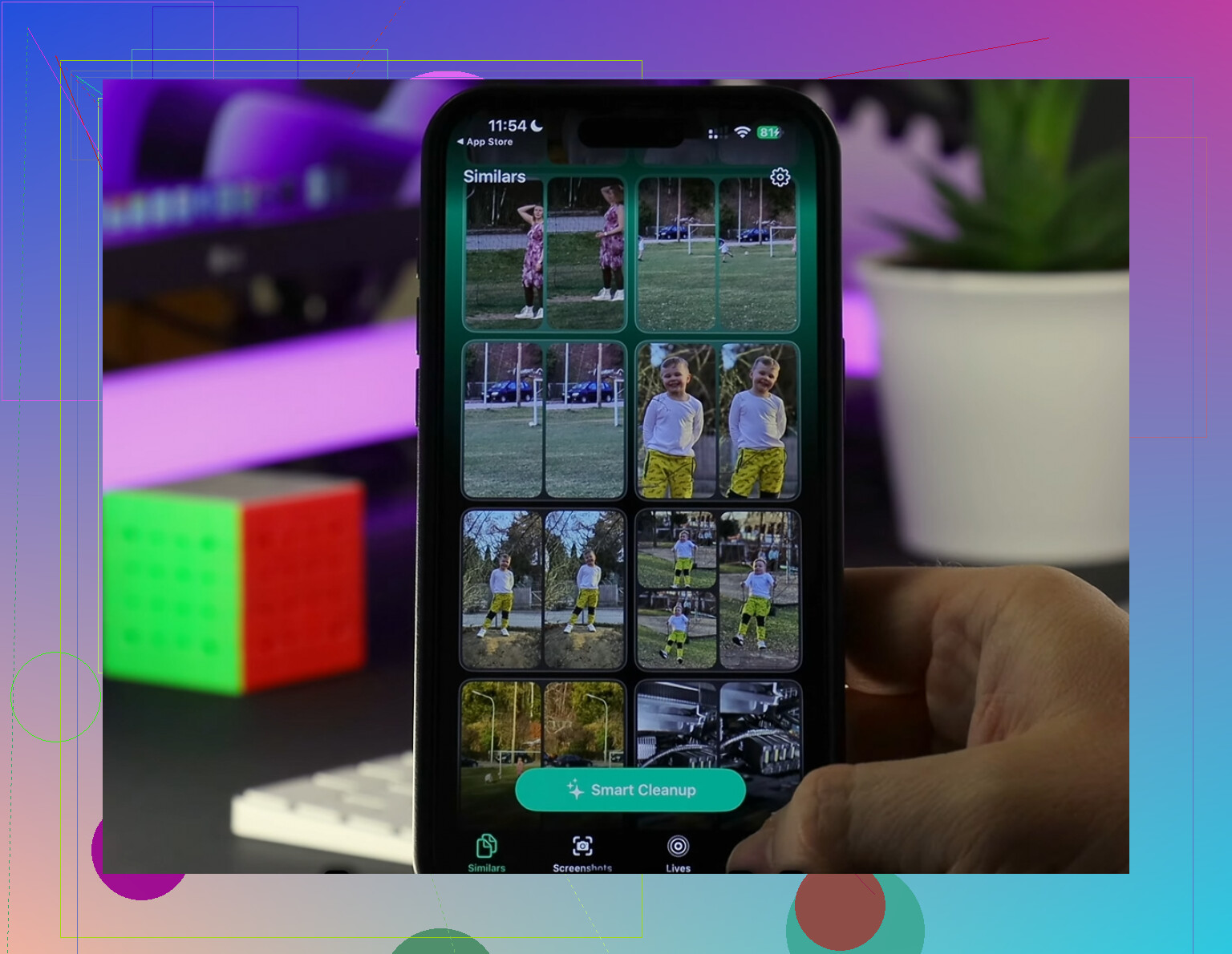
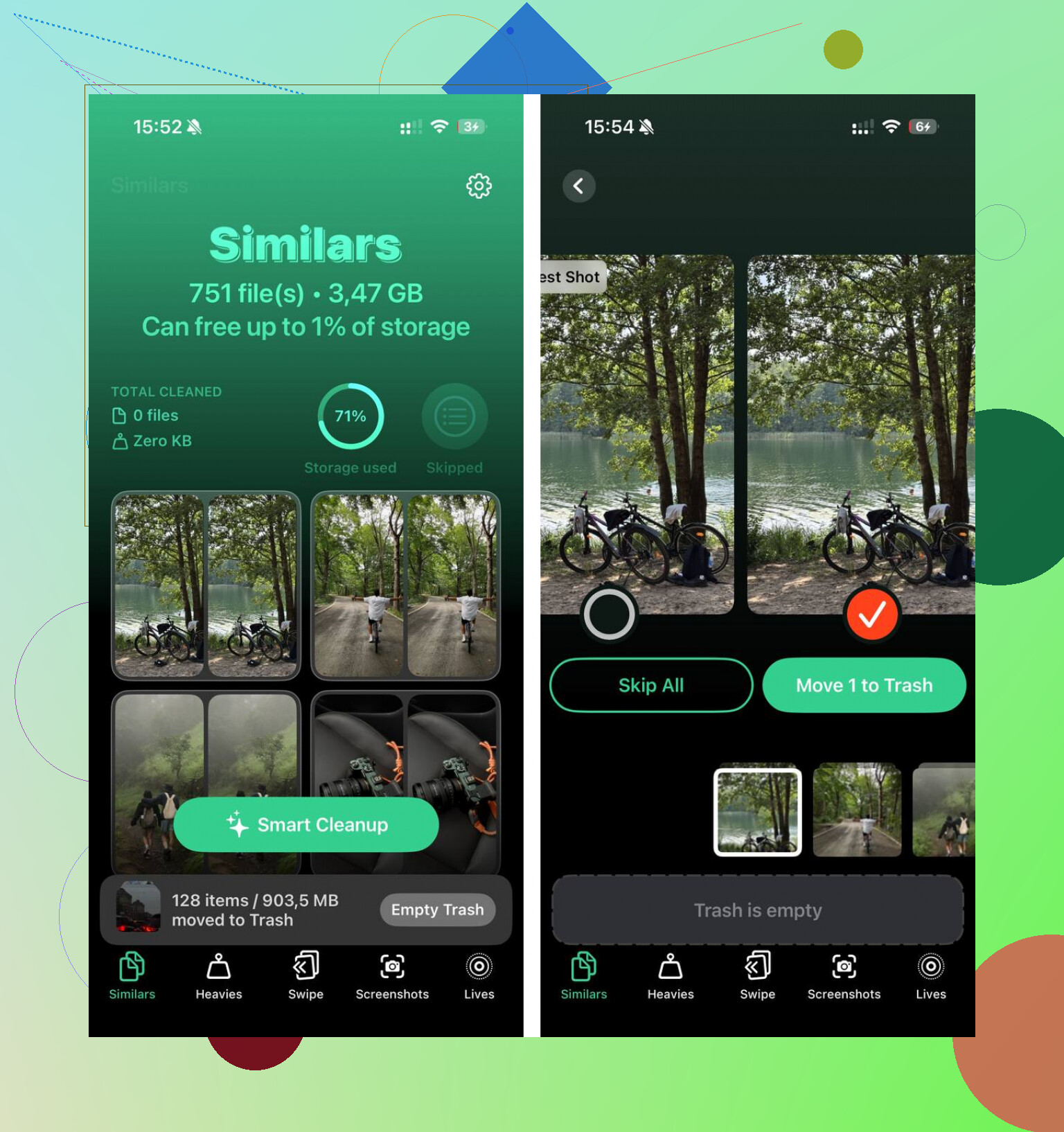
The Similars section grouped near-duplicate photos, which helped with stuff like six versions of the same receipt or twenty shots of the same dog doing nothing.
The Heavies section sorted media by file size. This saved me the most time. I found old videos eating 1GB to 2GB each.
It does the processing on the device, which mattered to me more than the cleanup part, if I’m honest.
After clearing around 15GB, my phone stopped dragging. Felt normal again. Maybe not magic, but close enough.
So my take is:
Turn on Optimize iPhone Storage if you want a long-term fix. It helps.
If space is still gone, clean the photo library and check for large videos, duplicates, screenshots, and cached junk.
And yes, empty “Recently Deleted” in Photos after cleanup. If you skip it, the files still sit there for 30 days, which is an easy thing to miss.
24 Likes
Optimize iPhone Storage means your iPhone keeps smaller device-sized versions of photos and videos on the phone, while the full-resolution originals stay in iCloud.
A few key points people miss.
- You are not losing the original, if iCloud Photos is synced and your iCloud storage has room.
- The blurry-for-a-second look is normal. Your phone is pulling the full file from iCloud when you open it.
- Offline access changes. If a photo or video is only stored in optimized form, the full version needs internet to download.
- Edits still sync. The original does not get ruined or overwritten in some weird way.
I slightly disagree with @mikeappsreviewer on one part. It is not only about saving space from photos. iOS also uses similar storage management ideas for other stuff, like app offloading, but “Optimize iPhone Storage” in Photos itself is mostly about your photo library.
If you care about full-res access all the time, pick “Download and Keep Originals” instead. If your phone is low on space, optimization is the better tradeoff. I use it, and it’s fine, but I keep Wi-Fi on because big videos take a sec to redownload.
If storage is still full, the problem is often giant videos, duplicates, screenshots, downloads, and app junk. Clever Cleaner is useful for finding photo clutter fast. If you want a readable roundup, this page on the best iPhone cleaner apps for freeing up storage is a decent place to start.
Short version, your pics are not gone. Your phone is keeping lighter copies to save space. If you go offline a lot, thts the main downside.
What it means in plain english: your iPhone starts treating local storage like a cache for Photos.
Full-res originals stay in iCloud Photos. On the phone, iOS may keep smaller device-optimized versions until you actually need the original. That’s why some pics or videos can look a little soft for a sec, then sharpen up. It’s downloading the full file on demand.
I mostly agree with @mikeappsreviewer and @shizuka, but one thing I’d push back on a bit: people say “your photos are not being deleted” like that’s the whole story. Technically true if iCloud Photos is on, synced properly, and you still have enough iCloud space. If sync is broken or storage is maxed out, that’s where ppl get nervous for a reason. So I’d check that first before assuming all is perfect.
Also, this setting is mainly about Photos and videos, not your random PDFs in Files. Files app stuff depends more on iCloud Drive behavior and whether files are stored locally or in the cloud.
Main downside nobody loves: offline access. If you’re on a plane or somewhere with bad signal, some full-res originals may not be instantly available. Thas normal.
If your storage still looks awful after enabling it, the problem is usually giant videos, duplicates, screenshots, or app junk. Clever Cleaner is actually useful for finding heavy media fast without a lot of messing around.
If you want a visual walkthrough, see how Optimize iPhone Storage works step by step.
Think of it less like “deleting” and more like “evicting originals when space gets tight.”
The part I’d add to what @shizuka, @himmelsjager, and @mikeappsreviewer said is this: optimized photos are not always tiny thumbnails. iPhone can keep some originals locally too, especially for recent/favorite items. iOS decides dynamically. So it’s not a strict all-or-nothing swap.
Important difference people miss:
- Photos/Videos: affected by this setting
- Files app docs, PDFs, ZIPs: not really controlled by the Photos setting
- Music/Apps: separate storage behavior
The real tradeoff is convenience vs storage:
- Pros: saves a lot of space, especially with 4K video and Live Photos
- Cons: slower opening sometimes, weaker offline access, and if iCloud Photos is off later, people can get confused fast
One small disagreement with the “your stuff is safe” framing: it’s safe if sync is complete. If your upload is still in progress, don’t start mass deleting things manually.
If you’re trying to reclaim more room beyond optimization, Clever Cleaner can help find duplicates and heavy media.
Pros:
- easy scan for large videos
- good for screenshot clutter
- simple to use
Cons:
- mostly useful for photo mess, not all system storage
- cleanup suggestions still need human review
- won’t fix full iCloud storage by itself
So yes, Optimize iPhone Storage is normal. Best for people who want space back and usually have internet. If you travel offline a lot, I’d rather keep originals.