I accidentally deleted important work files from my USB flash drive, and to make things worse, the drive is acting a bit unstable when I plug it in. I really need reliable data recovery software that’s safe, effective, and ideally not too hard to use. What tools or programs have actually worked for you to recover lost or corrupted data from USB drives, and are there any I should avoid?
My Kingston DataTraveler died on me yesterday. Windows popped up the classic “You need to format the disk before you can use it” box and my stomach dropped. Roughly six years of scanned family paperwork, some client invoices, and a folder of photos of my late grandmother are on there.
I have not saved anything new to it since it glitched. Learned that lesson a few years back when I almost nuked an external drive by trying random fixes in a panic.
Here is what helped me this time and the last time I had to deal with a similar mess.
First 30 minutes: what I did and what I avoided
I messed this up once in the past, so this time I forced myself to stop and think.
What I did not do:
- No formatting, even “quick format”
- No CHKDSK
- No “repair drive” option in Windows
- No writing new files to it
What I did:
- Unplugged it safely
- Let it cool down for a bit
- Plugged it back in only to check if it showed as the right size, then stopped there
From experience, the tools you use matter less than your behavior right after the failure. Once you overwrite sectors, those old docs and photos drop off a cliff.
RAW file system and 0 bytes shown
Mine showed up as having 0 bytes used and 0 bytes free, and Windows saw it as RAW. Last time I made the mistake of running a “quick scan” in some free tool. Waste of time.
This time I skipped quick scans and went straight to a deep sector-level scan. Stuff that digs through the raw sectors and rebuilds a file structure from what it finds tends to work far better on busted flash drives than tools that trust the partition table.
If the file system is trashed, tools that rely on it will shrug and tell you nothing is there. Tools that ignore it and scan the raw space on the device had a much higher recovery rate for me.
On free software and the annoying paywalls
The “free” angle is tricky. There are legit free tools. The catch is usually the same: they let you scan for free, then demand money to export recovered files.
Weirdly, that is not horrible. Being able to:
- Scan for free
- See your actual file names, sizes, folder structure
- Preview some photos or PDFs
before you pay, makes the decision easier. I got burned once by buying software first and then realizing it only recovered garbage file fragments.
Now my personal rule is:
Never pay before you have seen your own files in the preview window.
Someone in another thread pointed to this discussion about choosing USB data recovery software for a 64 GB flash drive:
https://discussion.7datarecovery.com/forum/topic/trying-to-choose-usb-data-recovery-software-for-a-64gb-flash-drive/
That thread helped me more than half the “top 10” listicles on Google. People in there actually ran scans, posted what worked, what failed, and which tools were useless beyond a nice interface.
Worth reading for about 10 minutes before you decide what to run on your own drive.
What I did step by step
Here is the order that made sense for me, and I would repeat it again:
-
Create an image of the USB drive
I used a disk imaging tool to make a full sector-by-sector image of the flash drive to a separate hard drive.
Reason: if the USB stick starts dying even more while you mess with it, you have a snapshot of how it looked at the start. Some flash drives start throwing more read errors the more you poke them. -
Run recovery on the image, not on the real USB
Once I had the image file, I pointed the recovery software at that image.
Benefit: fewer reads on the failing USB, less chance of it completely dropping off or corrupting more sectors. -
Deep scan, not quick
I selected the scan option that:- Reads the full space, sector by sector
- Tries to rebuild the file system
- Finds files by signatures where the file system is gone
This took hours. I left it running while I did other stuff.
-
Preview everything important
After the scan finished, I did not hit “recover all” blindly.
Instead I:- Opened random photos from different folders
- Opened a few PDFs of old invoices and documents
- Checked that the filenames made sense and were not all generic names
If the previews work and the files look intact, then a paid license starts to be worth it.
-
Pay only if the right files are there
Once I saw my grandmother’s photos rendering normal and a few old invoices opening fine from the preview, paying for a key felt less like a gamble.
File system detail: FAT32 or exFAT
When my earlier stick failed, it was formatted as FAT32. The one that failed yesterday is exFAT. That detail changed how well certain tools did with:
- Folder structure
- Long filenames
- Larger files
Rough observation from my own messes:
- FAT32 sticks often give better luck with tools that are older or more basic.
- exFAT sometimes breaks in odd ways where only the raw scan by file signature gets anything useful. Folder structure might not survive as cleanly.
If your drive was holding scanned docs and photos, then raw recovery by file type still has a good shot:
- PDF, JPG, PNG, DOCX, XLSX are usually easy to detect by signature
- You might lose folder names, but the content is still there
It helps to remember which file system it used before it went RAW. FAT32 or exFAT on a 64 GB stick matters for matching guides and tool settings.
If you still have the stick connected and have not formatted it, I would:
- Stop all experiments
- Image it
- Pick one tool that allows a full deep scan plus free preview
- Scan the image, not the stick
- Check previews of your most important files before spending a cent
22 Likes
Skip the panic software bundles and focus on two things: stability and how the tool handles flaky USB media.
Short version of what tends to work best for unstable USB sticks:
-
For imaging a dying USB
Use something like HDD Raw Copy Tool or dd (Linux) to make a full image to your internal drive. If the stick drops connection or makes odd clicking or disconnect sounds, stop poking it. Work on the image. -
For actual recovery
From my experience and tests:
• Disk Drill
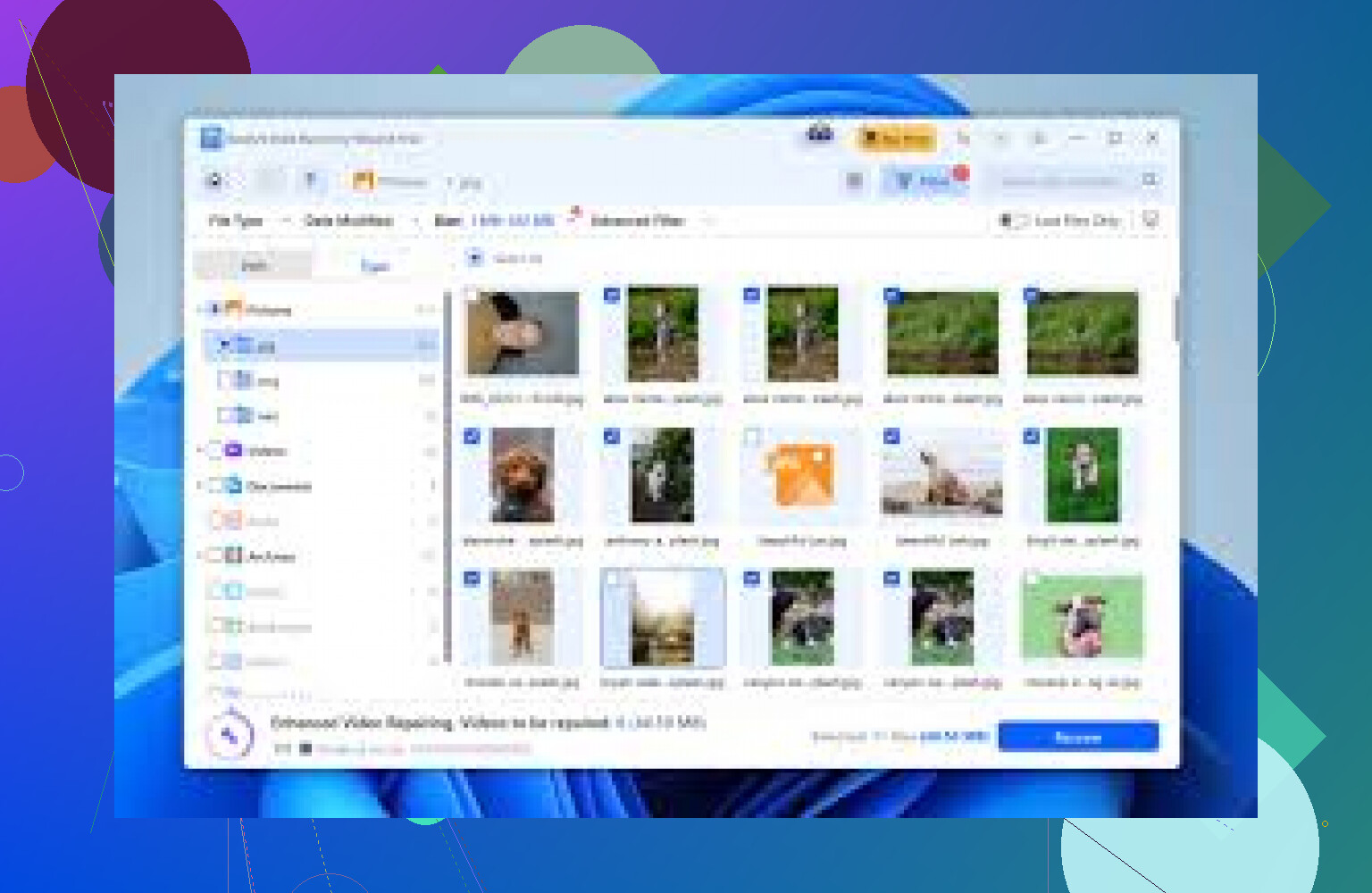
If you want one tool for “plug in, scan, recover”, Disk Drill is one of the safer bets for USB flash drives.
Pros:
- Deep scan works well on FAT32 and exFAT.
- Good at pulling deleted work files like DOCX, XLSX, PPTX, PDFs.
- Clean UI, you see what it finds before you pay.
- Handles RAW or “you need to format this drive” situations without freaking out.
Cons: - Free version is limited for recovery size, but you scan and preview without paying.
For someone in your situation, I would start with Disk Drill on an image of the USB. Do a full scan, not a quick one. Filter by file type and date to find the important work files fast.
• R‑Studio
More technical, less pretty.
Pros:
- Strong on damaged or unstable media.
- Lets you work on images, retry bad sectors, tweak scan settings.
- Good when the file system table is a mess and you need to rebuild structure.
Cons: - Interface feels complex if you are not used to data tools.
Great if the USB behaves badly or has many read errors.
• PhotoRec (with TestDisk)
Open source, no paywall at export.
Pros:
- Excellent for raw recovery by file type.
- Works even when partition info is gone.
Cons: - No original filenames, no original folder tree.
- Command line style UI.
Good fallback when you only care about the content, not names or folder structure.
- Where I slightly disagree with @mikeappsreviewer
They put strong focus on deep scans and previews, which is solid. I am a bit less scared of running a quick scan first, as long as you never write to the USB.
Reason:
- Quick scan on good tools reads the file system metadata only.
- If it fails, you lose a few minutes, not your data.
I avoid CHKDSK and any “repair” tools like they said though. Those often write to the disk and make recovery harder.
- Order of attack for you
Since your USB acts unstable and you deleted files:
- Stop using the USB. No new saves, no formats.
- If it stays connected long enough, image it to your hard drive.
- Install Disk Drill on your PC, not on the USB.
- Point Disk Drill to the image file.
- Run a full scan.
- Use the preview to check your most important Word, Excel, PDF or project files.
- If they open fine in preview, then it is worth paying.
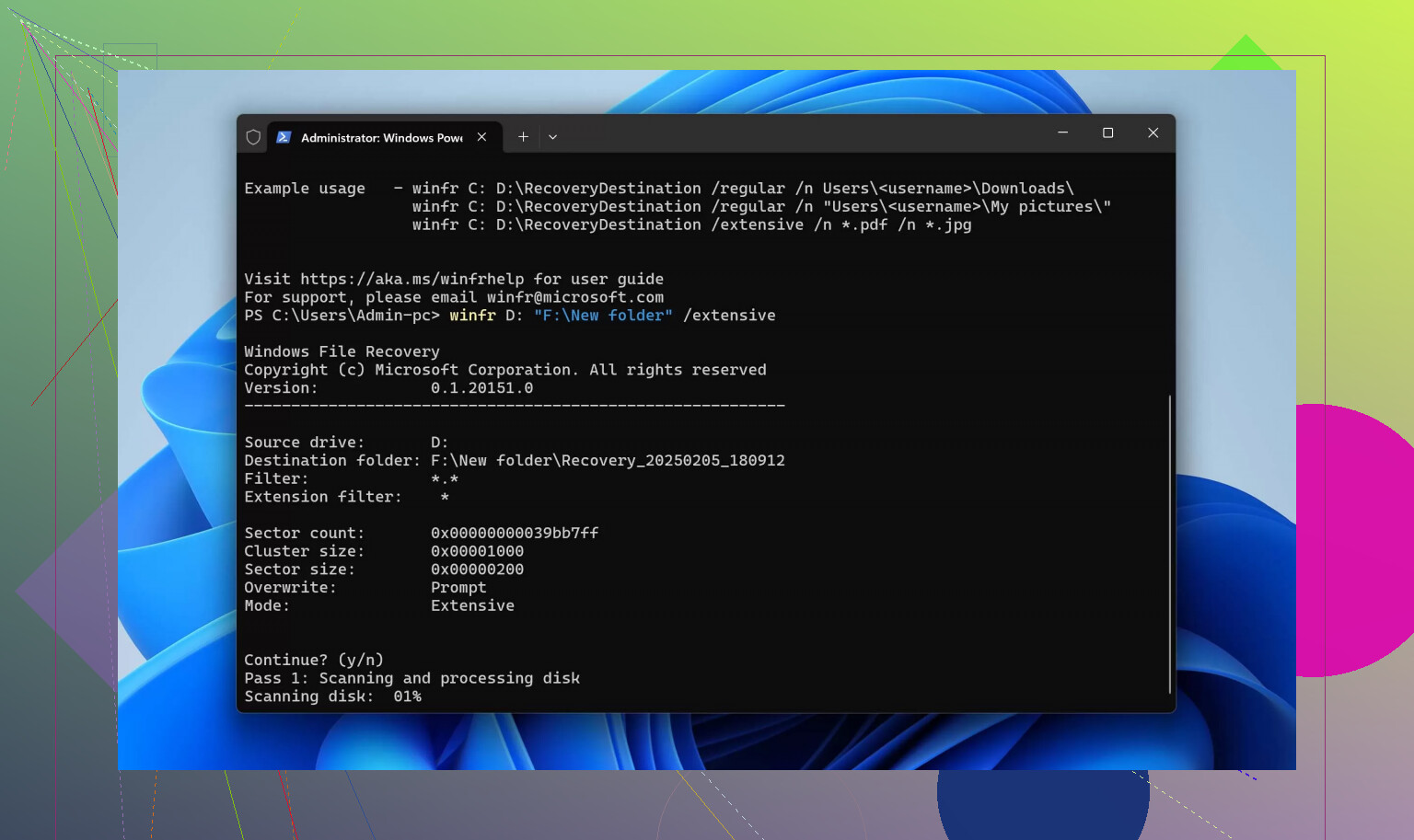
If Disk Drill fails or shows only garbage, try R‑Studio on the same image. As a last tier, run PhotoRec to pull raw file types.
- Helpful guide for your exact problem
If you want a clear step by step on how to recover files from usb with screenshots and video, this guide explains it well:
see how to restore deleted USB files safely
That combo, imaging first plus a deep scan from Disk Drill or R‑Studio, gives you the best chance with an unstable USB without burning more of your data.
@mikeappsreviewer and @himmelsjager already covered the “don’t panic, don’t write to the drive, image first” angle really well, so I’ll skip repeating that play‑by‑play. I’ll disagree with one thing, though: imaging is ideal, but if the USB is so unstable it constantly disconnects, spending hours fighting for a perfect image can waste your last working reads. In that specific case, I’d rather get some critical files out directly than chase a textbook‑perfect workflow.
Since you asked what’s the best USB data recovery software, I’d break it down like this:
1. If you want something that “just works” on USB sticks
This is where Disk Drill really shines for flash drives specifically:
- Very good at deleted work files from FAT32 / exFAT (DOCX, XLSX, PDFs, project files).
- Handles “drive is RAW” or “you need to format” situations gracefully.
- Deep scan on a flaky USB is solid, but I’d still point it at an image if you can get one.
- You can preview before paying, which lines up with what the others said: never pay until you see your files.
Between everything mentioned so far, Disk Drill is the one I’d tell a non‑tech coworker to use unsupervised without expecting a disaster.
2. When the USB is physically misbehaving
This is where I lean slightly differently from @mikeappsreviewer:
- If the stick is intermittently disconnecting, I’ll sometimes:
- First try a short scan focusing only on deleted entries in the existing file system using Disk Drill or similar.
- Then, if the drive holds up, move to an imaging tool like dd / HDD Raw Copy or whatever you’re comfortable with.
Quick metadata scans are read‑only on decent tools. If the drive is about to die for good, those few quick reads might be all you get. I don’t treat “never quick scan” as a hard rule.
If you can hold a stable connection long enough, though, then yes: grab an image and run Disk Drill, R‑Studio, or PhotoRec/TestDisk on that image like @himmelsjager laid out.
3. A couple of tools they didn’t highlight as much
Not necessarily better than what they listed, but worth knowing about:
-
UFS Explorer
- Excellent on weird USB controller behavior and partially corrupted exFAT.
- Very granular control over how it scans, but the UI is not beginner‑friendly.
- I’d put it in the “if Disk Drill and R‑Studio didn’t cut it, try this” tier.
-
DMDE
- Brutally ugly interface, very powerful engine.
- Good for manually reconstructing partitions and file systems when things are half‑trashed.
- Not my first suggestion if you’re already stressed and tired, but it can dig stuff out that simpler tools miss.
4. When you only care about content, not filenames
Here I’m totally aligned with @himmelsjager: PhotoRec is killer for pulling raw file types. Just note:
- No original folder structure.
- Filenames will be random.
So for a pile of work docs and photos, it’s a “last‑ditch, I will sort the chaos later” option.
5. Important point nobody stressed enough: where you install things
You mentioned you deleted files and the USB is unstable. Do not install any recovery software on that USB. Install Disk Drill or others on your system drive or another external drive and recover to a different destination. Writing anything new to that USB, even installing a tool, can overwrite the very sectors you’re trying to save.
6. If you want to compare multiple tools without being spammed by “top 10” junk
Instead of random listicles, look for more focused breakdowns of the strongest file recovery programs for lost documents and photos. Those kinds of writeups usually separate tools that are actually good on USB flash drives from the pretty-but-useless ones.
What I’d do in your exact case, differing slightly from the others
- Try a different USB port and, if possible, another computer, once, just to see if stability improves.
- If it stays connected for a while:
- Try to image the drive. If the imaging keeps failing halfway or disconnecting, don’t spend all day re‑trying.
- Install Disk Drill on your main drive.
- If you got an image, scan the image. If not, scan the USB directly but keep an eye on disconnects.
- Use deep scan, then filter by DOC/DOCX/XLSX/PDF and whatever app your “important work files” use.
- Preview several of them. If previews show the actual content, then pay and export to a different drive.
So: no single “best” for everyone, but for a deleted‑files + slightly flaky USB situation, Disk Drill is the most balanced mix of safety, effectiveness, and not making you learn forensic tools at 2 a.m.
If we strip the emotions out of this and look at it like a tools-versus-symptoms problem, your situation is basically:
- Deleted files
- USB acting flaky / borderline RAW
- You want something reliable, not gimmicky “miracle” software
@himmelsjager leaned hard into imaging first and then using R‑Studio / PhotoRec; @ombrasilente pushed Disk Drill as the “civilian friendly” option; @mikeappsreviewer added nuance about when to image vs when to grab what you can. I mostly agree, but I’d tweak the priorities a bit.
1. Disk Drill in context (pros & cons)
If the question is “what’s the best overall bet for USB recovery for a non‑forensic user,” Disk Drill is still the center of the shortlist, but it is not magic.
Pros of Disk Drill:
- Very good at typical USB file systems (FAT32, exFAT, NTFS if someone re‑formatted oddly)
- Strong at standard work formats: DOCX, XLSX, PPTX, PDF, photos
- Deep scan can bypass a wrecked partition and scan raw space
- Free scan + preview before paying, so you see your actual files first
- Handles “This drive needs to be formatted” without forcing you into destructive actions
Cons of Disk Drill:
- Free tier is restrictive for actual recovery size
- Not as granular or diagnostic as R‑Studio or UFS Explorer on heavily damaged media
- Can be slower and more “black box” compared to low‑level tools if you like to see what is going on
- On very unstable USBs, a long deep scan may trigger disconnects more often than a more configurable tool
So I’d absolutely keep Disk Drill in the picture, but I would not treat it as the only thing worth running.
2. Where I disagree slightly with the others
- @himmelsjager is very imaging‑first. That is textbook correct, but on a really bad stick that drops off every few minutes, trying to get a perfect full image can burn your last good reads. I’d accept an incomplete image if necessary instead of endlessly re‑trying sector 0 to 100%.
- @ombrasilente is a bit optimistic about deep scans as a cure‑all. There are cases where a targeted, short metadata scan to grab recently deleted entries is safer than grinding the entire stick for hours.
- @mikeappsreviewer focuses on not running CHKDSK or auto‑repair tools, which I 100 percent agree with, but I am less afraid of a carefully chosen quick scan, provided it is read‑only and you know when to stop.
3. Competitors and when they beat Disk Drill for USBs
Very short take, since the others already went deep:
-
R‑Studio
- Better when USB is throwing lots of bad sectors or the file system is shredded.
- You can tune read retries and skip bad areas more intelligently.
- Worse for beginners, stronger if you are willing to learn its interface.
-
PhotoRec (with TestDisk)
- Excellent last‑resort for content recovery only.
- No folder tree, no original names.
- I’d use it when Disk Drill and R‑Studio only give fragments or nothing recognizable.
-
UFS Explorer / DMDE (which were touched on indirectly)
- More “forensic” style than Disk Drill.
- Worth it if you suspect controller quirks, multiple partitions, or odd exFAT damage.
- Steeper learning curve but great at marginal, weird cases.
In plain terms:
- If you want “install, scan, preview, click recover” with decent safety, Disk Drill is still the practical answer.
- If the USB behaves like it has physical issues, R‑Studio or UFS Explorer start looking more attractive than Disk Drill, even if the UX is worse.
4. Strategy that complements what they said
To avoid just repeating their step lists, here is a different angle: prioritize what you need instead of how you get it.
If your main goal is specific work files (documents, spreadsheets, PDFs):
- Start with Disk Drill focused on those file types only, using filters.
- Reason: less scanning noise, faster to check whether the “important stuff” is even recoverable.
- If previews of your key files are intact, pay & recover to a different drive.
- Only if those previews fail or are corrupted, move on to R‑Studio or PhotoRec.
If your main goal is “salvage absolutely everything, even if it is messy”:
- Get any partial image you can, even if the imaging tool reports read errors.
- Run R‑Studio or UFS Explorer on that image, try to reconstruct the file system.
- If you still get garbage, then unleash PhotoRec on the same image and accept the chaos of random filenames.
5. Subtle but important safety points
Most of this was said already, but two things were underplayed:
- Do not let your antivirus or “USB fixer” suites auto‑repair the drive. Some of these utilities quietly run CHKDSK‑like operations.
- If you try more than one recovery tool, point all of them at the same image file. Do not let each program hammer the raw USB again.
So in short: use Disk Drill as your first, practical pass for your important work files, with its deep scan and preview as the deciding factor. If it clearly shows your data in good shape, it is the most painless solution. If it does not, that is when the heavier artillery that @himmelsjager and @ombrasilente favor starts to make more sense.