I’m organizing my movie and TV show collection and noticed most files are either MP4 or MKV. I want good quality, small file sizes, and reliable playback on my TV, phone, and laptop. I’m confused about which format is better for long-term use, subtitles, and streaming from my home server. Can someone explain the pros and cons of MP4 vs MKV and recommend what I should stick with?
MP4 vs MKV: what I ended up using for what
This comes up a lot, so here is what I ended up doing after dealing with a bunch of files, phones, TVs, and relatives who keep sending weird formats.
Short version: neither is “better” in some universal way. They solve slightly different problems.
What MP4 turned out to be good for
MP4 is the one thing I can throw at almost any device and it plays.
Real life use:
• Every phone I tried handled MP4 without extra apps
• Every smart TV in my family plays MP4 from USB or over Wi‑Fi
• Social media sites are fine with MP4
• Web browsers play MP4 without any drama
What I noticed:
• Works on Windows, macOS, Linux, iOS, Android, streaming sticks, consoles
• File size is usually lean enough for sharing in chats or cloud links
• Quality is good enough for YouTube uploads, screen recordings, tutorials, etc.
I use MP4 when:
• I send someone a video and I do not want a “file not supported” reply
• I upload to a site that is picky
• I know the viewer is non‑technical and will open it in whatever default app they have
• I am watching on a phone or tablet and do not feel like installing third‑party players
If you want the “I do not have to think about it” option, MP4 is that format.
Why people keep their serious stuff in MKV
MKV (Matroska Video) behaves like a container that holds a bunch of things in one file.
The usual pattern I see with MKV files:
• Multiple audio tracks, like English, Japanese, director commentary
• Multiple subtitle tracks, often in several languages
• Chapter markers, so you can skip to scenes
• Different codecs and extra streams bundled together
It fits long movies, TV seasons, ripped discs, and personal archives.
The upside:
• One file for everything, no separate subtitle files rolling around
• Easy to keep the original quality from Blu‑ray or high‑bitrate sources
• Good for people who want lossless or near‑lossless backups
The downside:
• Some TVs will ignore MKV completely
• Default players on phones and some computers refuse to open it
• Older media boxes choke on some MKV combinations
So I keep MKV for:
• Stuff I store on a NAS or external drive
• Media center setups with proper players (Plex, Jellyfin, Kodi, etc.)
• Anything where I care about keeping quality, subtitles, and audio tracks intact
So which one is “better”
How I ended up splitting it:
MP4:
• Sharing
• Phone viewing
• Web uploads
• Lightweight recordings
MKV:
• Archiving
• Movie collections
• Multi‑audio and multi‑subtitle files
• Home theater setups
If you need maximum compatibility, MP4 wins.
If you need flexibility and all the extra tracks, MKV wins.
Players I tested on Windows
The format is only half the story. The player matters more than people think.
On Windows I ended up with this combo:
VLC Media Player
• Plays MP4, MKV, and a mountain of other formats
• No separate codec packs needed
• Handles weird files people send in group chats
• Good for “it will not open anywhere else, let me try VLC”
It is not the prettiest, but it works and I stopped counting how many times it saved me.
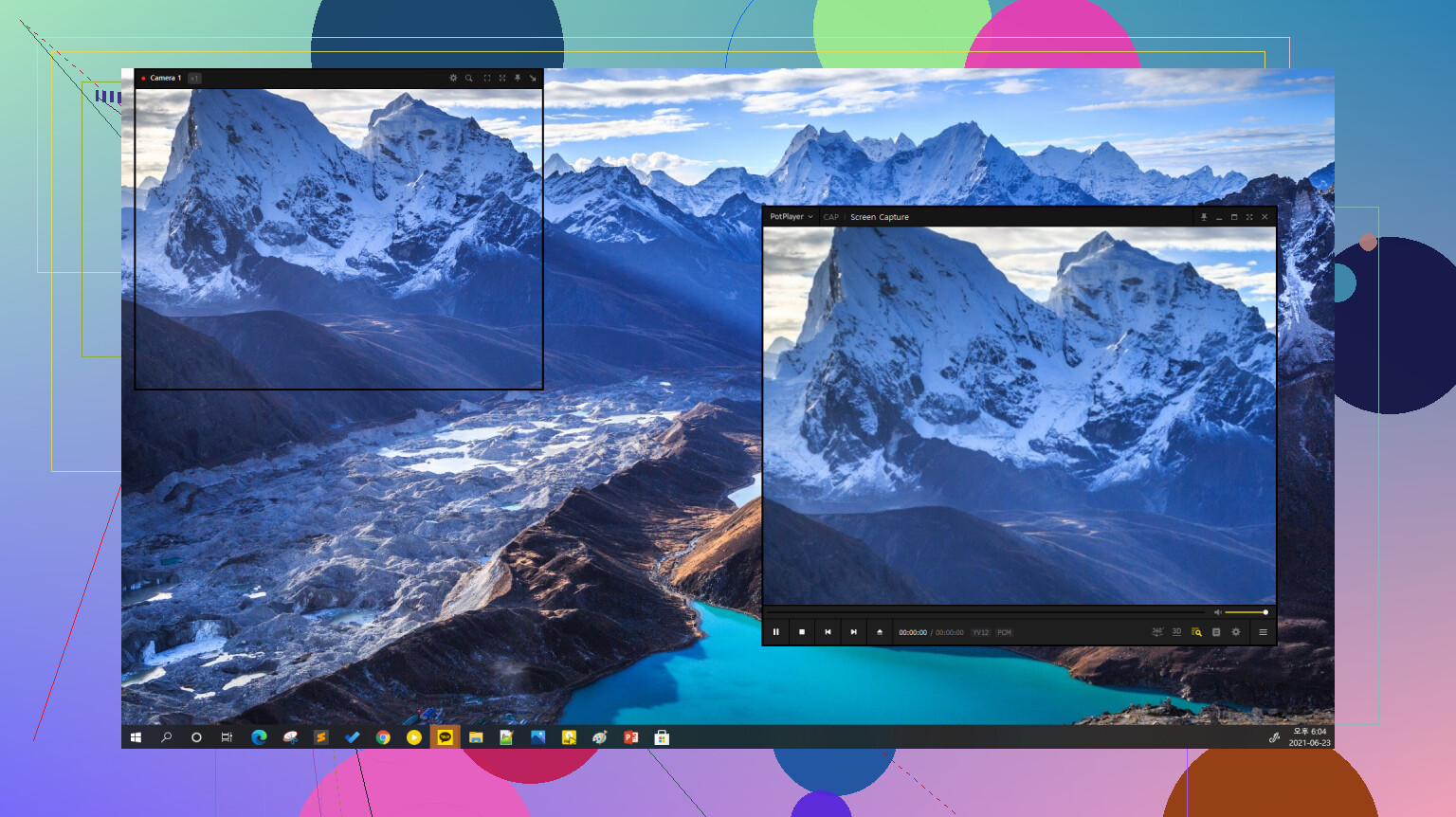
PotPlayer
• Lightweight interface, snappy startup
• Handles MP4 and MKV smoothly
• Tons of tweakable options for people who like to fine‑tune playback
• Good hardware acceleration support on decent GPUs
I use VLC as the safety net, PotPlayer when I want more control over playback.
What I use on macOS
On macOS, the built‑in stuff is limited, so I had to experiment.
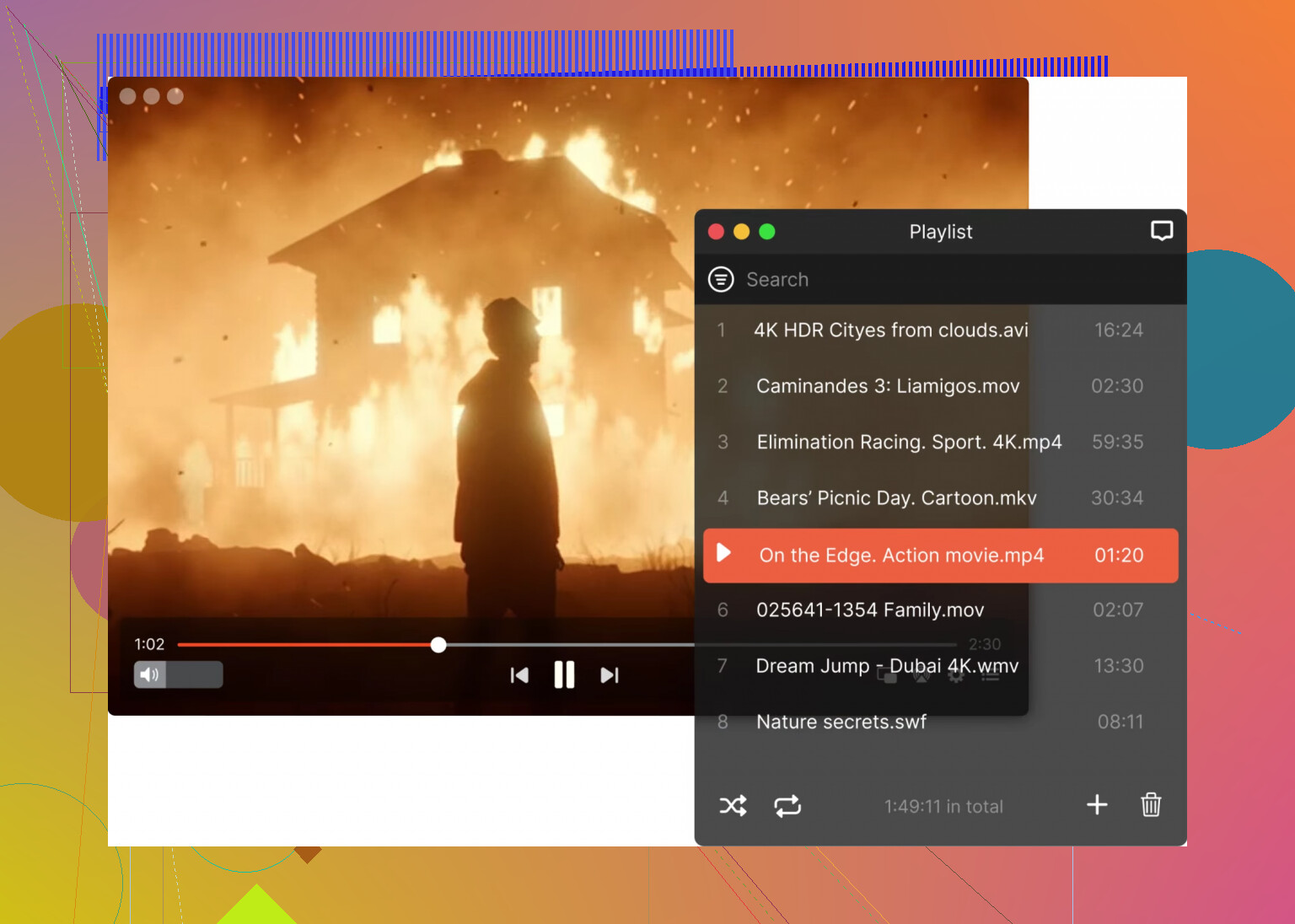
Elmedia Player
What it handled for me:
• Opened MP4, MKV, AVI, MOV without conversions or plugins
• Pulled subtitles automatically when they were available online
• Let me sync subtitles when the timing was off
• Allowed playlists for longer shows or lectures
• Playback speed control for tutorials and recorded meetings
• Adjustments for brightness, contrast, and other video parameters
One thing I used more than expected in Elmedia Player: streaming from Mac to Apple TV, Chromecast, and some smart TVs on the network. It spared me from plugging in USB drives or copying files around.
QuickTime on macOS, the good and the bad
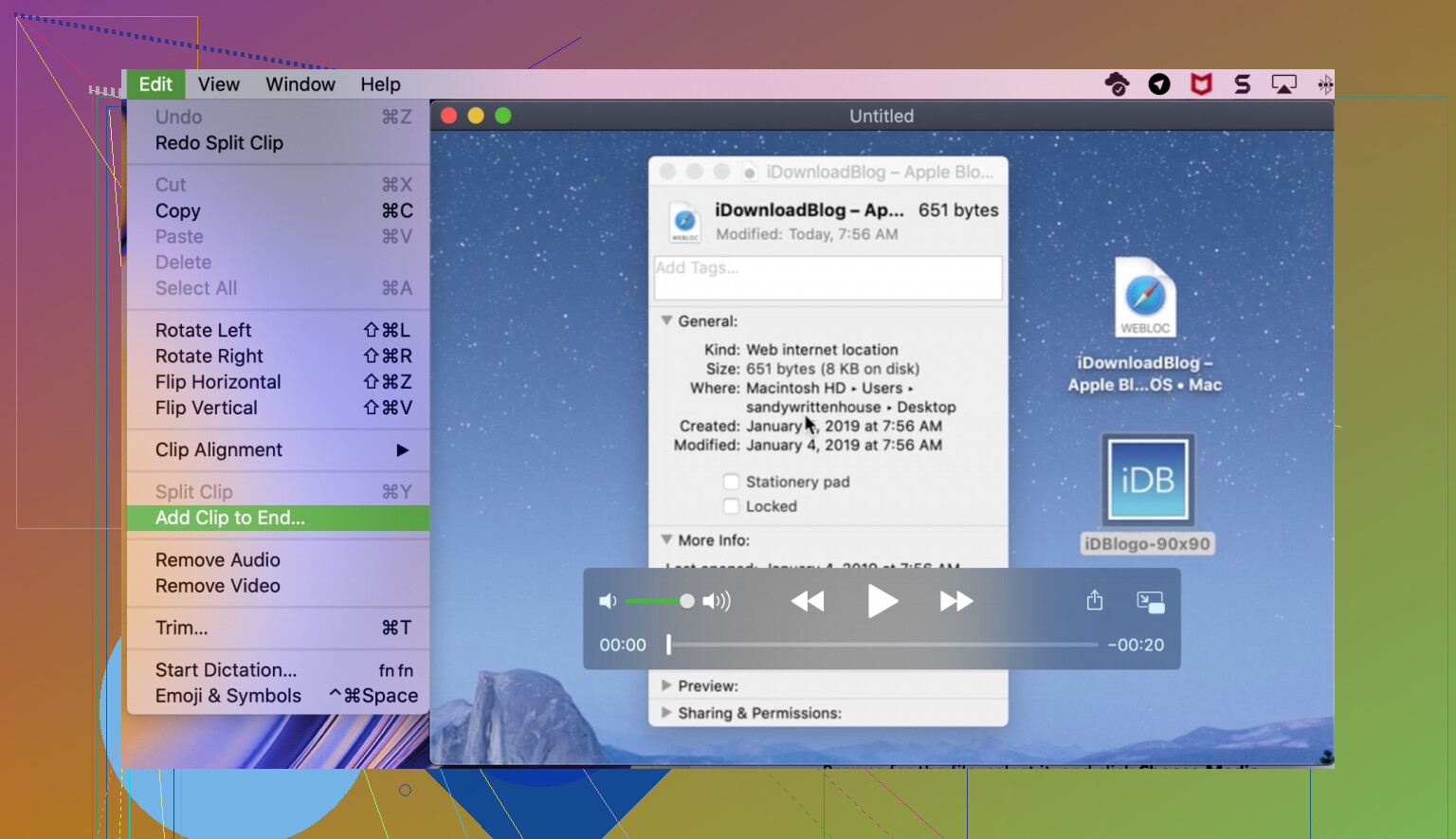
QuickTime Player comes preinstalled, so everybody runs into it.
What it did well for me:
• Played MP4 smoothly
• Interface is clean, no clutter
• Handy for trimming clips or quick cuts without installing anything else
Where it fell short:
• No native support for MKV or AVI
• Needs conversion for a lot of non‑Apple formats
• Not ideal if you handle anime packs, older rips, or obscure encodes
So I leave QuickTime for tiny edits, short screen recordings, and simple MP4s. For anything odd, I open Elmedia or another third‑party player.
If you are unsure what the other person will use to watch the file, export or convert to MP4.
If the file is for you and your home setup, MKV makes more sense.
15 Likes
Short answer for your use case:
• MP4 for stuff you want to play on TV, phone, laptop with zero drama
• MKV for long‑term storage of movies and shows where you care about extra tracks and max quality
You do not need to pick only one. Use both on purpose.
How it breaks down for you:
-
Compatibility on TV, phone, laptop
MP4 wins.
Most TVs prefer MP4 with H.264 video and AAC audio.
iOS loves MP4. Android is fine with MKV, but stock players on some phones refuse it.
Windows and macOS handle MP4 with default players more often.
If the file must play without installing anything, go MP4. -
Quality vs file size
For the same video and audio codec, MP4 and MKV are almost the same size.
Container is not your main factor. Codec and bitrate are.
If you use H.264 or H.265 in both, you will not see a big difference in size or quality.
So do not stress over format for quality. Focus on encoding settings. -
Features you might care about
MKV is better when you want:
• Multiple audio tracks
• Multiple subtitle tracks
• Chapter markers
• Lossless or near lossless audio
MP4 supports some of this, but tools and players handle it worse. MKV is cleaner for complex files.
- Your specific goals
You said: good quality, small file sizes, reliable playback on TV, phone, laptop.
I would do this:
• Library master copies
Store movies and shows as MKV.
Use H.265 (HEVC) if your devices support it, else H.264.
Keep all audio tracks and subtitles in the MKV.
This keeps your collection flexible.
• Files you send to others or watch on random devices
Convert those to MP4 with one main audio track and either burned‑in subs or a single embedded track.
Use conservative bitrate so the file is not huge but still looks clean.
This differs a bit from @mikeappsreviewer. They lean stronger on MP4 for lots of casual stuff.
In my experience, once you set up a decent player on each device, MKV stops being a pain. So I keep almost everything in MKV and only convert to MP4 when I know a device is picky.
- What to use on each device
Windows
Install VLC or similar for both MP4 and MKV.
No need to convert if it plays fine.
macOS laptop
QuickTime is limited.
Install Elmedia Player so you play MKV and MP4 in one place.
Elmedia Player also helps with subtitles and streaming to TV, so it fits your mixed library setup well.
Phone
If your phone fails on MKV, install a third party player.
If you do not want extra apps, keep mobile files as MP4.
TV
Test your TV with one MKV and one MP4 on USB.
If MKV support is weak, use MP4 for anything you plan to plug into the TV directly.
For network streaming through Plex, Jellyfin, etc, MKV is usually fine, the server will transcode when needed.
Quick practical setup for you:
• Archive folder on your drive or NAS
All MKV.
Full quality you find acceptable.
Multiple audio and subs if available.
• “To watch anywhere” folder
Same titles, converted to MP4
One audio, one subtitle track
Lower bitrate for smaller files
This gives you both reliability and quality without re‑encoding your entire life every time you change devices.
For what you want (good quality, small size, plays everywhere), I’d treat MP4 as your “public face” and MKV as your “back office.”
@mikeappsreviewer is right that MP4 is the least painful on random devices, and @cazadordeestrellas is right that MKV is nicer for serious collections. Where I’d push back a bit: you don’t need to aggressively convert everything to MP4 or everything to MKV. Mixing is fine and actually saner.
Here’s how I’d split it, practically:
1. What to keep your library in
Use MKV for your main collection of movies and TV:
- Better for multiple audio tracks (original language + dub, etc.)
- Better for multiple subtitle tracks and chapters
- Great for keeping higher bitrates or near‑Blu‑ray quality
For codec, go:
- H.265 / HEVC if your TV and phone support it
- H.264 if you want maximum compatibility and faster encoding
Container (MP4 vs MKV) barely affects size for the same codec and bitrate, so don’t stress over that part.
2. What to actually watch or share
Use MP4 as your “universal” version:
- TV USB playback
- Phone watching without installing extra apps
- Sending files to friends or family
- Uploading anywhere on the web
For those, a simple setup:
- Video: H.264
- Audio: AAC
- One main audio track
- Either hardcoded subs or just a single subtitle track
This keeps the file small and very compatible.
3. How this plays with your devices
-
Laptop (macOS): macOS is annoyingly picky with MKV out of the box.
Install Elmedia Player and call it a day. It plays MKV and MP4, handles subtitles nicely, and can stream to your TV so you do not have to fight with formats every time. -
Windows laptop: VLC / PotPlayer like the others mentioned are fine. Here I actually disagree a bit: I would not overthink the player choice. Install one decent player and move on.
-
Phone:
- If you hate installing extra apps, keep phone stuff in MP4.
- If you do not mind an extra player, MKV is fine too.
-
TV:
Test it once: throw 1 MKV and 1 MP4 on a USB.
If the TV is fussy with MKV, just use MP4 for stuff you plan to plug in directly. If you’re using something like Plex / Jellyfin, keep MKV as your main format and let the server handle compatibility.
4. Simple folder strategy
/Library→ MKV, higher quality, full audio + subs/To_watch_anywhere→ MP4 copies, trimmed audio/subs, more compressed
That way you are not doing full re‑encodes every time you want to watch on a different device. You just convert selected titles to MP4 when you actually need portable versions.
So: neither format “wins.”
For you specifically:
- MKV for the collection
- MP4 for frictionless playback on TV, phone, and laptop
Use both on purpose, not as a religion.