I’m trying to pick a main cloud storage service between Dropbox, OneDrive, and Google Drive for both personal files and small freelance projects. I’ve used the free versions a bit, but I’m confused about real-world differences in speed, collaboration, reliability, and pricing once you start paying. I’d love advice from people who’ve actually switched between these services or use more than one—what do you recommend and why?
Dropbox vs OneDrive vs Google Drive (and how I stopped juggling accounts)
So I’ve bounced between Dropbox, OneDrive, and Google Drive for years, partly for work, partly for personal stuff, and partly because every employer seems to pick a different one. It got to the point where I had like 3 Google accounts, 2 OneDrives, and an ancient Dropbox that still had random college files in it.
Here is how they stack up in actual use, and what I ended up doing once the multi-account nonsense got out of hand.
How each one actually feels to use
Dropbox
If you just care about “put file in folder, sync fast, forget about it,” Dropbox is still really solid.
What it’s good at:
- Sync speed is usually excellent, especially for a lot of small files.
- The desktop integration feels very natural. It just looks like another folder.
- Shared folders are simple and tend to just work.
- File versioning and recovery have saved me more than once.
Annoyances:
- Free space is small unless you’re grandfathered in from older promos.
- Managing multiple accounts on one machine is clunky. You can do it, but it never feels smooth.
- The web UI is kind of bloated now, with extra stuff I rarely need.
OneDrive
OneDrive is the “you’re using this because Windows or Microsoft 365 made you” service for a lot of people, but it is not terrible at all.
What it’s good at:
- Built into Windows, so it quietly turns into a default document/photo backup for many.
- Works nicely with Word, Excel, PowerPoint, and Teams.
- Good for businesses that are already all-in on Microsoft.
Annoyances:
- Sync client can be flaky on some setups. I’ve had random “sync issues” that just sit there silently.
- Web UI is okay, but not amazing.
- Juggling work vs personal OneDrive accounts can get confusing, especially in Office apps.
Google Drive
Google Drive is that one service everyone ends up with because of Gmail, Android, or Google Docs.
What it’s good at:
- The online document suite is hard to beat for collaboration.
- Sharing links is easy: right click, get link, done.
- If you live in Chrome, it’s right there.
Annoyances:
- Multiple Google accounts is where things turn into chaos. Different tabs using different logins, random “you don’t have access” stuff.
- Desktop client is fine, but not exactly intuitive for more complex setups.
- Storage fills up fast if Gmail and Google Photos are also using the same space.
The real headache: multiple accounts everywhere
Here’s where all three of these turn into a mess:
- Personal Dropbox + work Dropbox
- Work OneDrive + personal OneDrive (thanks, Office 365)
- 2–4 Google accounts (old personal, new personal, work, maybe a second job or client)
On a single Mac or PC, that means:
- Multiple apps fighting for your menubar/tray space
- Constantly logging in and out of browser sessions
- Using private windows just to access a different Drive/OneDrive account
- Re-downloading files to move from one cloud to another (which is insanely inefficient)
At one point I literally installed the same sync app under different OS user profiles just to keep separate login states. It worked, but it felt like using duct tape on something that should have had a normal fix.
What I ended up doing about it
At some point I got tired of playing “which account am I logged in with now?” and started looking for something that just treats cloud storage like extra drives on my Mac.
I’m not pitching it as magic, just explaining how I actually use it:
- It lets you add multiple Dropbox accounts, multiple OneDrives, multiple Google Drives, all side by side.
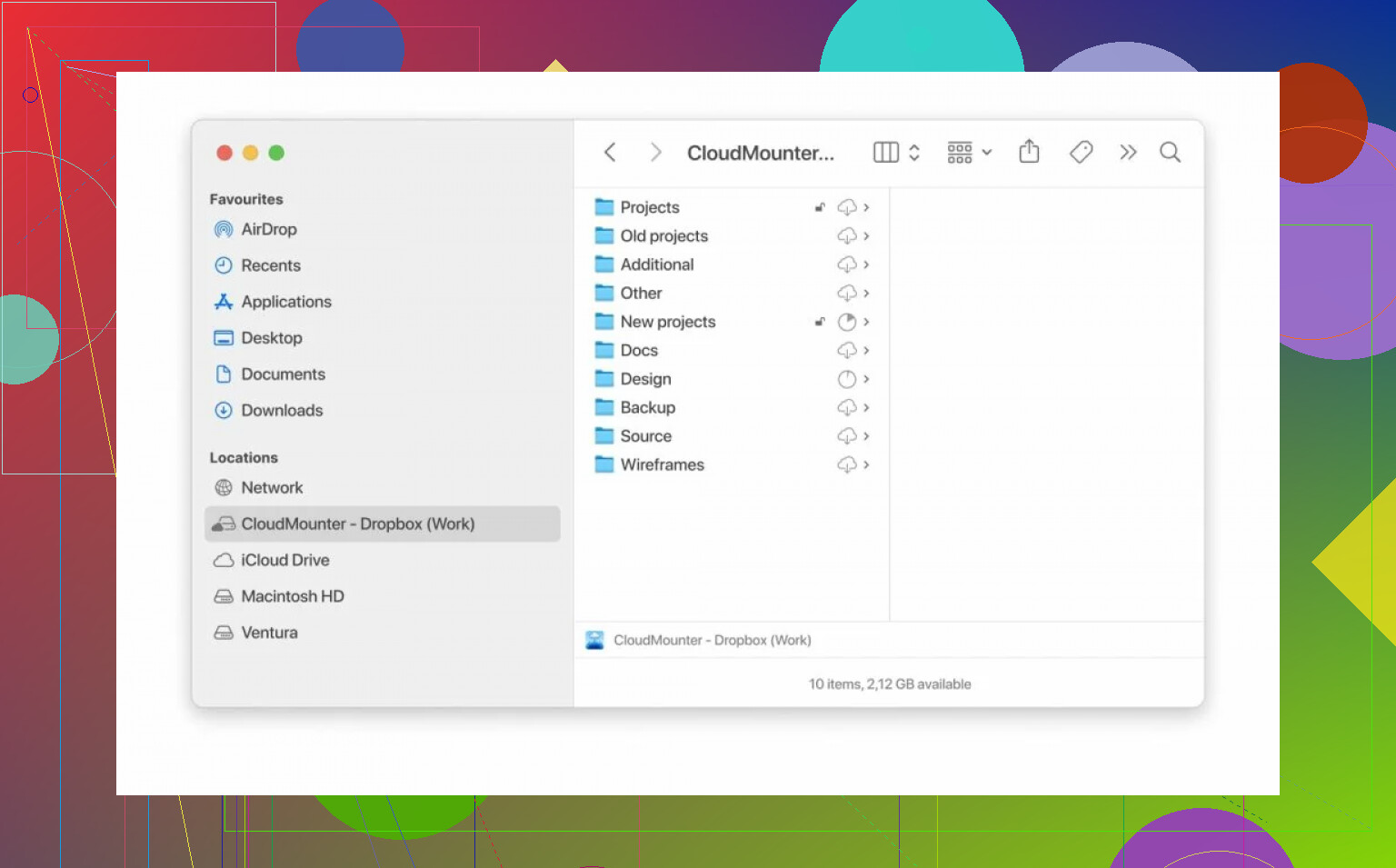
- They show up on your Mac like mounted drives, so you can drag files between them using Finder as if they were regular folders.
- I didn’t have to create weird extra user profiles or duplicate app installs.
- Transfers happen directly between accounts and your machine without jumping through web UI hoops.
The big win for me is that I can:
- Move something from a client’s Google Drive to a shared Dropbox folder in a couple of seconds.
- Keep personal and work clouds connected at the same time without logging in/out all day.
- Avoid syncing entire massive folders locally if I only need small pieces here and there.
It handles several services at once and keeps access local and private. From my side it just feels like “these are extra drives, use them however you want.”
Quick summary
If you only use one service and a single account, any of the three will do the job:
- Want fast and clean file sync? Dropbox is good.
- Deep into Microsoft 365? OneDrive is the default.
- Live inside Gmail/Docs? Google Drive is natural.
But if your reality looks like:
- “I have multiple accounts on each of these and I’m constantly moving files between them,”
then a tool like CloudMounter is what finally made that manageable for me. It basically turned the chaos of multiple Dropbox/OneDrive/Google Drive accounts into something I can actually deal with from one place.
2 Likes
Short version: for your use case, I’d pick one primary “ecosystem” provider and then patch the gaps with tools, not juggle three full‑time.
Since @mikeappsreviewer already covered the multi‑account chaos angle (and CloudMounter as a way to tame it), I’ll focus on which one should be “home base” for you.
Start with one key question
Where do you already live most of the day?
- If you’re in Gmail / Google Docs all the time → Google Drive
- If you’re in Word / Excel / Outlook / Windows → OneDrive
- If you’re mostly just doing file drops / send zips to clients → Dropbox
Don’t overthink features. Integration beats tiny differences in sync speed for most people.
Real‑world breakdown for personal + freelance
Google Drive
Best if your freelance work involves:
- Light docs, sheets, sharing drafts with clients in a browser
- Collab where people can comment / edit easily
- You already give clients a Gmail address anyway
Pain points: shared drives vs personal Drive can get confusing, and yes, multiple Google accounts is a circus. That’s where something like CloudMounter actually helps: mount each Google Drive separately in Finder/Explorer and treat them as folders instead of tabs you keep logging in/out of.
OneDrive
Makes sense if:
- You’re already paying for Microsoft 365 (seriously, that 1 TB is hard to beat)
- You send a lot of Office files to corporate‑type clients
- You want desktop backup for Documents/Pictures on Windows without fiddling too much
Issues: sync client can get weird (ghost sync errors, “processing changes” forever). People pretend it’s flawless; it isn’t.
Dropbox
Still nicest pure “file sync” in my experience:
- Great for project folders, especially lots of small files (code, design assets, etc.)
- Very predictable shared folders with clients
- Version history is solid when you’re iterating on stuff a lot
Downside: unless you’re paying, storage is tiny compared to the others. For personal + freelance, you’ll hit the wall pretty fast.
Actual suggestion based on your description
You said: personal files + small freelance projects and you’ve already tried all three a bit.
If I had to choose for that combo:
-
If you’re not tied to Microsoft 365 already
- Make Google Drive your main hub.
- Use Google Docs/Sheets for quick proposals, scopes, invoices drafts.
- Store personal photos/docs there as well, but keep an eye on space.
-
If you are paying for Microsoft 365
- Make OneDrive your main storage, just for the raw economics.
- Put project folders there; keep personal in a clearly separate folder tree.
- Keep shared links read‑only unless the client really needs edit access.
-
Use Dropbox only if:
- Most of your clients already use Dropbox, or
- You care more about “it just syncs” than about integrated apps, and you’re fine paying extra for storage.
Where I slightly disagree with @mikeappsreviewer
They leaned a lot into “use CloudMounter to juggle all three.” That’s valid if you’re deep in multi‑account hell already.
For you, I’d say: pick ONE main service first, then use something like CloudMounter only if:
- A client insists on sharing via their own Google Drive / Dropbox / OneDrive
- You want to connect a couple of client accounts without logging in/out
- You occasionally need to drag stuff between different clouds without downloading and reuploading
CloudMounter is great, but it should be the adapter, not the core of your setup.
Concrete, no‑BS recommendation
If you want a clear path and not 10 “it depends” scenarios:
- Not locked into Microsoft 365 →
Choose Google Drive as your main cloud. - Already paying for Microsoft 365 →
Choose OneDrive as your main cloud.
Then:
- Keep a free Dropbox account for the random client who only knows Dropbox.
- If/when you end up with multiple accounts (client drives, personal + work, etc.), grab CloudMounter so you can mount them all like regular drives and stop living in login purgatory.
You don’t need the “perfect” service. You need one main home and a sane way to cope with the inevitable exceptions.
Short version: none of them is “objectively best,” but one is probably clearly better for you based on what your day actually looks like.
I’ll push a slightly different angle than @mikeappsreviewer and @waldgeist: instead of just “pick one ecosystem,” think in terms of what kind of files you handle + who you collaborate with.
1. Start from your work style, not the apps
Ask yourself:
- Do you mostly send static files (ZIPs, PSDs, PDFs, exports)?
- Or do you do a lot of live collaboration (comments, co‑editing, clients poking at docs)?
- Are your clients more corporate / Office or startup / random Gmail addresses?
That alone kills 80% of the confusion.
2. When each service actually wins
Use Dropbox as your main if:
- Your freelance projects are mostly:
- Design / dev / assets / lots of small files
- Versioning of exported stuff, not so much online editing
- You want:
- Very reliable sync
- Simple, predictable shared folders
- You do not need deep integration with Docs or Office online
In real use, Dropbox still feels the least annoying for pure “folder of project files that just syncs.”
Downside: storage is stingy for the price, especially vs OneDrive.
Use OneDrive as your main if:
- You’re paying for Microsoft 365 or are deep in Word / Excel / Outlook
- Your clients send you .docx, .xlsx, PowerPoint decks all day
- You like automatic backup of Desktop / Documents on Windows
OneDrive wins on value-per-GB if you already have 365.
But: sync glitches are real. If random sync weirdness will drive you insane, factor that in. @mikeappsreviewer was actually kind of gentle about how flaky it can be sometimes.
Use Google Drive as your main if:
- You’re living in Gmail / Google Docs / Sheets already
- Your clients are mostly on Gmail or “just send me a link” level
- You want easy, browser-based collaboration
Drive absolutely destroys the others at fast, casual collaboration.
But your storage is shared with Gmail and Photos, so it fills absurdly fast, and multiple Google accounts will make you question your life choices.
3. My actual recommendation for your case
You said: personal files + small freelance projects, and you’ve used all three a bit.
If I had to be blunt:
-
If you don’t already pay for Microsoft 365:
- Pick Google Drive as the main brain.
- Use Docs/Sheets for proposals, scopes, contracts drafts.
- Keep main project folders in Drive, organize like:
/Freelance/ClientName/ProjectName/Personal/Finance,/Personal/Photos, etc.
-
If you do pay for Microsoft 365:
- Make OneDrive your main, because 1 TB+ for the same price as Office is hard to beat.
- Keep personal vs freelance split in the folder structure, not separate clouds.
Where I slightly disagree with both @mikeappsreviewer and @waldgeist:
I would not keep Dropbox actively in the mix unless:
- A bunch of your current or target clients are already sharing Dropbox links, or
- You really care about the “best” sync over having everything in one ecosystem.
Having 3 “main” clouds is how you end up losing a proposal draft in some random folder universe.
4. Handling the inevitable mess
Even if you pick one as “home,” you will still end up with:
- Client’s shared Google Drive
- Another client’s OneDrive
- Random old Dropbox links
That’s where CloudMounter actually does become relevant, but as a cleanup tool, not a lifestyle:
- Mount multiple Google Drives, OneDrives, Dropbox accounts as drives on your machine
- Drag files across clouds with Finder / Explorer instead of insane download‑reupload dances
- Keep your own “main” account logged in normally, and connect client stuff via CloudMounter when needed
So:
- Choose one:
- Google Drive if you’re not in 365 and want easy collab
- OneDrive if you’re paying for 365
- Dropbox only if you’re super file‑sync focused or clients demand it
- Keep the others as “guest platforms” you access on demand.
- Use something like CloudMounter when clients start throwing multiple accounts and shared drives at you, so you don’t drown in login tabs.
That setup is boring, but it actually scales, and you’re not spending half your workday figuring out which cloud your own stuff is in.
Use a 7-day bake-off instead of comparing feature lists.
Upload the same 2 GB test folder to all three. Include 200 small files, one large video, and one shared document. Each day, edit files on two devices, send a client link, restore an older version, and test offline access.
Score each service from 1 to 5 for speed, sharing, errors, and ease.
Keep the highest scorer. Move your files there, cancel the others, and review after 30 days. Your own workflow will show wich service fits, without more account juggling.
Check the device limit on free Dropbox before anyone tells you to keep it around as a backup. The free tier caps you at three linked devices, so if you already have a laptop, phone, and one more machine, you’re done. That kills the ‘just keep a free Dropbox for the odd client’ advice from a couple of the replies above unless you’re careful about what you connect.
I mostly agree with the ‘pick one home base’ logic, but the part nobody here is weighing is the exit cost. Once your freelance folders live in Google Docs or Office online, you’re not just picking storage, you’re picking a document format you’ll be married to. Export a pile of Google Docs and you get .docx files that sometimes come out with wrecked formatting, weird spacing, broken tables. Same going the other way. So the real question isn’t ‘which syncs nicest today,’ it’s ‘which one can I walk away from in two years without a bad weekend.’ Dropbox is actually the easiest to leave precisely because it doesn’t try to own your file formats. It’s just files.
The other thing worth knowing: Google deletes content in accounts that sit inactive for two years, and free storage policies shift around. For a personal hub that’s fine. For anything client related I’d never trust a free tier to just sit there safely. If you go Google or OneDrive as your main, be on a paid plan for the stuff that matters and treat the free accounts as scratch space.
On CloudMounter, I think @waldgeist framed it right calling it the adapter and not the core. It earns its place when a client throws their own Drive or OneDrive at you and you don’t want to pollute your main login. Where I’d push back slightly is the idea that mounting drives replaces syncing. Mounted cloud storage is great for dragging things around and grabbing files on demand, but it’s not the same as having a real local copy when your connection drops or you’re on a train. Don’t mount your active project and then wonder why editing feels laggy offline.
If you want a decision rule instead of five scenarios: not paying for Microsoft 365, go Google Drive and pay for the smallest plan that clears Gmail and Photos. Already paying for 365, use OneDrive and stop overthinking it. Keep everything client related in a paid account, keep a clean folder split between personal and freelance, and only reach for a mounting tool when someone else’s account enters the picture. The @just_node bake-off idea is genuinely good too, just don’t run it with important files, use throwaway copies so a sync glitch during the test doesn’t cost you anything real.