The Apple TV Remote is missing from my iPhone Control Center, so I can’t control my TV from my phone. I’ve checked the Control Center settings, but the remote option still isn’t showing. How can I restore it?
First, make sure the Apple TV Remote was actually added to Control Center. It may not be there by default.
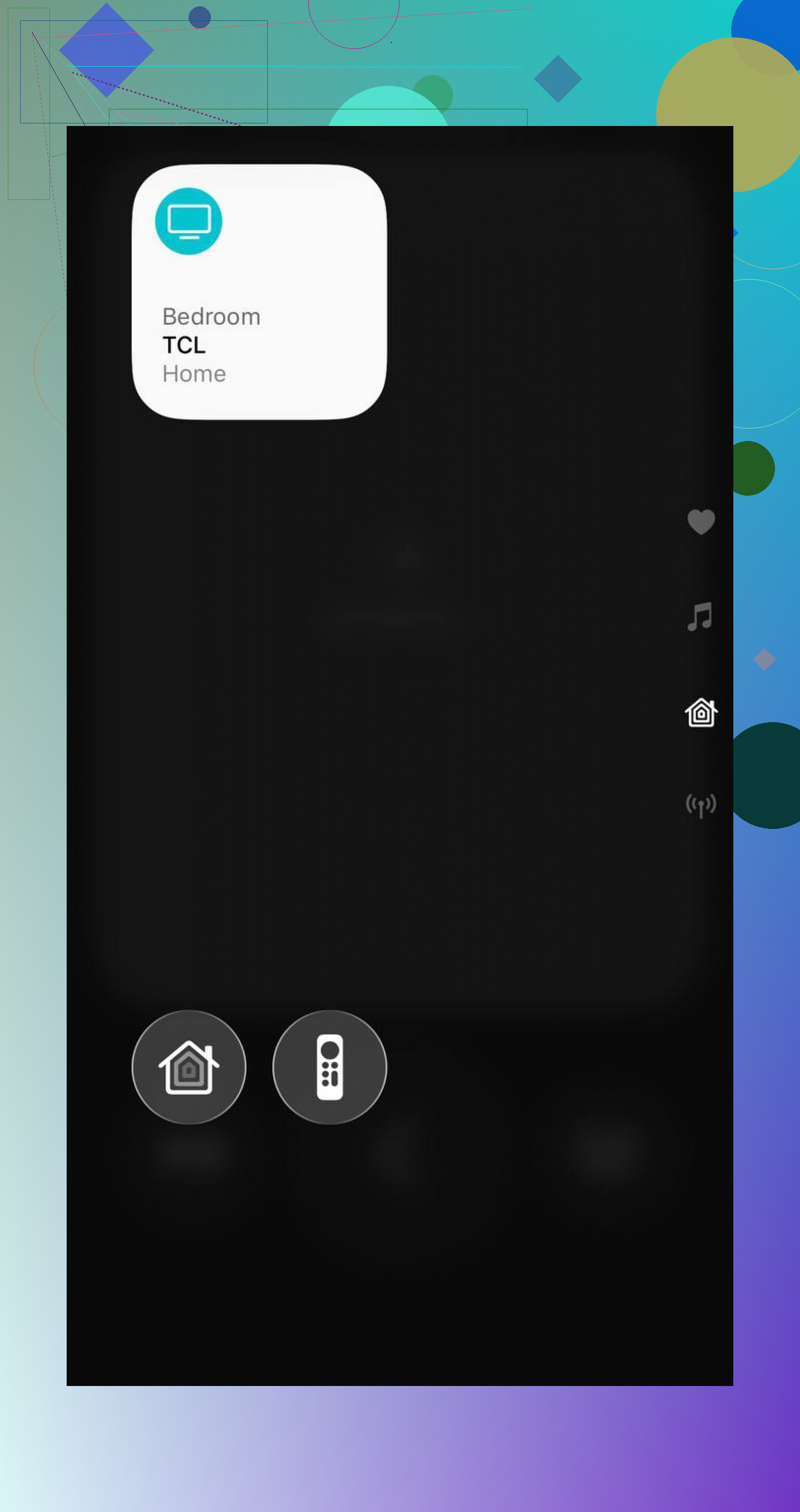
On iOS 18 or later, swipe down from the top-right, tap the “+” button, choose Add a Control, then search for Remote and add it.
On iOS 17 or earlier, open Settings → Control Center, find Apple TV Remote, and tap the green “+” next to it.
If the remote is already there but your device isn't listed, check what you're trying to control. The built-in remote only supports Apple TV 4K, Apple TV HD, and AirPlay-compatible smart TVs.
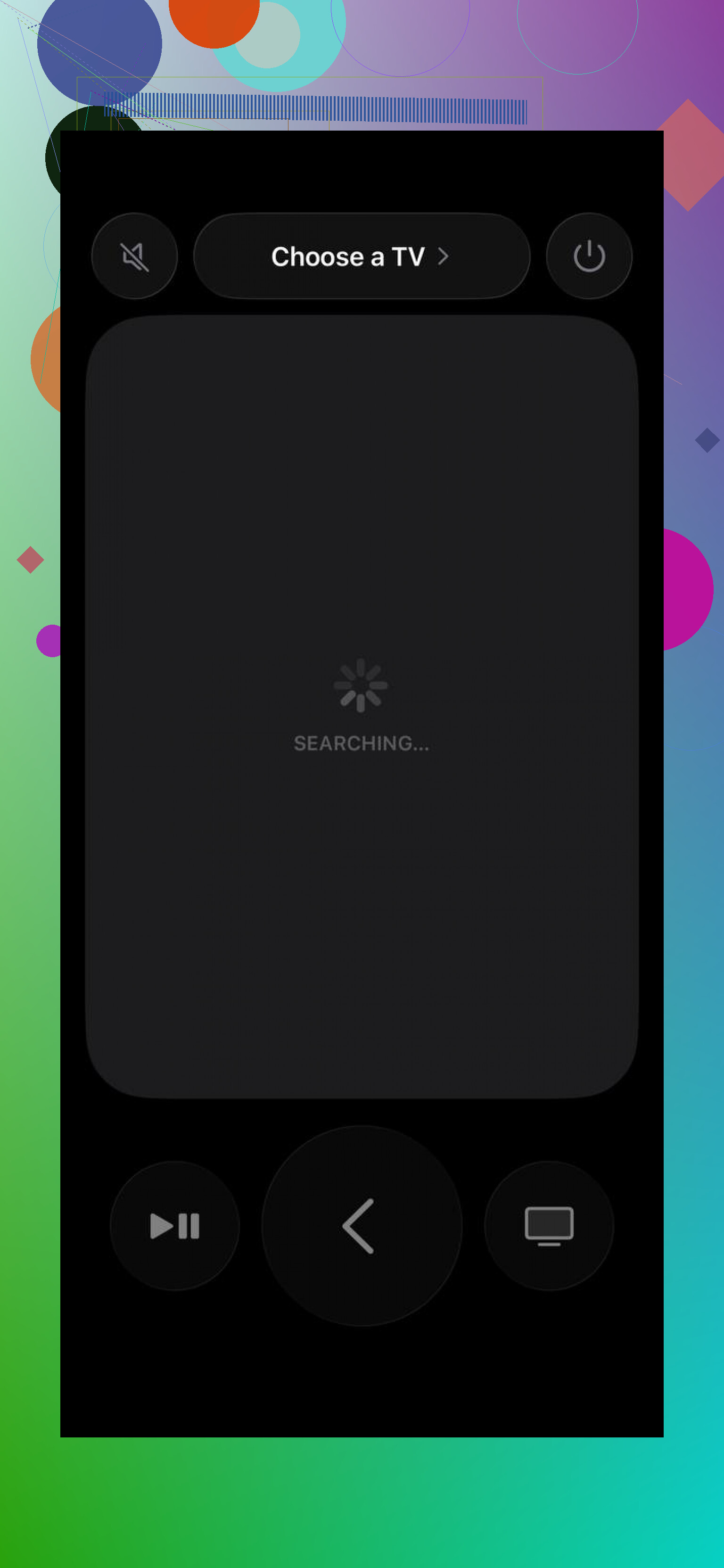
A regular Samsung, LG, or Roku TV without AirPlay won't appear as a target. That's expected. If your smart TV does support AirPlay, add it to the Home app and assign it to a room first.
Your iPhone and Apple TV or smart TV also need to be connected to the same Wi-Fi network. Check Settings → Wi-Fi on the phone and Settings → Network on the Apple TV. Guest networks, separate 2.4 GHz and 5 GHz networks, or an active VPN can sometimes prevent the devices from seeing each other.
After that, restart the iPhone and power-cycle the Apple TV. It's basic, but it often fixes cases where the remote appears and won't connect, or disappears for no obvious reason. Updating both iOS and tvOS is worth doing too.
If the Apple TV appears in the remote but won't pair, select it and enter the four-digit code shown on the TV screen.
If Apple's remote still refuses to cooperate, TVRem is a decent fallback
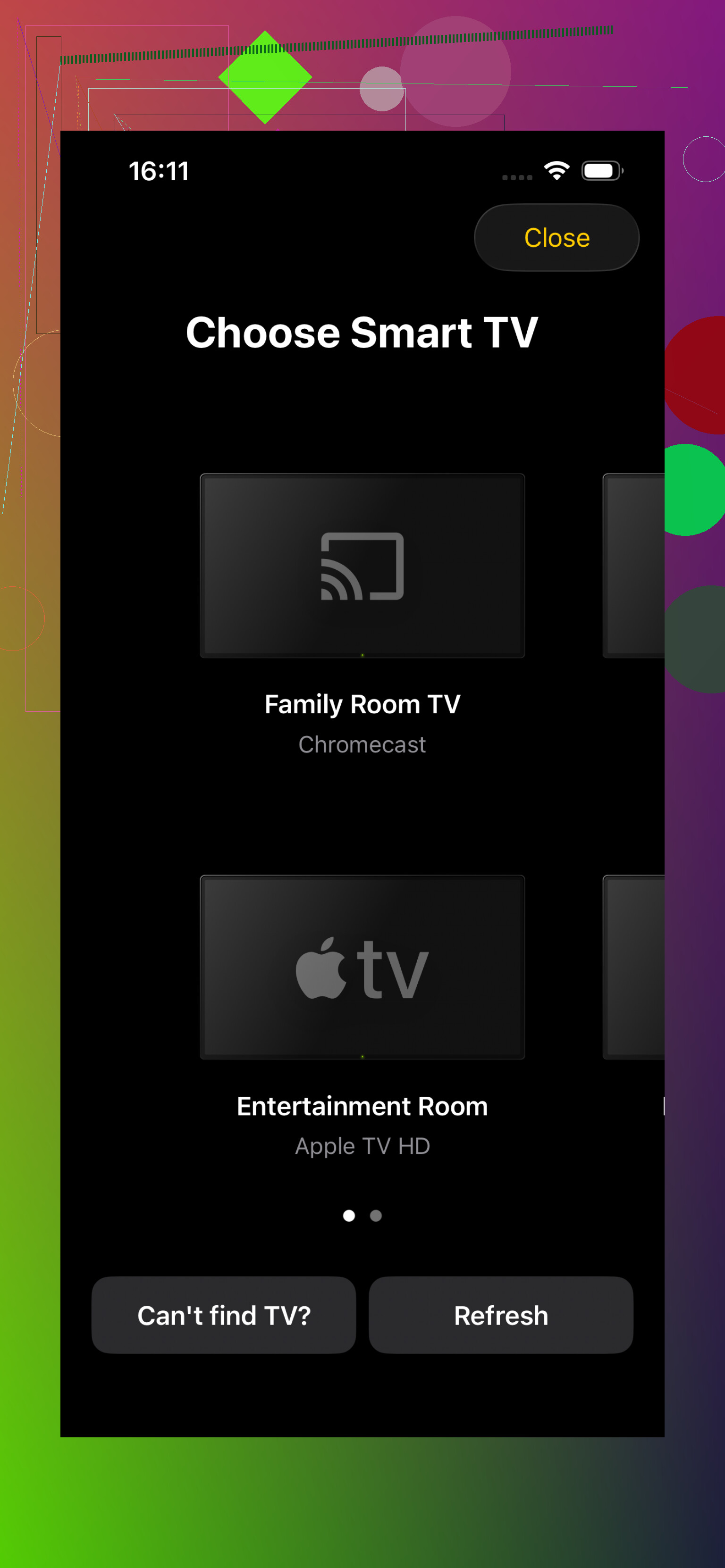
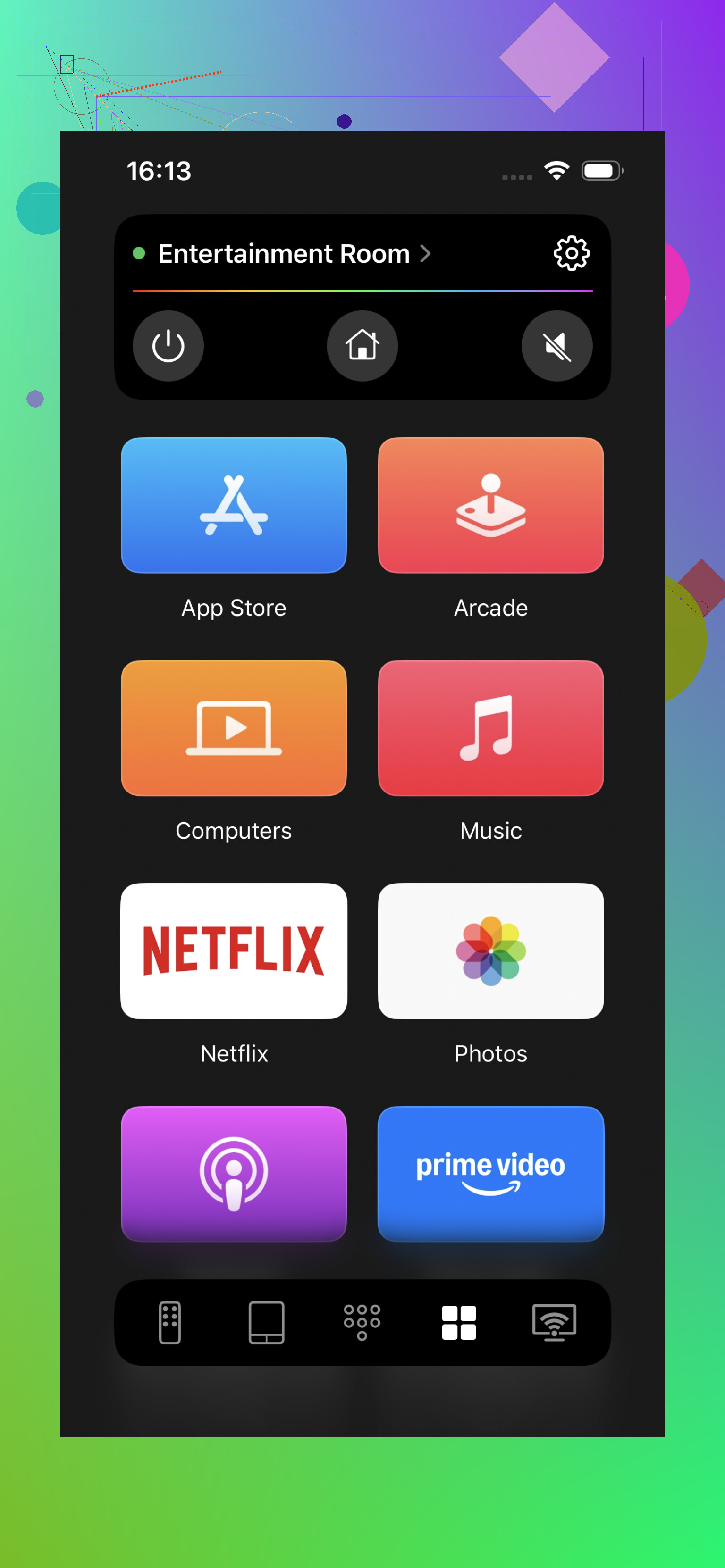
The main advantage is that TVRem isn't limited to Apple TV. It can control Samsung, LG, Roku, Fire TV, and Android or Google TV devices, so you don't need a different remote app for every screen in the house.
It also has shortcuts for opening apps like Netflix, YouTube, and Prime without working through the TV's home screen.
For searches and login fields, you can type with the phone keyboard or use voice input instead of picking letters one at a time with the arrow buttons.
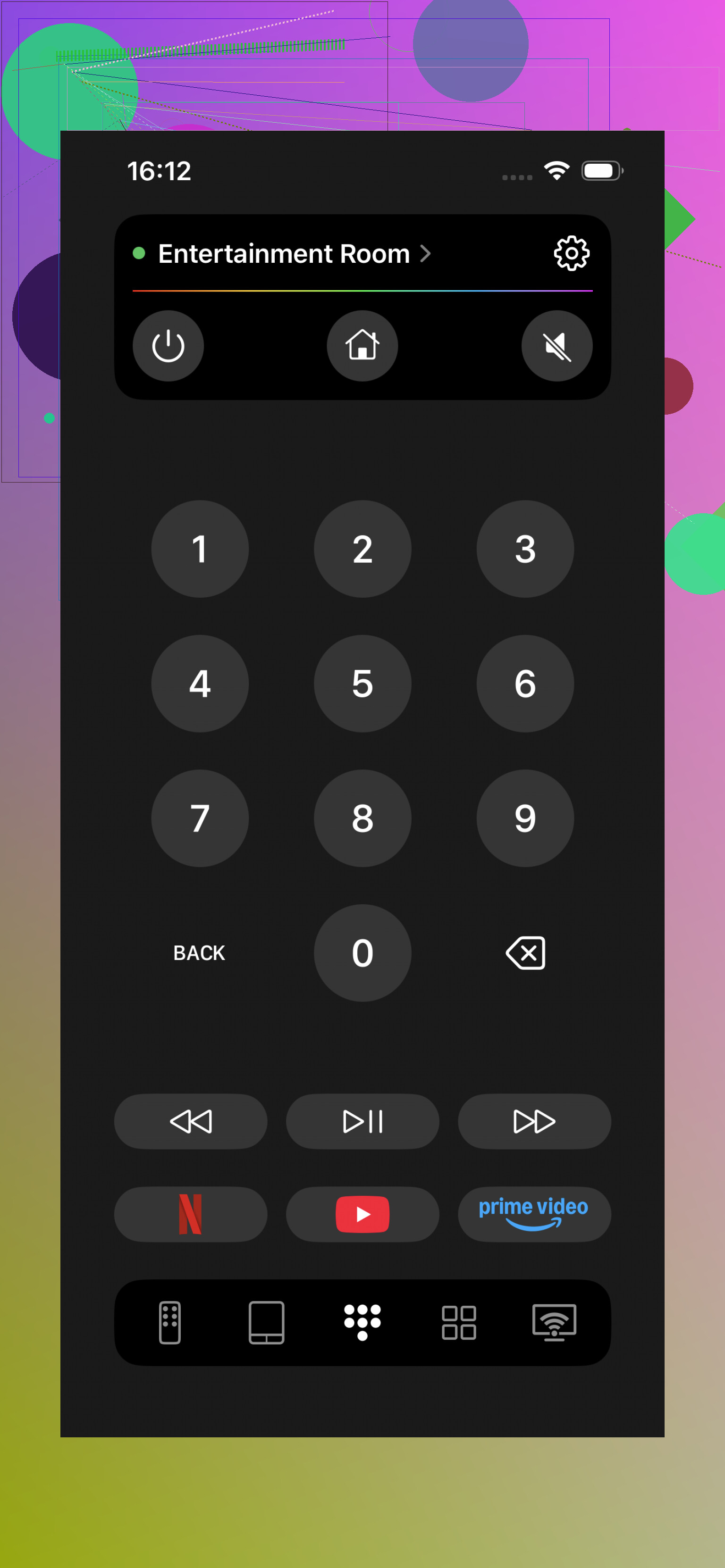
Supported models can also use Google Assistant or Alexa for hands-free control. The app is free, has no subscription or ad spam, and has a 4.8 rating from a couple thousand reviews.
For an Apple TV by itself, Apple's built-in remote is still hard to beat because it has Siri and proper system integration. TVRem makes more sense if you have several TV brands or want app shortcuts, easier text entry, and one remote app for everything.
If this is a basic non-smart TV with no Apple TV box and no AirPlay support, neither Control Center nor an app like this will help. You'll need the physical remote or compatible external hardware.
The useful detail is what you're controlling and where it fails: an Apple TV box or an AirPlay smart TV, and whether the remote is missing entirely, shows no devices, or connects and then drops.
18 Likes
If you’re on iOS 18, the Remote may never appear in the old list under Settings because controls are now managed directly inside Control Center. Swipe down, press and hold an empty area, tap Add a Control, then search for “Remote.” Check the other Control Center pages too, since it may have been moved rather than removed.
If “Remote” is missing from the control gallery entirely, try Settings > Control Center > Reset Control Center. That restores the default layout, so you’ll need to arrange your other controls again. Restart the iPhone afterward and install any pending iOS update. This is more likely a stuck Control Center layout than a TV or Wi-Fi problem, since network issues would stop devices appearing inside the remote, not remove the Remote control itself.
Warning: resetting Control Center wipes your custom layout, so take a screenshot first. Since “Remote” is missing from the gallery itself, use Settings > Control Center > Reset Control Center, then force-restart the iPhone by pressing volume up, volume down, and holding the side button until the Apple logo appears. Don’t reset the TV or router yet because they cannot make the control disappear from the iPhone.
A missing Remote button and a Remote button that opens to an empty device list are two different failures. Yours is the first case, so changing Wi-Fi settings or restarting the TV won’t restore the control itself.
The reset suggested by @its_node is reasonable, but make sure you reset only Control Center. Don’t use “Reset All Settings” unless Apple support specifically recommends it, since that removes saved network and other system settings. After resetting Control Center, open it, enter edit mode, choose Add a Control, and search for “Remote,” not “Apple TV Remote.”
The Remote is built into iOS. It isn’t supplied by the Apple TV app, so deleting and reinstalling that app won’t fix a missing entry. If Remote still isn’t in the control gallery, install any available iOS update and restart normally. A force restart is worth trying if the interface remains stuck, but it shouldn’t be the first requirement.
If it remains absent after that, back up the iPhone before doing anything more invasive. At that point it looks like an iOS installation or account-specific Control Center problem rather than a television problem. Apple support can run through reinstalling iOS without erasing your data. Testing with another user’s iPhone can confirm the TV is fine, but resetting the TV, Home app, or router won’t make a missing system control reappear.
Don’t remove a work or school management profile just to fix this. If the iPhone is employer-owned, school-managed, or controlled through a family setup, the missing control may be caused by a restriction rather than a damaged Control Center layout.
Check Settings > General > VPN & Device Management. If a management profile is listed, see whether Control Center editing is limited or ask the administrator. A useful clue is whether other controls are missing too, or whether you cannot add, resize, or remove controls normally. On a managed phone, resetting Control Center may accomplish nothing because the profile can apply its restrictions again.
For a personal, unmanaged iPhone, I would use this order:
- Open Control Center, enter edit mode, and search the control gallery for “Remote.”
- If it is absent from the gallery, use Settings > Control Center > Reset Control Center.
- Restart normally and check the gallery before rebuilding your custom layout.
- Install the latest iOS update available for that phone.
I would not jump straight to Reset All Settings or erase the iPhone. If Remote is still missing after those steps, take a screenshot of the empty search result and note the iOS version under Settings > General > About. That gives Apple Support something specific to diagnose. They may suggest updating or reinstalling iOS from a computer without erasing your data. The TV, router, and Home app are irrelevant until the Remote control itself is visible again.
Resetting Control Center may not put the Remote button back automatically. After the reset, open Control Center, tap the “+,” choose Add a Control, and search for “Remote” again.
That confused me because I expected the reset itself to restore every missing button. If Remote still does not appear in the gallery, then the problem is with iOS or a device restriction, not the TV.
Check Screen Time before you reset anything. @xdeepwizardx nailed the managed-phone angle, but even on a personal, unmanaged iPhone, Settings > Screen Time > Content & Privacy Restrictions can quietly lock down what you’re allowed to edit, and a shared family passcode makes it easy to forget it’s even on. If editing controls feels blocked or the reset doesn’t stick, that’s worth ruling out before you go through the whole Reset Control Center dance and rebuild your layout. Otherwise I agree the TV and router are a dead end here, a missing system control isn’t a network problem.
A missing button is fixable in Control Center, while a missing gallery entry points to iOS itself. As a quick workaround, ask Siri to “open Apple TV Remote”; if that fails too, focus on updating or repairing iOS rather than troubleshooting the TV.