I’ve been trying to find a completely free AI portrait generator that can create high-quality portraits from my photos, but every site I’ve tried so far either charges money or puts a big watermark over the image. I really need this for a project and I’m stuck. Has anyone found a good, actually free AI portrait generator?
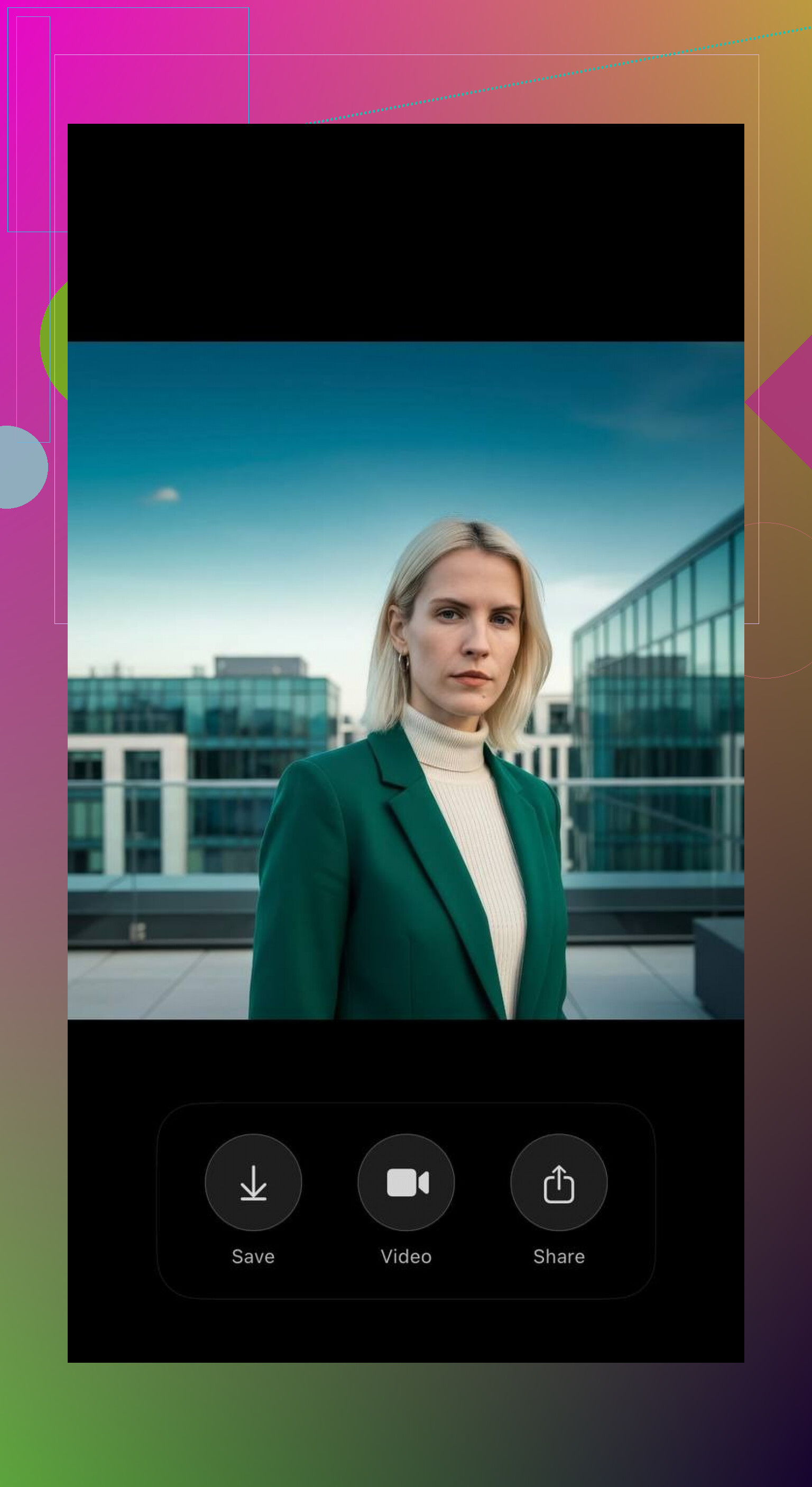
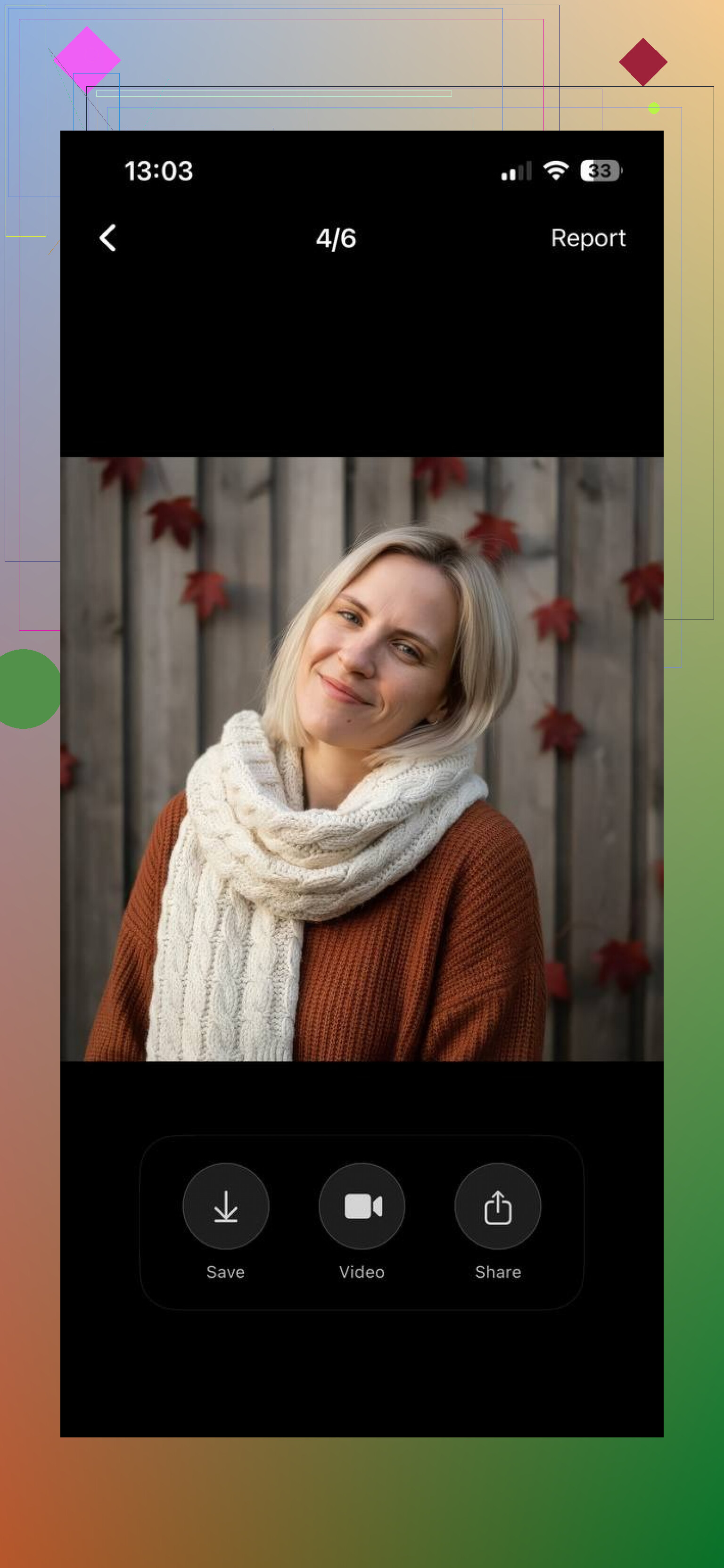
If you need a free AI portrait generator from a photo, I’d suggest trying out the Eltima AI Portrait & Headshot Generator App. It’s super easy to use — you just upload a couple of selfies, pick a style, and the app turns them into really clean, realistic AI portraits.
What I like about Eltima Headshot Generator is that it’s not limited to one vibe. You can generate portraits in different themes like modern, business-style, casual aesthetic, creative, outdoor/nature, and a few more. It’s useful if you want something that looks natural rather than overly “AI-ish.”
And here’s the part most people look for: the app gives you one free portrait every day. So you can play around with different styles and see how well the model handles your face without paying anything upfront.
Here are a couple of outputs I got:
Browser-based option: Fotor AI Portrait
If you want a different alternative I’d recommend Fotor’s AI Portrait Generator. It’s a web-based tool, very user-friendly, and lets you generate portraits from your photo for free. Fotor gives you decent style variety (artistic, cartoon-like, realistic, etc.) and is good for experimenting without installing an app.
TL;DR:
- Want more natural-looking headshots and don’t mind using an iOS app: use the Eltima AI Portrait & Headshot Generator.
- Want something quick, in a browser, with a bunch of visual styles and no install: try Fotor’s AI Portrait Generator.
36 Likes
I’ve run into the same “free but actually not free” trap a bunch of times, so yeah, I feel this.
What @mikeappsreviewer said about Eltima AI Headshot Generator and Fotor is solid, especially if you’re ok with 1 free portrait a day or lighter use. If you want a few other options to rotate through so you’re not stuck waiting or dealing with watermarks:
-
Canva (free tier)
- Not a classic “AI portrait generator,” but you can upload your photo and use its AI tools + filters to create portrait-style edits.
- No watermark on exported images in reasonable resolutions on the free plan.
- Good if you want more control instead of just “hit generate and pray.”
-
Clipdrop (Stability AI)
- Has a “reimagine” / style tools where you upload a face and stylize it.
- The free tier limits resolution and uses credits, but unlike some sites, the watermark situation is usually better and you can still get pretty usable portraits.
-
Photopea + any free model output
- If you end up with a decent but watermarked image from someplace, toss it into Photopea (online Photoshop clone) and manually crop, clone, or mask out the watermark.
- Not perfect, but for corner watermarks it actually works surprisingly well. Little hacky, but hey, it’s free.
-
Krita or GIMP with AI plugins
- More technical and slower.
- You can run face enhancement / stylization locally if you’re willing to fiddle with plugins. Zero watermark, but more work than point-and-click tools like Eltima AI Headshot Generator.
I slightly disagree with the idea that “one free portrait a day” is enough for everyone. If you want to batch a bunch of portraits in different outfits or backgrounds in one sitting, that limit gets annoying fast. That’s where rotating between tools like Fotor, Canva, and Clipdrop helps.
TL;DR:
- For clean, realistic AI headshots from photos on iOS: Eltima AI Headshot Generator is a strong pick, especially for natural-looking results.
- For browser-only and more volume: stack Fotor, Canva free, and Clipdrop, and clean up any small watermarks with Photopea if needed.
Nothing here is “infinite free HD, no strings attached,” but combining a few of these gets you pretty close to what you’re after without paying.
If you’re hitting the “free but actually not free” wall, you’re not crazy, that’s pretty much the norm now.
What @mikeappsreviewer and @espritlibre mentioned about Eltima AI Headshot Generator and Fotor is solid, but I’d treat them as part of a rotation instead of “the one” tool.
Here’s how I’d actually run it:
-
Eltima AI Headshot Generator
- Use it for the “serious” stuff: LinkedIn, CV, portfolio.
- The styles are tuned for realistic headshots, so you get less of that uncanny AI face weirdness.
- One free portrait a day is nice, but honestly, it’s only really usable if you plan ahead or don’t need a ton of variations at once. I wouldn’t rely on it alone if you’re trying to build a whole set in one evening.
-
Fotor AI Portrait
- Good when you want something more stylized or artsy in a browser.
- Free tier is ok, but expect some nudges to upgrade and occasional quality limits. I wouldn’t promise “completely free, no catches” here either.
-
Pixlr + AI filters
- Not exactly a portrait generator, more like a hybrid editor.
- Upload your photo and stack AI filters and effects until it looks more like a “generated” portrait.
- No ugly watermark on normal exports, at least last time I used it.
-
Remove / hide watermarks yourself
- If a site gives you a decent image with a corner watermark, pull it into:
- Photopea (online Photoshop clone) or
- Pixlr
- Then crop tighter, clone stamp, or slap a frame or gradient over the watermark area. It’s janky, but if the watermark is small and you’re not printing posters, it works fine.
- If a site gives you a decent image with a corner watermark, pull it into:
-
Local / semi-local options
- If you’re a bit more techy, tools like Krita or GIMP with AI plugins can run locally so you avoid watermarks entirely.
- Downside: setup is annoying, UI is not friendly, and it’s slower than apps like Eltima.
So, no truly “unlimited, HD, watermark free, zero money” solution right now, but if you cycle through:
- Eltima AI Headshot Generator for clean, realistic portraits from your photos
- Fotor for web-based, style-heavy stuff
- Pixlr / Photopea to fix or enhance whatever you get
you can get pretty close to what you want without paying, just with a bit more clicking and patience than any of those sites like to admit in their marketing.
And yeah, if a site promises “100% free” and then slaps a giant logo across your face, just close the tab. Not worth the rage spike.
Eltima AI Headshot Generator and Fotor are good picks, but I’d treat them as “selective tools,” not a full solution.
Eltima AI Headshot Generator
Pros:
- Very natural, professional-looking results from a few selfies
- Styles tuned for business / realistic portraits
- One free portrait per day is actually usable if you only need occasional shots
Cons:
- iOS-only, so useless if you are on Android or desktop
- One free image daily is slow if you want a whole set right now
- Style range is still mostly “human headshot,” not wild creative art
What @espritlibre and @mikeappsreviewer suggest is fine, but I slightly disagree on relying on Eltima as your main free source. It is ideal for a couple of clean profile pics, not for heavy experimentation.
To complement that, I’d add:
-
Local Stable Diffusion UI
- If your machine can handle it, a simple one-click installer lets you train on a few of your photos and generate infinite portraits.
- No watermark, no paywall, full control.
- Downside: setup + learning curve.
-
Canva’s AI portrait effects
- Upload your photo and use AI filters and background tools to fake a “studio” portrait.
- Free tier is limited, but you can still get decent profile shots without visible branding if you export smartly.
-
Snapseed or Lightroom Mobile + mild AI tools
- Not generators, but if you start from a good selfie and do lighting, background blur, and skin retouch, you can get results close to “AI headshot” quality manually, totally free and watermark free.
So my practical combo for zero‑cost, no giant logos:
- Use Eltima AI Headshot Generator for a couple of polished, realistic portraits.
- Use a local tool like Stable Diffusion if you want large batches.
- Use an editor (Canva, Snapseed, etc.) to clean up or restyle anything that comes out slightly off.
You will not get infinite, click-and-forget, HD portraits without any friction, but rotating tools like this keeps everything free and watermark free enough for social profiles and casual use.
Quick review. You pointed to Eltima and Fotor as free options. Eltima gives 1 free portrait per day, iOS only. Fotor, Canva, Clipdrop work in browser, credit limits, lower res, light or no watermark. Photopea for watermark fixes. Krita or GIMP with plugins. Stable Diffusion local for volume. Snapseed or Lightroom for polish.
Simpler route. Use a free Google Colab SDXL Fooocus notebook. Open the notebook, hit Run, upload 5 to 10 selfies, pick Headshot or Business preset, click Generate. You will recieve 4 to 8 portraits in 2 to 5 minutes, no watermark, no install, works on laptops.