Struggling to Get Your Android and Mac to Talk? Here’s What Actually Works
So, you plug your Android phone into your Mac, ready to drag and drop a bunch of files, and… nothing happens. No buzzy notification, no Finder window popping up. Been there. Here’s what I’ve figured out after way too many attempts to make these two play nice.
The Unspoken Truth About Cables
Ever buy one of those mystery USB cables that show up in your kitchen drawer and wonder why it just won’t do anything? Apparently, not all USB cables are created equal. Some are basically glorified power cords – they’ll charge your phone, sure, but data transfer? Forget it.
Here’s how I test:
- Plug the cable in.
- Unlock my phone. Swipe down from the top.
- If the only thing I see is “Charging this device via USB”—that’s it. Useless for files.
When I switched to the cable that came with my phone (or one with a clear “data/sync” label), the Android actually asked me if I wanted to allow access to files. That’s the green light you want.
The Connection Game: Is It Even Plugged In?
You ever feel like you shoved the cable in, but it just isn’t officially connected? Sometimes it’s a simple as dust in the port, or a thick phone case blocking the plug from seating. Pull the case, give the ports a little clean—you’d be surprised how often just reseating the cable fixes the “invisible phone” problem.
That Mysterious USB Menu
This tripped me up the first few times: Once everything’s plugged in, swipe down on your phone for the notification bar. You’ll see something about “USB for…” (sometimes hidden behind another notification). Tap that.
Options show up like:
- File Transfer (use this if you just want drag-and-drop)
- Android Auto (for cars)
- Charging Only (don’t use this, unless you just want a battery top-up)
- Transfer Images
- Media Device (MTP)
Pick “File Transfer” unless you’re up to something else. If you pick wrong, your Mac acts like nothing is there.
Just… Restart Everything
Classic but effective: Reboot both your phone and your Mac. Whatever space gremlins are causing the problem sometimes just vanish after a restart. This step has made me feel silly more than once, but I do it anyway.
Don’t Trust the Transfer App? Reinstall It
If you’re using something like Android File Transfer, toss it in the trash and reinstall. I’ve found it can get weirdly stuck after macOS updates, or sometimes just refuses to launch. Reinstalling flushed out whatever settings were holding it back.
Toggle Device Access (My Secret Sauce)
Here’s the odd fix: On your phone, jump into settings and look under “Connected Devices.” I flipped back and forth between device options—I literally toggled it from “Connected Device” to “This Device” and back. Suddenly, my Mac recognized the phone. Sometimes, Android just wants a little attention.
When Nothing Else Works: Alternative Apps
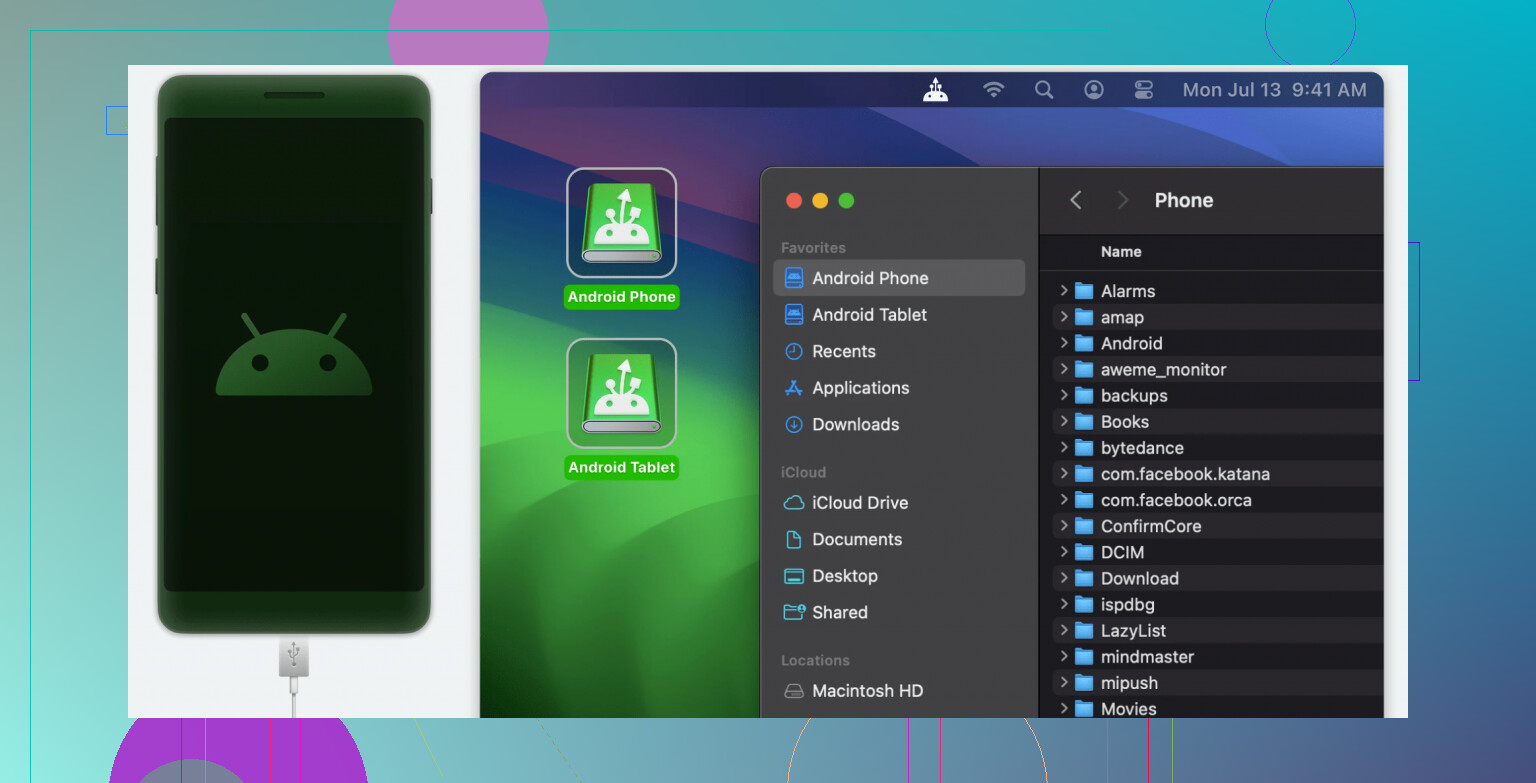
Honestly, at some point, I chose to avoid the hassle altogether. I grabbed MacDroid. It talks to Android devices via USB or Wi-Fi and shows your device right in Finder, no extra setup madness. Life’s too short to wrestle with default tools that don’t want to cooperate.
Checklist
- Use a data-capable cable (NOT charge-only)
- Plug stuff in securely, clean the ports
- Choose “File Transfer” in your phone’s notification bar
- Restart both devices
- Reinstall your file transfer app if it’s buggy
- Toggle device settings as a last-ditch resort
- Try MacDroid if nothing else works
Hope this spares you at least one wasted afternoon. If all else fails, let us know—someone out here has definitely seen your flavor of weird file-transfer drama before.